You're about to send an email to a client, and your manager needs to know it went out. But should you CC her, or just forward it after? And what about the six other colleagues who touched this project?
The CC and BCC fields are easy to overlook, but using them wrong can expose email addresses, trigger unnecessary reply-all chains, or quietly damage trust. Here's what they mean and how to use them well.
Simply the difference between CC and BCC is:
CC (carbon copy) means copying someone into an email so they receive it for information. All recipients can see who was CC'd.
BCC (blind carbon copy) means copying someone privately. Other recipients can't see that they were included.
What does CC mean in email?
CC stands for “carbon copy.” The term comes from the days of paper memos, when a sheet of carbon paper was used to duplicate the original document. In email, it serves the same purpose: to copy someone into a message for visibility.
When you CC someone, every recipient can see who else was copied. It’s a transparent way to include additional people who don’t need to take action but should stay informed.
Fyxer cuts through inbox clutter by surfacing only the emails that need your attention and filing the rest automatically
Everyone listed in the To and CC fields can see each other’s names and email addresses. When someone chooses Reply All, their response goes to everyone included in both fields. If they select Reply, only the original sender receives it. People in the CC field aren’t expected to respond.
Best practices for using CC
Use it for visibility, not for every minor message.
Mention CC’d recipients in your message so everyone knows why they’re included.
Avoid overloading the CC line. If someone doesn’t need the information, leave them off.
When forwarding, summarize context so new CC’d readers can follow along easily.
What does BCC mean in email?
BCC stands for “blind carbon copy.” It lets you send an email to someone without revealing their address to other recipients. People listed in the BCC field receive the email but remain invisible to everyone else.
This feature protects privacy and prevents unnecessary group replies, but it also carries ethical weight. Because BCC hides information, it should be used thoughtfully.
Because it hides recipients, BCC can create misunderstandings or mistrust if discovered. Research published in Computers in Human Behavior found that senders who secretly used BCC were perceived as less moral and less trustworthy than those who used CC. Even when done for practical reasons, people often interpret BCC as deceptive if it comes to light.
Use it when privacy truly requires it, not as a way to monitor or “loop in” someone secretly.
How BCC works
Recipients in the BCC field receive the email, but no one else knows they’re included. If a BCC recipient replies with Reply All, their identity becomes visible, which is unfortunately a mistake that can expose the hidden copy. Using Reply sends their response only to the original sender. Many professionals also BCC themselves to keep a discreet copy of the message in their inbox for reference.
Best practices for using BCC
Use it to protect recipients’ privacy in group or external emails.
Avoid using it to hide information from colleagues or managers.
BCC yourself if you want a discreet copy for your records.
BCC vs CC: What are the key differences
Both CC and BCC let you copy others into an email, but they serve very different purposes.
With CC (Carbon Copy), everyone included can see who else received the message. It’s a transparent way to share information and keep communication open. CC works best when collaboration or visibility is important, like keeping stakeholders updated or ensuring everyone involved is aligned.
With BCC (Blind Carbon Copy), recipients remain hidden from each other. It’s designed for discretion, such as when you’re sending the same message to a large group or protecting recipients’ privacy. BCC recipients don’t appear in reply-all responses, which helps avoid clutter and accidental email chains.
In short: CC is about transparency and teamwork; BCC is about privacy and control. Overusing CC can lead to inbox overload, while misusing BCC can raise ethical or trust concerns if discovered.
Column
CC
BCC
Visible to other recipients?
Yes
No
Can they reply-all?
Yes
Risks exposure
Best for
Transparency, team visibility
Privacy, bulk sends
Triggers reply-all chains?
Yes
No
How to use BCC and CC in Outlook
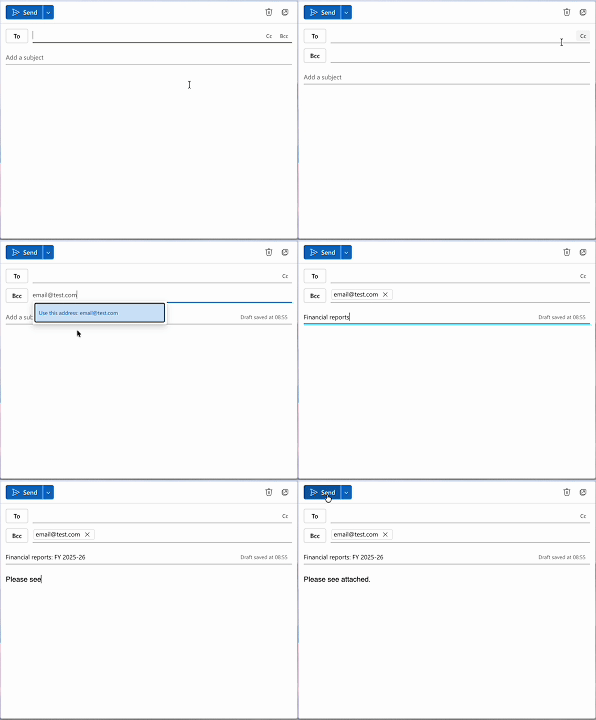
Outlook displays the CC field by default when you open a new message. BCC takes one extra step to reveal, but once you know where to find it, adding recipients to either field takes seconds.
How to add BCC in Outlook
Open a new email by clicking New Email in the top left.
Go to the Options tab in the ribbon at the top of the compose window.
Click BCC. The BCC field will appear below the CC field in your message.
Type the recipient's email address into the BCC field.
Compose your message and send as normal.
Once you've enabled the BCC field once, it stays visible for all new messages in that session.
How to CC in Outlook
Open a new email by clicking New Email.
The CC field is visible by default, directly below the To field.
Click into the CC field and type the recipient's email address.
Compose your message and send as normal.
If you're replying to an existing email rather than composing a new one, click Reply All or open the reply window and type directly into the CC field that appears.
How to use BCC and CC in Gmail
Gmail keeps both fields hidden until you need them, which catches a lot of people off guard. They're easy to find once you know where to look, and the process is the same whether you're on desktop or the mobile app.
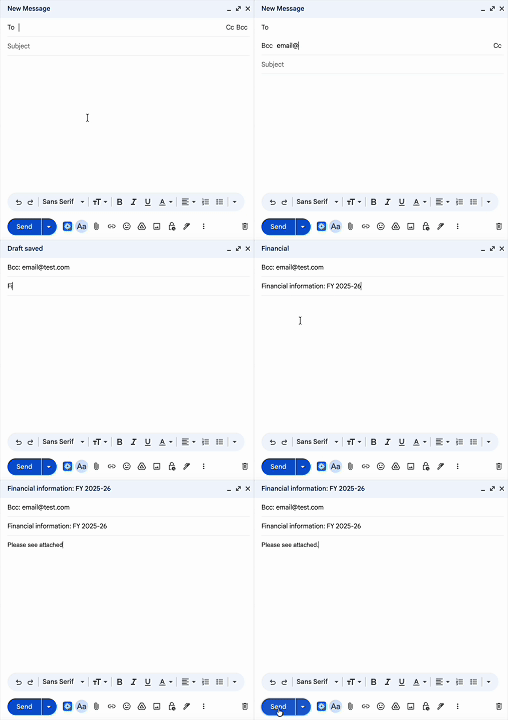
How to BCC in Gmail
On desktop:
Click Compose to open a new message.
In the top right corner of the compose window, click BCC. The BCC field will appear below the CC field.
Type the recipient's address into the BCC field.
Compose your message and send as normal.
On mobile:
Tap Compose.
Tap the small downward arrow or chevron to the right of the "To" field.
The BCC field will appear below CC.
Tap into it and add your recipient.
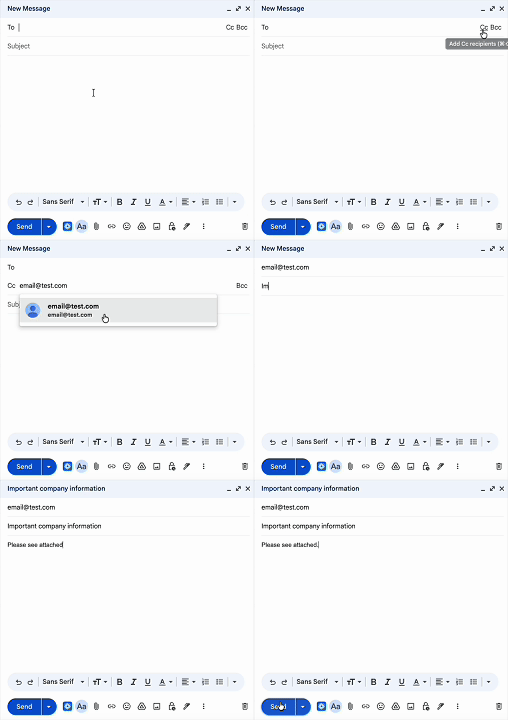
How to CC in Gmail
On desktop:
Click Compose to open a new message.
In the top right corner of the compose window, click CC. The CC field will appear directly below the "To" field.
Type the recipient's address and compose your message as normal.
On mobile:
Tap Compose.
Tap the downward arrow or chevron to the right of the "To" field.
The CC field will appear. Tap into it and add your recipient.
When to use CC vs BCC
Choosing between CC and BCC depends on the purpose of your communication and the relationships involved. If you're managing a high volume of client threads, a well-placed CC keeps the right people informed without a separate follow-up email. It's a small habit that protects accountability at scale.
Use CC when:
Everyone copied should know who else is in the loop.
You want to maintain transparency across a team or project.
It’s acceptable (or expected) for people to reply or follow up.
You’re documenting communication for accountability, e.g., confirming next steps.
Use BCC when:
You need to email a large group without sharing their addresses.
The message doesn’t require responses from everyone.
You want to avoid reply-all chaos in a bulk message.
Privacy or confidentiality is essential: for example, client lists, sharing financial data, HR announcements, or external contacts.
General rule of thumb: If you’d feel uncomfortable explaining why someone was secretly copied, don’t use BCC. Transparency builds trust; secrecy often erodes it.
Email etiquette: How to use CC and BCC professionally
Email etiquette is as much about perception as function. Used well, CC and BCC show professionalism and respect for others’ time. Used carelessly, they can come across as political or inconsiderate.
1. Know who belongs where
When sending an email, think of the three fields as roles:
To: The primary recipients who must respond or act.
CC: People who should stay informed but aren’t required to reply.
BCC: People who should receive the information privately.
2. Limit overuse
Inbox volume is a real problem. According to the Fyxer Admin Burden Index 2026, a survey of 5,000 UK and US office workers, professionals receive an average of 29 emails per day requiring a response, and 32% of US workers say the inbox is their single biggest daily time-waster. Unnecessary CC's compound this directly. If someone doesn't need the message, leaving them out is the simplest form of inbox management.
If a CC’d person doesn’t need the message, leave them out.
3. Don’t use BCC to hide information
Blind copying a superior without telling others may seem like a small shortcut, but it can damage team trust if found out. If you must share information with your manager privately, forward the email instead.
4. Avoid “Reply-All” chaos
Not every message needs a group response. If you’re CC’d on an email but don’t need to add value, silence is often more professional than replying to everyone.
5. Be clear about roles
If you CC others, clarify their involvement. For example:
“CC’ing Maria for visibility, she’ll handle the next stage.”
That one line can prevent confusion about who’s responsible for what.
6. Use BCC for bulk or sensitive communication
When sending company-wide updates, newsletters, or external outreach, BCC is the professional choice. It prevents data exposure and complies with privacy regulations like GDPR.
7. CC supervisors sparingly
A 2020 study published in Computers in Human Behavior found that while CCing a supervisor can improve transparency, it may also make colleagues feel watched or distrusted. Overuse can unintentionally signal a lack of trust. Use CC strategically, not as a cover-your-bases tool.
CC and BCC in practice: Real-world examples
Here's how those rules play out in practice.
When to use CC: Keeping your manager in the loop
Say you've just confirmed a project timeline with a client and your manager needs to know it's done. You don't need her to reply. You just need her to have the record.
To:client@company.com
CC:manager@yourcompany.com
Subject: Project timeline confirmed
Hi Sarah,
Just confirming we're aligned on the timeline we discussed. Kick-off is scheduled for March 3rd, with the first deliverable due March 17th. I'll send over the brief by end of week.
Looking forward to getting started.
Your manager sees it, knows it happened, and doesn't need to reply. That's CC working exactly as it should.
When to use BCC: Sending a group update without a reply-all chain
You're sending a quarterly update to 40 clients. You want each person to receive it without seeing everyone else's email address.
To:yourself@yourcompany.com
BCC: [all 40 clients]
Subject: Q1 update from [Your Company]
Hi there,
We wanted to share a quick update on what's been happening over the past few months and what's coming up next quarter...
Addressing the email to yourself and BCC'ing the list is the cleanest way to handle this. Recipients get a personal-feeling message, their addresses stay private, and you avoid the reply-all chaos that would follow if you'd used CC instead.
Common mistakes with CC and BCC
Even experienced professionals make missteps with these fields. Here are a few to avoid:
Replying All from BCC: This instantly reveals that you were hidden in the thread — often leading to awkward questions.
BCC’ing to escalate issues: It may feel strategic but usually backfires when trust is lost.
CC’ing for pressure: Using CC to add a boss in order to force a response can come off as passive-aggressive.
Forgetting privacy laws: If you expose customer emails in CC, it could violate privacy rules.
Using CC instead of collaboration tools: If you’re looping in 10+ people, consider shared platforms like Slack or Teams instead.
What to do if you accidentally BCC someone (or expose a BCC'd recipient)
Two of the more stressful BCC mistakes happen more often than people admit.
Scenario 1: You meant to BCC someone but CC'd them instead.
This one's recoverable. If you catch it quickly, send a follow-up to the visible recipients explaining the oversight. Keep it brief. Something like: "Just to flag, [Name] was included in that last email by mistake. Please disregard their address." Most people won't give it a second thought.
Scenario 2: A BCC'd recipient hits Reply All.
This is the more awkward one. Their reply lands in every visible recipient's inbox, and it's now obvious they were secretly included. The best approach depends on the context. If it was a mass send with no sensitive subtext, a quick "Apologies, [Name] was on the original distribution list" usually closes it out. If the BCC was more sensitive, a direct message to the affected parties is a better route than a group reply.
Neither situation is catastrophic. The main thing is to address it directly and quickly rather than hoping no one noticed. They usually did.
Finding CC and BCC on mobile
On desktop email clients, the CC and BCC fields are usually visible by default. On mobile, they're often tucked away until you actively look for them. Here's where to find them across the most common apps.
Gmail (iOS and Android)
Open a new compose window and tap the small downward arrow or chevron next to the recipient field. This expands the CC and BCC fields below the "To" line.
Outlook (iOS and Android)
When composing a new message, tap "CC/BCC," which appears as a text link directly below the "To" field.
Apple Mail (iOS)
Tap inside the "To" field when composing a new email. A CC field will appear below it. To reveal BCC, scroll down or tap "CC/BCC" if your iOS version shows it as a combined toggle.
Samsung Email (Android)
Tap the small arrow to the right of the "To" field. This reveals both CC and BCC fields in the compose window.
The fields behave exactly the same as on desktop once you find them. The risk on mobile is simply not realizing they're hidden. Sending a client update with 30 addresses pasted into the "To" field because you couldn't locate BCC quickly is a very avoidable mistake.
CC and BCC done right
CC and BCC are two of the smallest decisions you make when sending an email. They're also two of the easiest to get wrong, and when you do, the effects tend to be visible: an exposed contact list, an accidental reply-all, or a colleague who feels monitored rather than informed.
Used well, they do something useful. CC keeps the right people in the loop without requiring a follow-up conversation. BCC protects privacy and keeps bulk sends clean. Neither field needs to be complicated.
The simplest way to approach them: put people in the "To" field when you need something from them, CC when they need to know, and BCC when their inclusion is practical but doesn't need to be shared. If you'd feel awkward explaining why someone was secretly copied, that's a good sign BCC isn't the right call.
Most professionals develop a feel for this over time. But knowing the reasoning behind each field, rather than just copying convention, means you'll make the right call faster and with more confidence.
CC and BCC in emails FAQs
What’s the difference between CC and BCC?
CC (carbon copy) copies someone into an email visibly. Every recipient can see who's been included, and anyone who hits Reply All will send their response to the whole group. BCC (blind carbon copy) copies someone privately. Other recipients can't see that they were included, and if a BCC'd recipient replies, only the original sender receives it. The practical difference comes down to transparency: CC is open, BCC is discreet.
Can CC and BCC recipients see each other?
No. CC recipients can see everyone listed in the To and CC fields, which keeps communication transparent. BCC recipients, however, stay invisible: no one else knows they’ve received the message. This makes BCC useful for privacy, but it also means those recipients can’t see who else got the email or who might respond.
What happens if you reply-all to a BCC email?
When you reply-all after being BCC’d, your address appears to every visible recipient, revealing that you were secretly included. It’s an easy mistake that can cause confusion or breach confidentiality. If you need to respond, use Reply instead to keep the conversation private.
Can you CC and BCC the same person?
Technically yes, but it’s pointless. The BCC function overrides the CC, meaning the recipient will only appear once and remain hidden. Choosing one field keeps your email clear, avoids redundancy, and ensures the message is delivered exactly as intended.
Do CC’d people need to reply?
CC recipients are typically there to stay informed, not to contribute. Unless their input is directly requested, they can simply read and move on. If you need someone to take action or respond, list them in the To field so expectations are clear.
How many people can you CC or BCC in an email?
It depends on your email provider. Gmail caps it at about 500 total recipients across all fields, as does Microsoft Outlook. Exceeding these limits can cause delivery errors or flag your message as spam, so large group emails are best handled through mailing tools or distribution lists.
Is it rude to use BCC in professional emails?
BCC is perfectly acceptable when it protects privacy, such as in newsletters or bulk communications. Problems arise when it’s used to conceal information or loop people in secretly, which can damage trust if discovered. As a rule, use BCC for discretion, not deception, and you’ll stay on the right side of email etiquette.
Should I use CC or BCC?
It depends on whether the other recipients need to know someone's been included. If you're copying a colleague for visibility on a project, or keeping a manager informed on a client exchange, CC is the right call. If you're sending the same message to a large group and don't want everyone's addresses exposed, or you need to include someone without making it part of the visible conversation, use BCC. When in doubt, ask yourself whether you'd be comfortable telling the other recipients who's been copied. If the answer is no, BCC probably isn't the right move either.