


How to Send a Video Through Email
Sending videos via email is a quick and practical way to share personal clips, project presentations, or work-related updates. However, video files are often large, which can result in failed deliveries or losing quality.
It's likely at some point you'll need to send a short clip from your phone or a longer presentation for work, so understanding how to attach videos, compress large files, and use cloud-based tools now can save time and frustration in the future.
Why Sending Videos via Email Can Be Challenging
Videos are complex files that contain a lot of data making them larger than standard documents or images. Email services like Gmail and Outlook typically impose attachment limits (usually around 25MB). Trying to send files larger than this limit can result in bounce-backs or undelivered emails. Business Insider notes that you need to keep in mind any text or images you've put into the message count toward this limit too, meaning that attaching a file that's 25MB exactly will still give you an error.
To add to this, multiple videos or long recordings will have an increased file size, making direct attachments impractical.
How to Send a Video Through Email
There are several ways to send videos via email, depending on file size, number of videos, and the device you are using.
Step 1: Attach a Video Directly
For videos under 25MB, direct attachment is simple. It’s ideal for short videos or small clips that don’t exceed email size limitations.
On Desktop
Drag the video file into the email compose window or use the attach button (paperclip icon) to select the file.
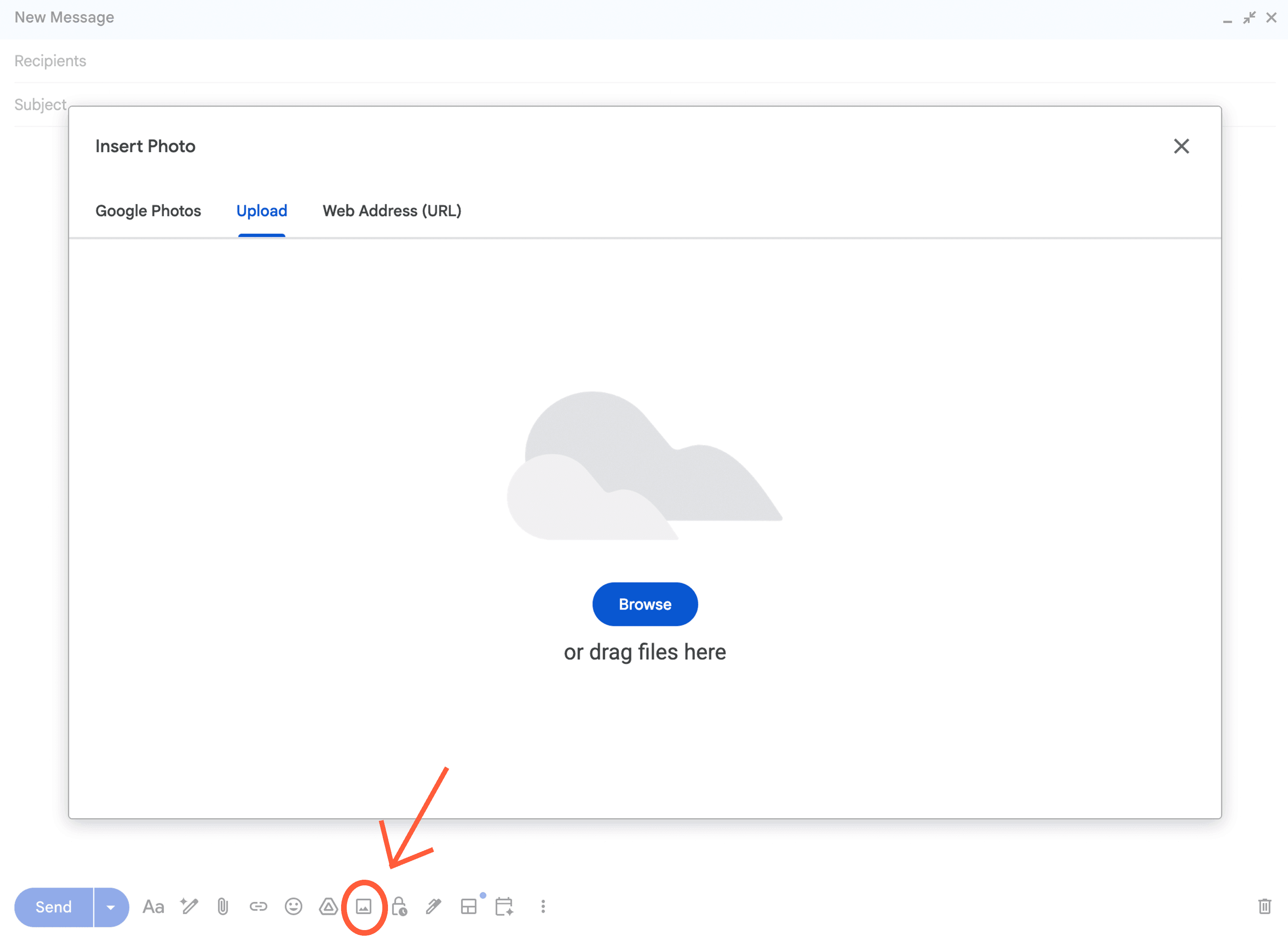
On Mobile
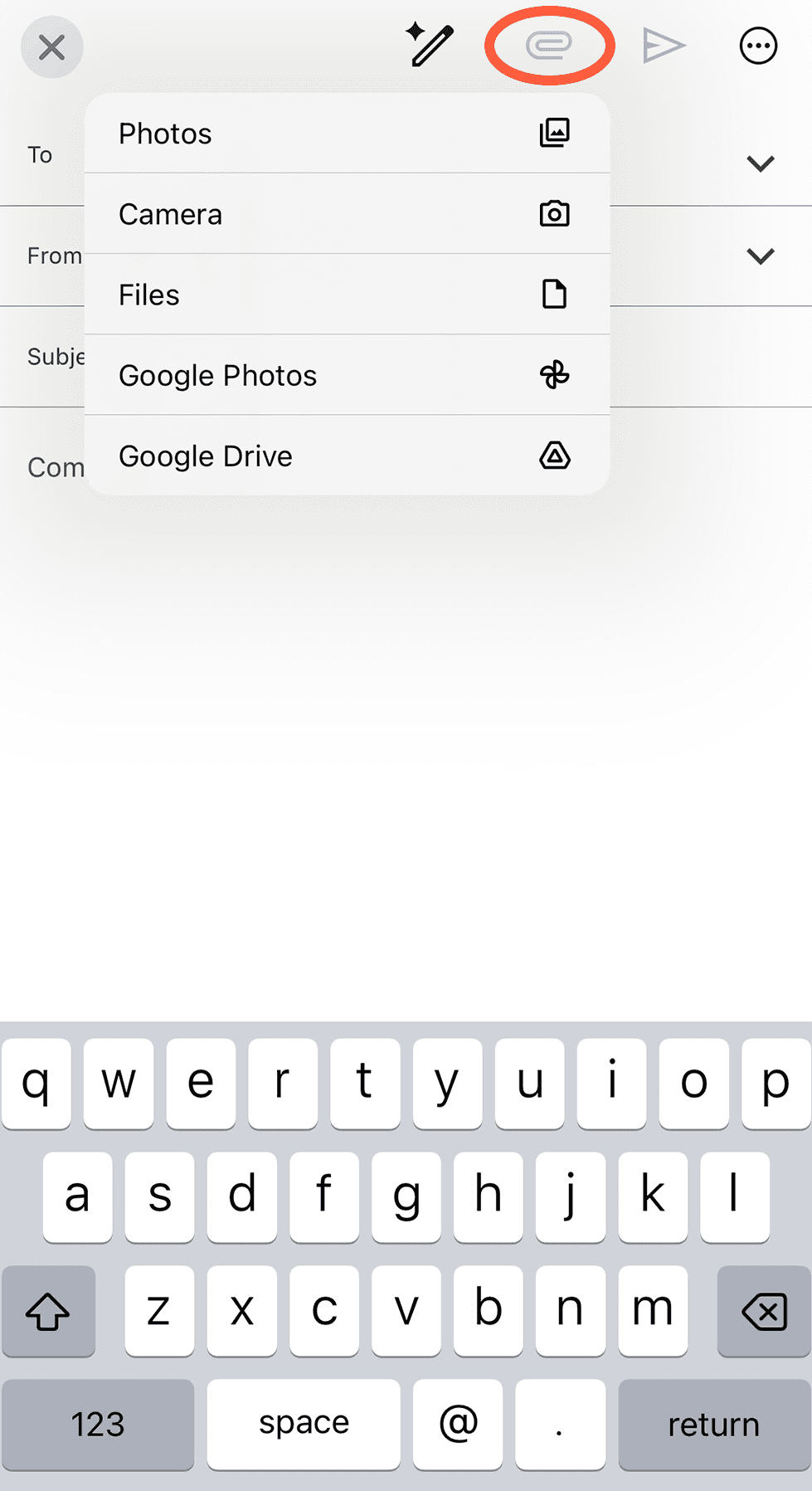
Use your email app’s attachment function. Select “Attach File” or “Insert Video” depending on your app.
Step 2: Compress Large Videos
If your video exceeds the attachment limit, compressing it allows you to send larger videos directly without requiring cloud storage. The easiest way is to use an online compression tool to do this.
Using a Compression Tool
Free tools like HandBrake, VLC, or online compressors can reduce file size while maintaining reasonable quality.
Tip: Lower the resolution or bitrate slightly to reduce file size. Test before sending to make sure the video remains clear enough for your recipient.
Step 3: Use Cloud Services for Large Files
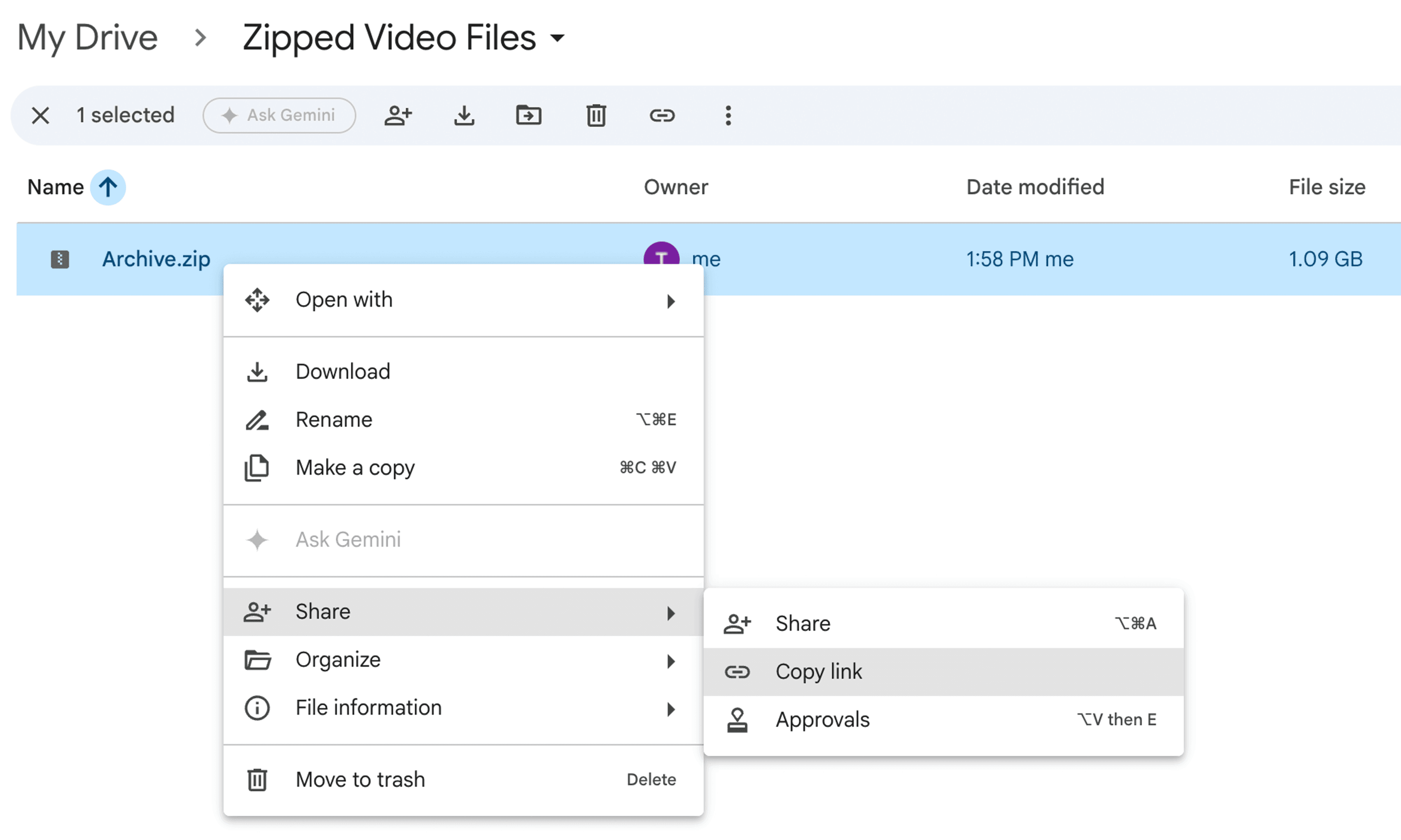
For very large videos or multiple files, cloud storage is the most reliable method. Including clear instructions ensures recipients know how to access the file without issues - this is usually through a link that they will receive over email. Cloud sharing also prevents bounced emails caused by oversized attachments.
Google Drive
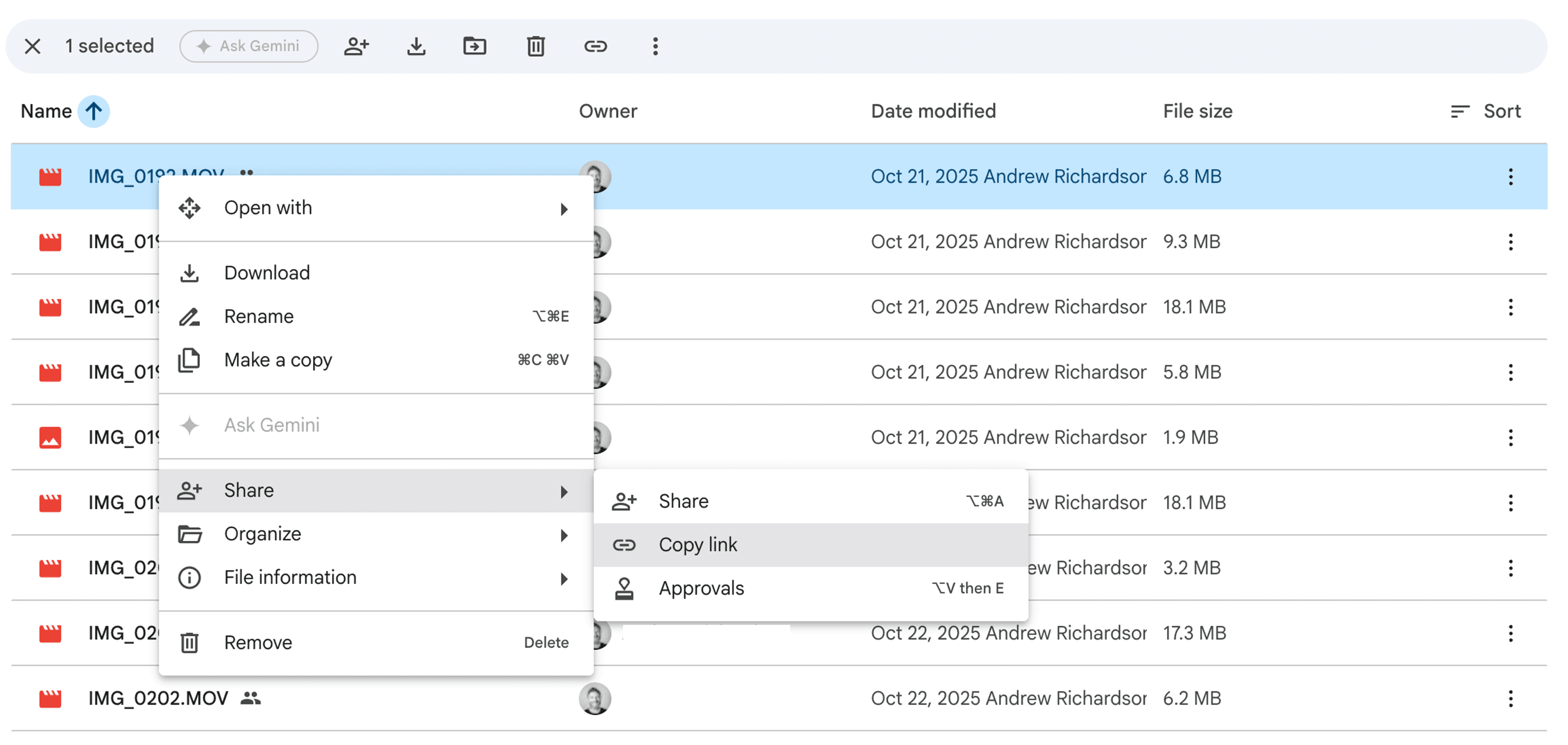
Upload the video and create a shareable link. Insert this link in your email body with instructions.
Dropbox or OneDrive
Similarly, upload the video or folder, and share the link.
Step 4: Sending Multiple Videos
When sending several videos at once:
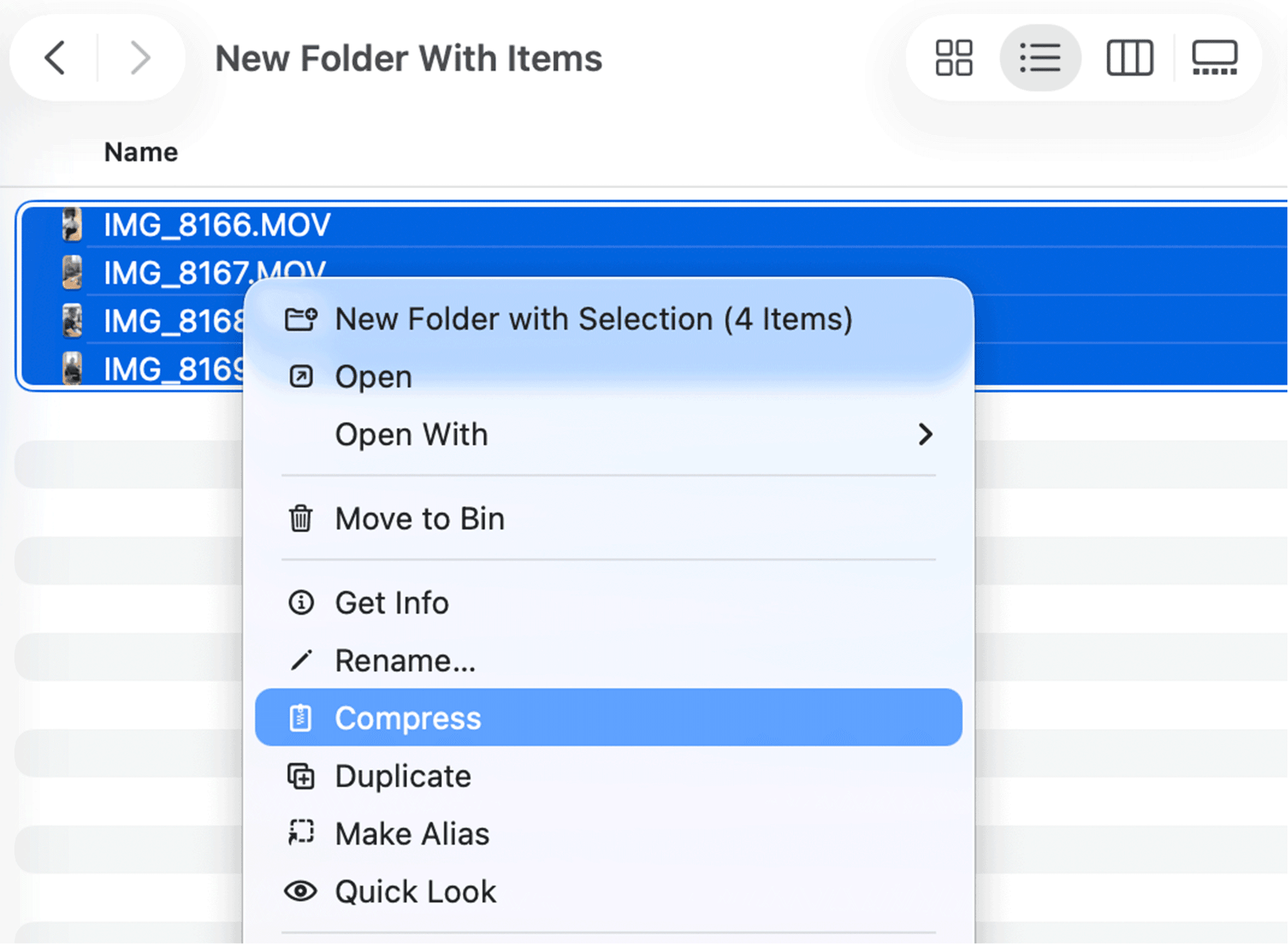
- Compress Files into a ZIP Folder
Combine videos into a single compressed file, then attach or share via cloud.
- Share a Folder Link
Upload all videos to a cloud folder and share the folder link in your email.
This method keeps your email organized and prevents multiple large attachments from overwhelming the recipient’s inbox.
Step 5: Test for a Successful Delivery
Follow these steps before sending to make sure your videos reach the recipient and maintain quality:
- Double-check the recipient’s email address.
- Verify that your video files are accessible (especially when using cloud links).
- Consider sending a test email to yourself or a colleague to confirm delivery and playback.
Tips for Sending Videos via Email
- Check Attachment Limits: Gmail and Outlook limit attachments to 25MB
- Use Cloud Sharing for Large Files: Prevent bounce-backs and failed deliveries
- Label Files Clearly: Use descriptive filenames to avoid confusion.
- Include Context in Email Body: Briefly explain the video content and purpose.
- Compress Thoughtfully: Reduce file size while keeping quality intact.
- Test Delivery: Send a test email to ensure accessibility.
Frequently Asked Questions
FAQ: How to Send a Video Through Email
What is the maximum video size I can send via email?
Most email providers limit attachments to 25MB. Larger videos require compression or cloud-based sharing.
How can I send a long video that exceeds the size limit?
Upload the video to Google Drive, Dropbox, or OneDrive and include a shareable link in your email.
Can I send multiple videos in one email?
Yes. Compress them into a ZIP folder or share a cloud folder link containing all videos.
How do I attach a video from my phone to email?
Use your email app’s attachment function or upload the video to a cloud service and share the link.
Will compressing a video reduce its quality?
Compression slightly reduces quality, but using tools like HandBrake allows you to balance file size and clarity.
Is it better to attach a video to an email or send a link?
For small files under 25MB, attachments are fine. For larger files, links from cloud services are more reliable.
How do I make sure my recipient can view the video?
Include instructions for accessing the video, ensure the link has correct permissions, and consider sending a test email first.
You may also be interested in:
How to Attach a Photo to an Email
How to Create a Business Email Address