A Zoom transcript is an automatically generated text record of your meeting, available either as live captions during the call or as a downloadable file after a cloud recording. Getting one is straightforward if you're on a paid plan, but how you prepare before the meeting and what you do with the output afterward determines whether it's actually useful.
Zoom’s AI Companion is included with paid Zoom Workplace plans and generates summaries and extracts action items automatically. Free plan users get limited access (up to three meetings per month), and a $10/month standalone option is also available. But following best practices before recording, editing the output for accuracy, and sharing transcripts promptly is key to ensuring your whole team gets the most out of them.
This guide covers everything you need to know about Zoom transcripts. That includes Zoom’s transcription settings, how to get the best results, how to edit and search through the results, where language support starts and stops, and how to get more out of transcripts with AI Companion.
How to enable Zoom transcription
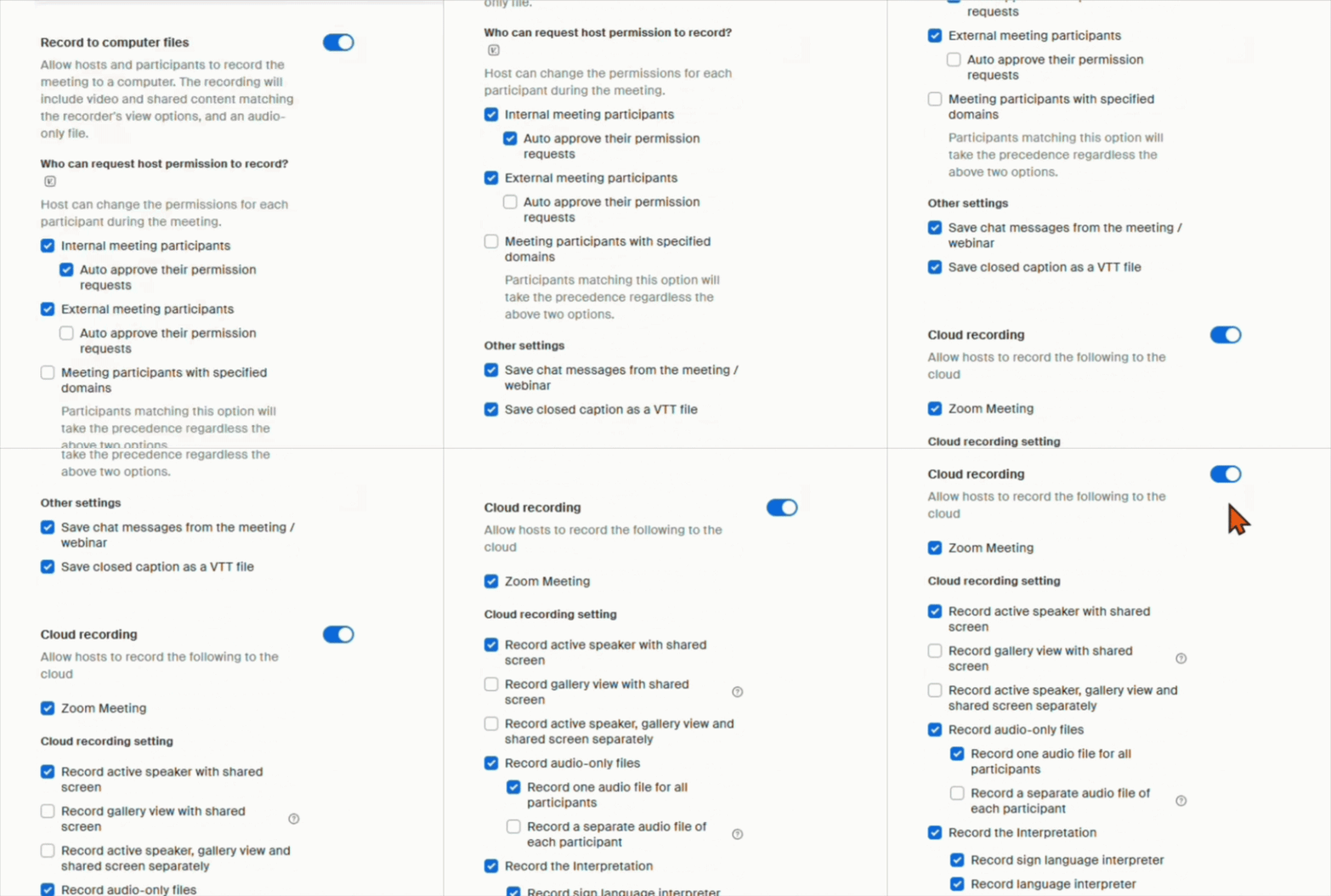
Zoom’s transcription feature requires cloud recording, which is available on any paid plan: Pro, Business, Education, or Enterprise. If you’re on one of these plans, cloud recording is automatically enabled.
Then, when you choose to record a meeting to the cloud, Zoom automatically records the video, audio, and chat text, and generates an audio transcription.
You can toggle these settings by following these steps:
Fyxer transcribes your meetings and handles your inbox so you can focus on the work that matters
Scroll down to “Cloud recording” and enable or disable it
Check or uncheck the box for “Create audio transcript”
Save your settings
If you’re on a Business or Enterprise account, then your account admin may control these settings. If the option is grayed out, check with whoever manages your Zoom account.
Once transcription is enabled, it applies automatically to any meeting you record to the cloud. You don’t need to do anything extra during the meeting itself.
Displaying live Zoom transcripts as closed captions
Zoom’s live transcription feature shows subtitles in real time during a meeting. It’s separate from the post-meeting cloud recording transcript, although it uses the same underlying technology.
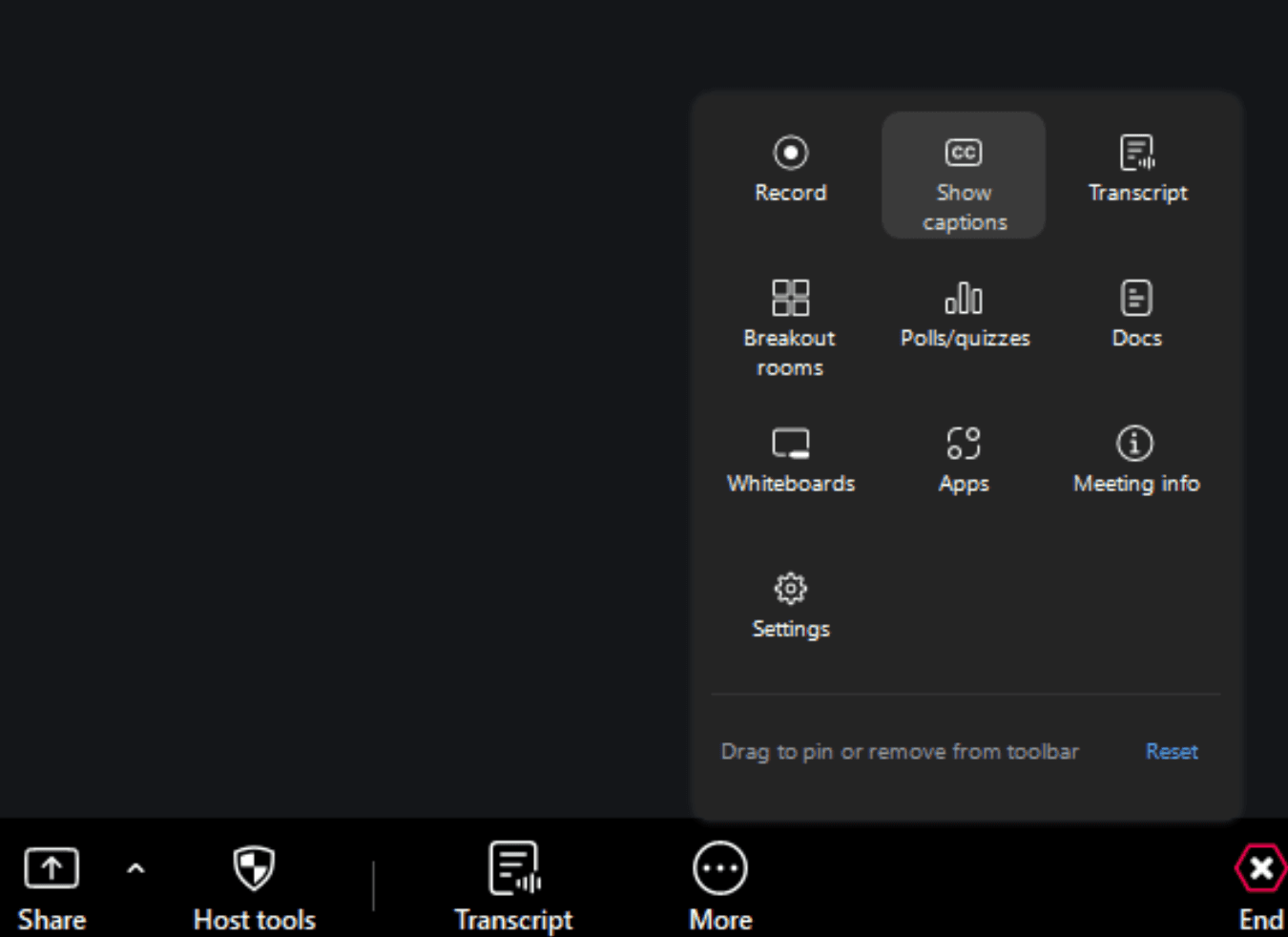
To enable it as a host, start your meeting and look for the “CC Live Transcript” button in the toolbar. Depending on your screen size, it may be tucked under the “More” menu. Click it, then select “Enable Auto-Transcription.” Once you do, all participants will see the option to show or hide captions from their own view.
It’s worth noting that live captions and cloud-recording transcripts are generated independently. Enabling one doesn’t automatically enable the other, so if you want both, you need to make sure the respective settings are turned on.
Live transcriptions are particularly useful for participants who are hard of hearing, joining from a noisy environment, or working in a second language. No setup is needed from participants once the host has enabled it.
Best practices for better Zoom transcripts
Transcription accuracy is heavily influenced by recording conditions. You can improve the quality of Zoom transcripts by:
Using a headset or external microphone rather than a laptop’s built-in mic. Background noise and echo are the main culprits behind inaccurate transcripts.
Asking participants to state their names at the start of the call. Zoom’s speaker labels rely on account display names, which can be inconsistent in larger meetings.
Speaking clearly, particularly around names, acronyms, and technical terms. These are the words most likely to be transcribed incorrectly.
Avoiding crosstalk. When two people speak at once, the transcript often loses both threads.
Downloading and sharing your Zoom transcript
After a cloud recording ends, Zoom processes the audio and generates the transcript separately. Then it notifies you via two emails: the first is sent when the recording is ready, and the second when the transcript has finished processing.
Transcript processing times vary. Most transcripts are ready within minutes to a couple of hours after the recording is processed, though times can be longer depending on server load and meeting length.
To download the transcript:
Log in to the Zoom web portal
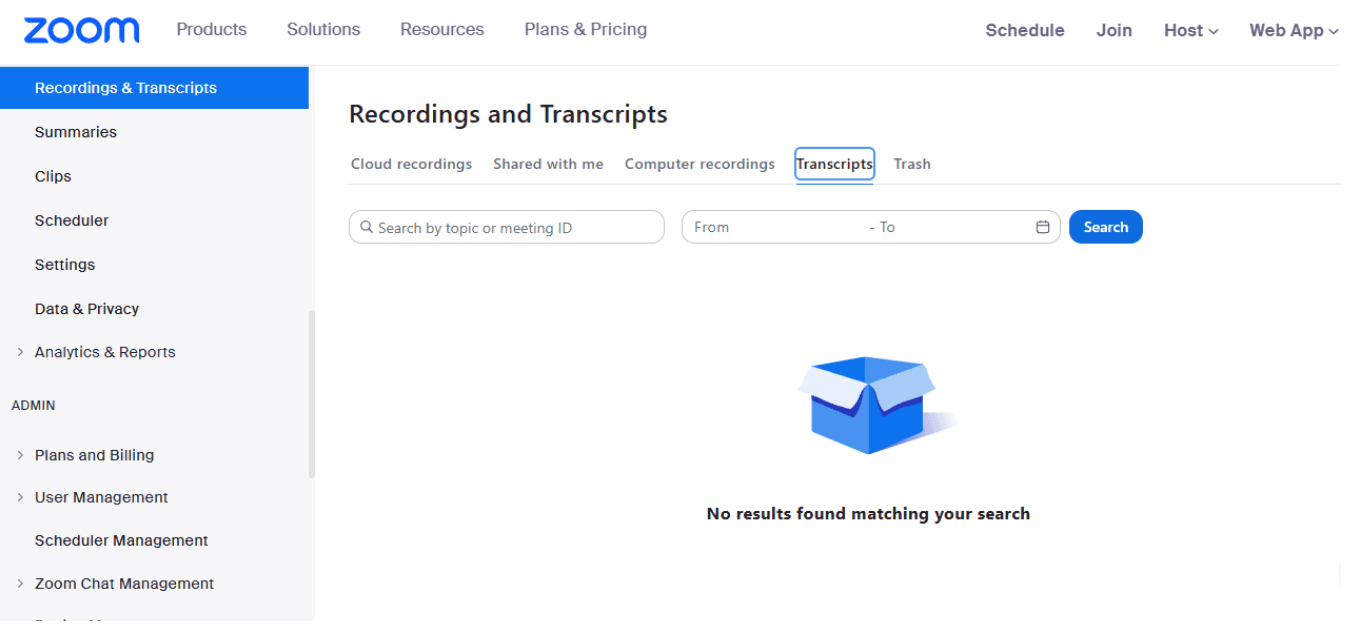
Go to Recordings and Transcripts in the left-hand navigation (as shown in the image above), then select Cloud Recordings
Find your meeting in the Topic column and click on its name
The recording details page opens, listing all the files associated with that session: video, audio, and audio transcript
Hover over the Audio Transcript entry and click the download icon that appears to the right
The file saves to your computer as a .VTT file
If you want to review the transcript before downloading, click the thumbnail of the recording instead. The video plays in a new browser tab with the transcript displayed in a panel on the right-hand side. You can read through it there, or use the search box at the top of the transcript panel to jump to a specific word or phrase.
Zoom saves the transcript as a VTT file (Web Video Text Tracks). Each line is paired with a timestamp, which is useful for cross-referencing the written record against the recording. You can open a VTT file in any text editor, or drop it into a word processor if you want to clean it up before sharing.
To share the transcript with colleagues, download the VTT file and forward it, or use Zoom’s built-in sharing option. The Share button in the Recordings tab generates a link to the recording and transcript together. You can require a password and set an expiry date on that link if needed.
Also, keep in mind that:
If the host had “Save chat messages” enabled, the meeting chat is saved as a separate text file alongside the recording files. It won’t be included in the audio transcript automatically.
If you used live captions during the meeting and clicked Save Transcript before the call ended, you’ll also have a plain TXT file saved locally on your device. That’s a separate output from the cloud recording transcript, generated from the live session rather than the recording.
Editing your transcript
Raw Zoom transcripts are rarely perfect. Speaker labels can be wrong, technical terms can get mangled, and background noise can occasionally produce strange results. That’s why Zoom lets you make direct edits.
This is worth doing before sharing transcripts externally, particularly if names, product terms, or acronyms have been garbled throughout.
To edit a recording:
Log in to the Zoom web portal and access Recordings.
Open the meeting and click the transcript file.
Hover over any line, and an edit icon should appear.
Then you can click it to change the text directly (changes are saved automatically and affect only the text file, not the recording itself).
You can also use Zoom’s search feature to quickly zero in on a specific part of the transcript. All you need to do is press Ctrl+F (or Cmd+F on Mac) in the web portal and in the downloaded VTT file (as long as it’s open in any text editor). Because the VTT file pairs each line with a timestamp, you can find a specific phrase and jump straight to that point in the recording.
Multi-language support
Zoom’s live and recorded transcription features handle other languages differently. Here’s what you need to know.
Cloud recording transcripts support multiple languages, but English is the default. When Zoom generates your transcript after a meeting, it first processes the audio in English, regardless of the language actually spoken.
If your meeting was in Spanish, French, German, Japanese, or another supported language, the initial transcript will likely be garbled. To fix this, you need to change the language manually afterward:
Go to Recordings and click the name of the meeting
Hover over the Audio Transcript file and click Change Language
Select the correct spoken language from the dropdown
Click Save, and Zoom regenerates the transcript in that language
Since there’s currently no setting to change the default language before meetings, every non-English recording needs to be updated per transcript, after the fact. Lots of Zoom users have flagged this pain point over the years (including in the Zoom Community forums).
Unlike recorded transcripts, live captions support multiple languages during the meeting. Participants only have to select their speaking language in-meeting using the arrow next to the CC Live Transcript button, and Zoom supports around 46 languages for live transcription.
The language setting for live captions is independent from the cloud recording transcript, so changing one doesn’t affect the other.
In mixed-language meetings, the accuracy of both live captions and cloud-recording transcripts drops when participants switch languages mid-call. Neither feature handles code-switching particularly well.
Getting more out of transcripts with Zoom AI Companion
Research on the forgetting curve suggests that without reinforcement, people tend to forget a significant portion of new information within hours of encountering it.
We’ve all been there: a meeting takes place, and everyone agrees on what to do next. But then, in the follow-up meeting, you get conflicting viewpoints and people shying away from accountability.
AI note-taking apps like Zoom AI Companion bridge this gap. It automatically generates meeting summaries, extracts action items, and helps you work with meeting content more effectively.
AI Companion is included with paid Zoom Workplace plans (Pro, Business, Education, and Enterprise). It can also join third-party meetings on Google Meet and Microsoft Teams, though this cross-platform functionality requires the Custom AI Companion add-on at an additional $12/user/month. To enable it for your meetings:
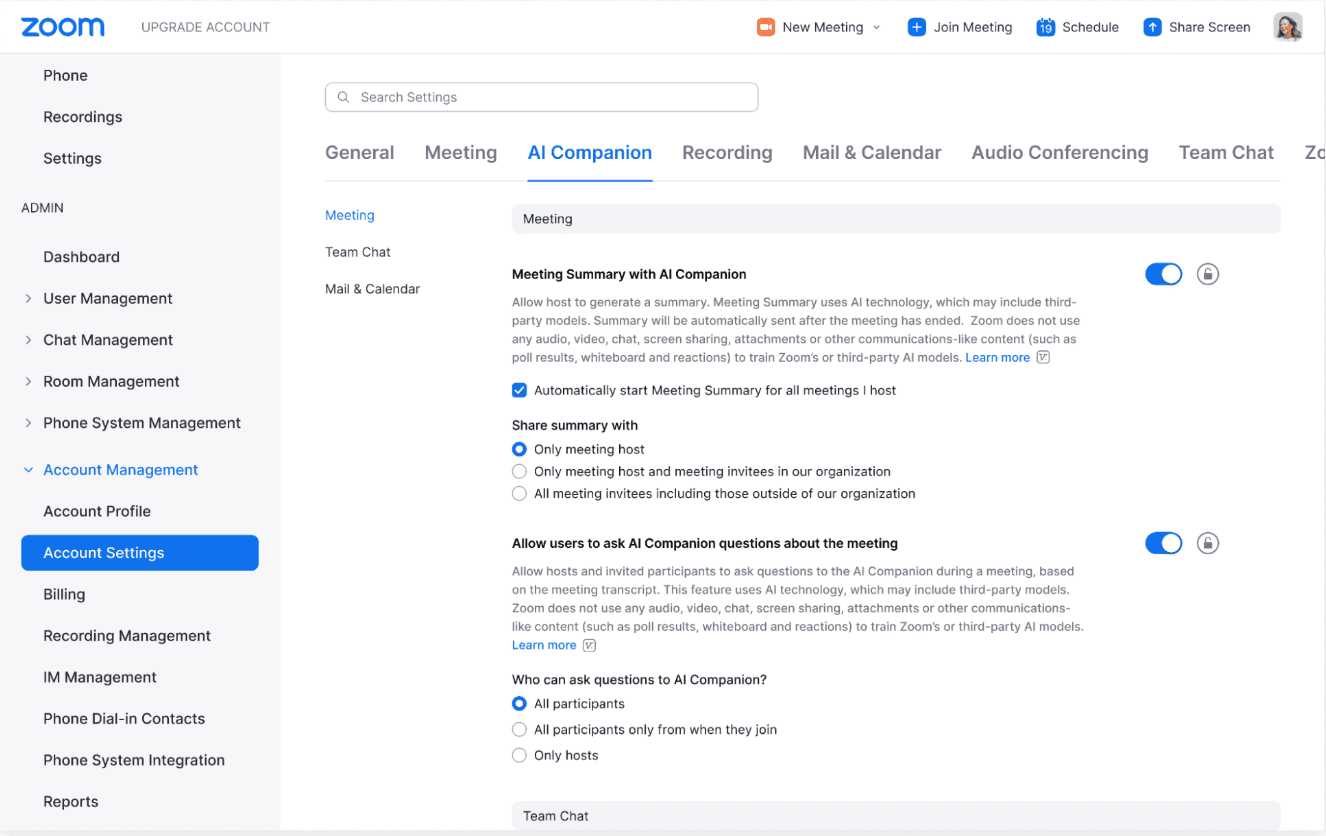
Sign in to the Zoom web portal and go to Account Settings
Click the AI Companion tab. From here, you can toggle all the assistant’s settings (as shown in the screenshot below)
During meetings, you can access AI Companion from the toolbar to ask questions, get summaries, or take quick notes
The AI Companion also offers a "My notes" feature with tools that let you:
Capture and enhance your thoughts: Jot down quick notes during meetings, and AI automatically expands them into organized summaries with key takeaways and action items. After the meeting, everything is accessible through Zoom Hub or Zoom Docs.
Work with your meeting content: Ask AI follow-up questions about discussions, refine your notes, generate new content from meeting insights, and share summaries directly via Team Chat or Slack.
Select tailored outputs for different contexts: Choose from pre-built summary templates tailored to specific meeting types, such as one-on-ones, brainstorming sessions, and customer calls, to get relevant, structured outputs every time.
Beyond Zoom: AI tools that handle meetings and email together
Fyxer offers an AI Notetaker that matches Zoom’s transcription and AI note-taking features. Fyxer Notetaker transcribes in-person and cross-platform (over Zoom, Meet, and Teams) meetings, generates summaries, extracts key insights, and outlines action items.
It also offers broader multilingual support than Zoom: Notetaker transcribes in over 99 languages from the start, instead of processing everything in English first and translating it afterward.
But unlike Zoom’s AI Companion, Fyxer goes beyond meetings. It also handles email, the other major communication channel where professionals lose hours every week.
Fyxer works within Gmail and Outlook, automatically organizing your inbox and drafting replies in your voice. The email assistant and Notetaker work together: meeting context feeds directly into email drafts, so follow-ups reference what was discussed.
Zoom transcripts FAQs
Does Zoom have a transcription feature?
Yes. Zoom offers two separate transcription features:
The first is live transcription during a meeting, which displays real-time captions at the bottom of the screen as people speak. This supports around 46 languages and can be activated by the host during any meeting, provided the Automated Captions setting has been enabled in their account settings first.
The second generates an automatic transcript after any meeting recorded to the cloud. Once the recording finishes processing, Zoom produces a VTT file stored alongside your recording in the web portal. This requires a paid account (Pro, Business, Education, or Enterprise) and only works with cloud recordings, not local ones.
Cloud recording transcripts support multiple languages, with English as the default. If a meeting was conducted in another language, the transcript is generated in English first and needs to be manually switched afterward via the Change Language option in the recordings portal.
How to copy a Zoom transcript
The method depends on whether you want the transcript from a live session or a cloud recording.
From a live session:
Click the CC Live Transcript button during the meeting and select View Full Transcript. This opens a side panel with a running log of the conversation.
At the bottom of that panel, click Save Transcript, which saves a TXT file to your computer.
Open it in any text editor, select all, and copy.
Note: The transcript only captures from the point you clicked Save Transcript, so for the full session, you need to click it just before the meeting ends.
From a cloud recording:
Log in to the Zoom web portal
Navigate to Recordings and Transcripts, click the meeting name, and download the Audio Transcript (it’s saved as a VTT file).
Then, open the file in a text editor, select the text, and copy it.
The VTT file will include timestamp lines, so you’ll need to remove that to get clean body text on its own. You can either (i) remove the timestamp lines in the text editor first or (ii) paste everything into a word processor and delete them there.
How to turn off transcript in Zoom
There are two things to turn off depending on what you need.
To stop cloud recording transcripts from being generated:
Sign in to the Zoom web portal
Go to Settings, select the Recording tab, and look for Create Audio Transcript under the Cloud Recording section.
Toggle it off and hit save
Zoom will no longer generate a transcript file for future cloud recordings. Keep in mind that in some Business and Enterprise accounts, this setting may be locked on by an admin, in which case individual users can’t change it.
To stop live captions during a meeting:
As the host, click the Live Transcript button in the toolbar, then select Disable Auto-Transcription. This stops captions for all participants for the rest of that session.
To prevent live captions from being enabled, go to Settings in the Zoom web portal, click the Meeting tab, then go to In Meeting (Advanced), and toggle off Automated Captions. This disables the feature across all your meetings as a host.
Where is the Zoom transcript saved?
It depends on how the transcript was generated:
Cloud recording transcripts are stored on Zoom’s servers and accessed via the web portal at zoom.us under Recordings and Transcripts. They stay there until the recording is deleted. You can also download the VTT file to your computer from the recording details page.
Live session transcripts saved via the Save Transcript button during a meeting are stored locally on your computer as a TXT file, inside a Zoom subfolder within your Documents directory: On Windows, the default path is: C:\Users\[username]\Documents\Zoom On Mac, it’s: /Users/[username]/Documents/Zoom
Zoom creates a subfolder named by date and meeting name, and the TXT file sits inside it.
If you are locally recording a meeting at the same time as live captions are running, a transcript file named closed_caption.txt is automatically saved to the same folder as the local recording, without you needing to click Save Transcript manually. Local recordings don’t produce a VTT transcript file, those are specific to cloud recordings.