Accidentally sent the wrong attachment? Hit “Send” too early? Outlook has a built-in recall feature that can save the day — if you act fast and meet the right conditions.
Recalling an email in Outlook means attempting to retrieve a message that’s already been sent from the recipient’s inbox — either deleting it entirely or replacing it with a corrected version.
It’s one of those rare “do-over” buttons that every professional wishes they had more often. Outlook’s recall feature is available only under specific conditions (more on that below) but can be a lifesaver when you’ve sent the wrong file, missed an attachment, or noticed a typo seconds too late.
The process works through Microsoft Exchange or Microsoft 365 servers. If both you and the recipient are part of the same organization using these systems, Outlook can pull back or replace the message before it’s opened.
Step-by-step guide: How to unsend an email in Outlook
The recall feature is built directly into the Outlook desktop app. Here’s how to retract or replace a sent email step by step, complete with screenshots:
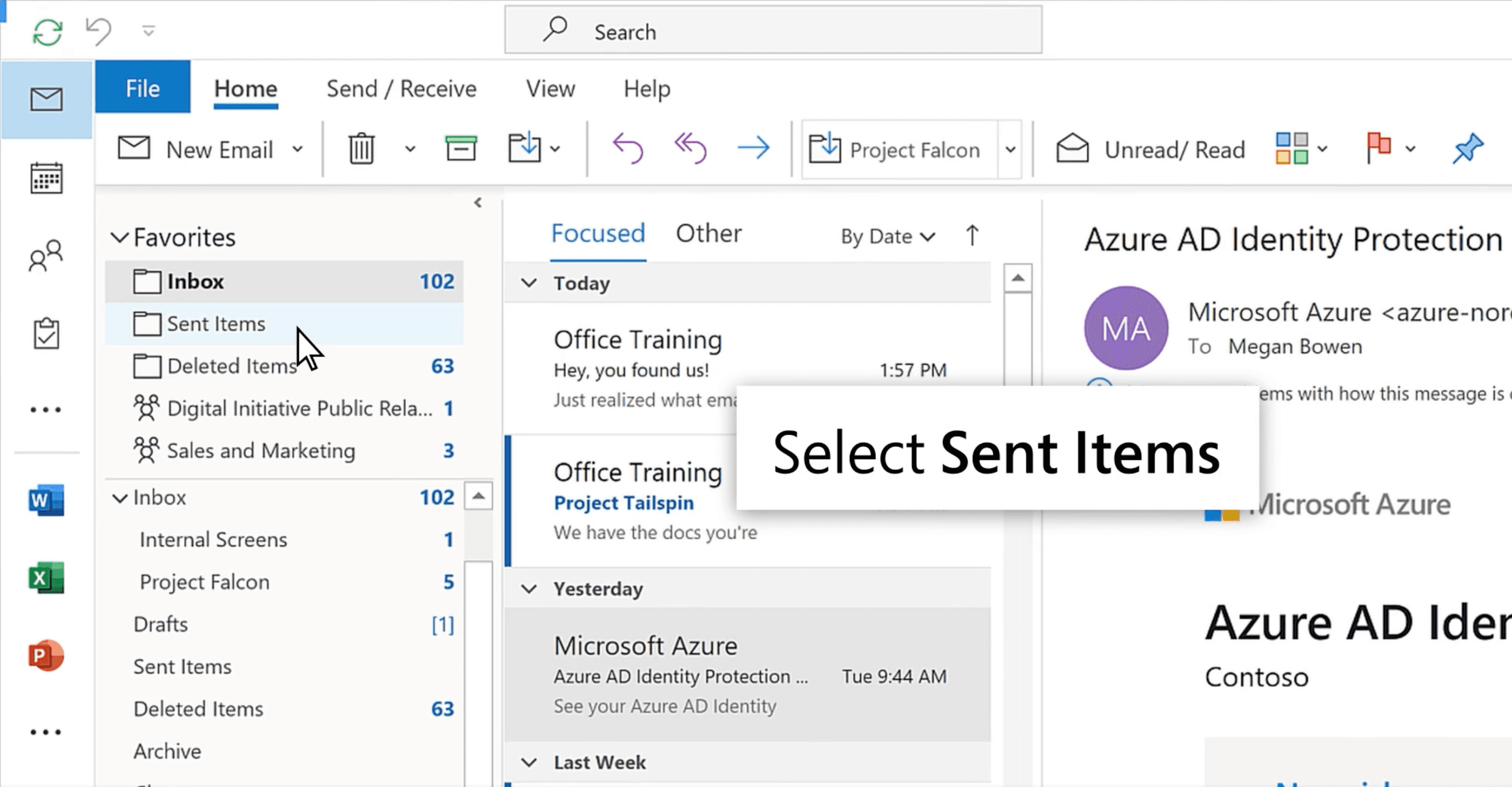
1. Open your Sent Items folder
In the Outlook desktop app, select the Sent Items folder on the left-hand side. This shows all the messages you’ve sent.
Fyxer organizes your inbox and drafts replies in your voice.
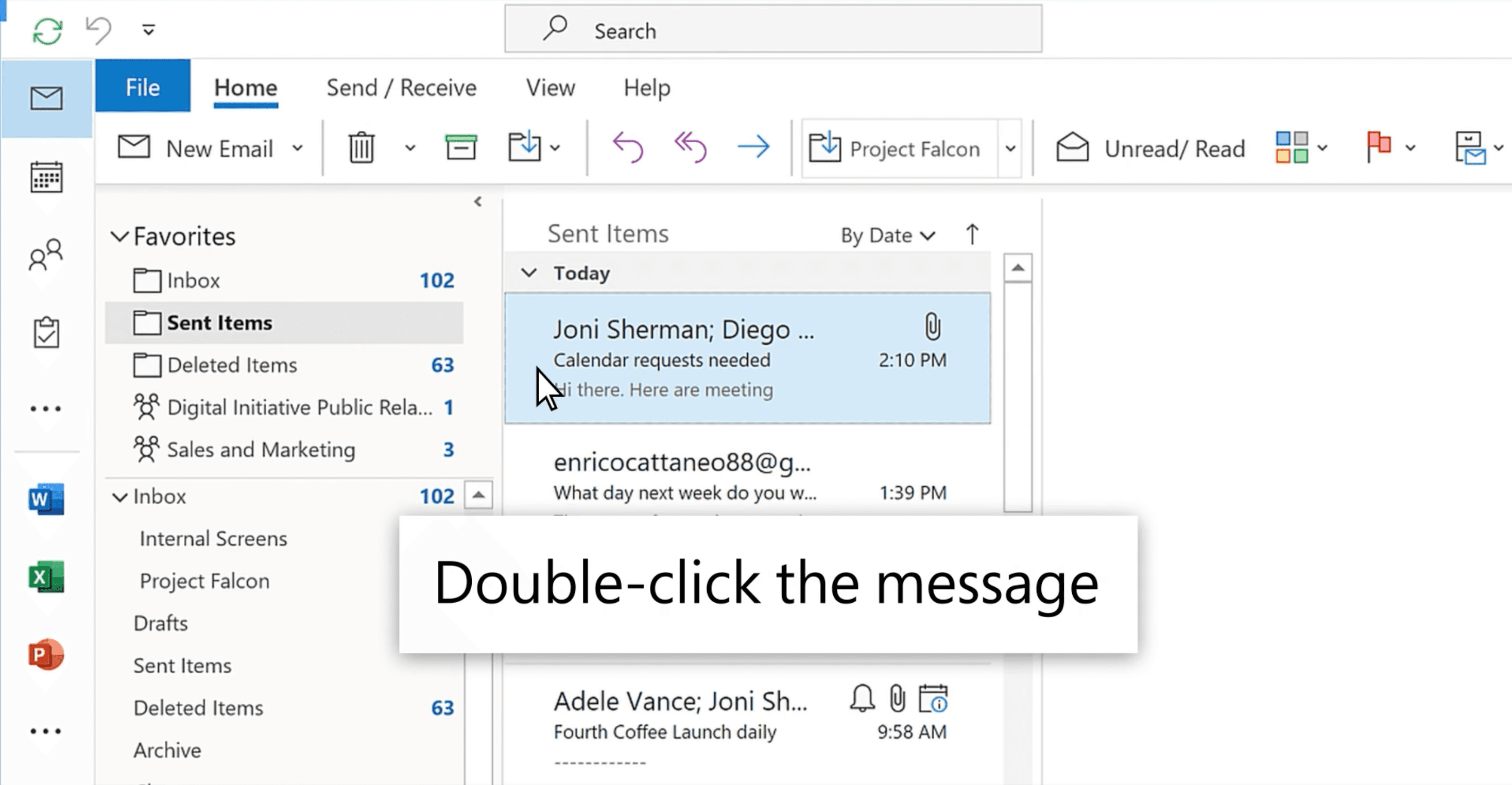
2. Double-click the message you want to recall
The recall feature only works when the message opens in its own window — not in the reading pane. Double-click your chosen message to open it fully.
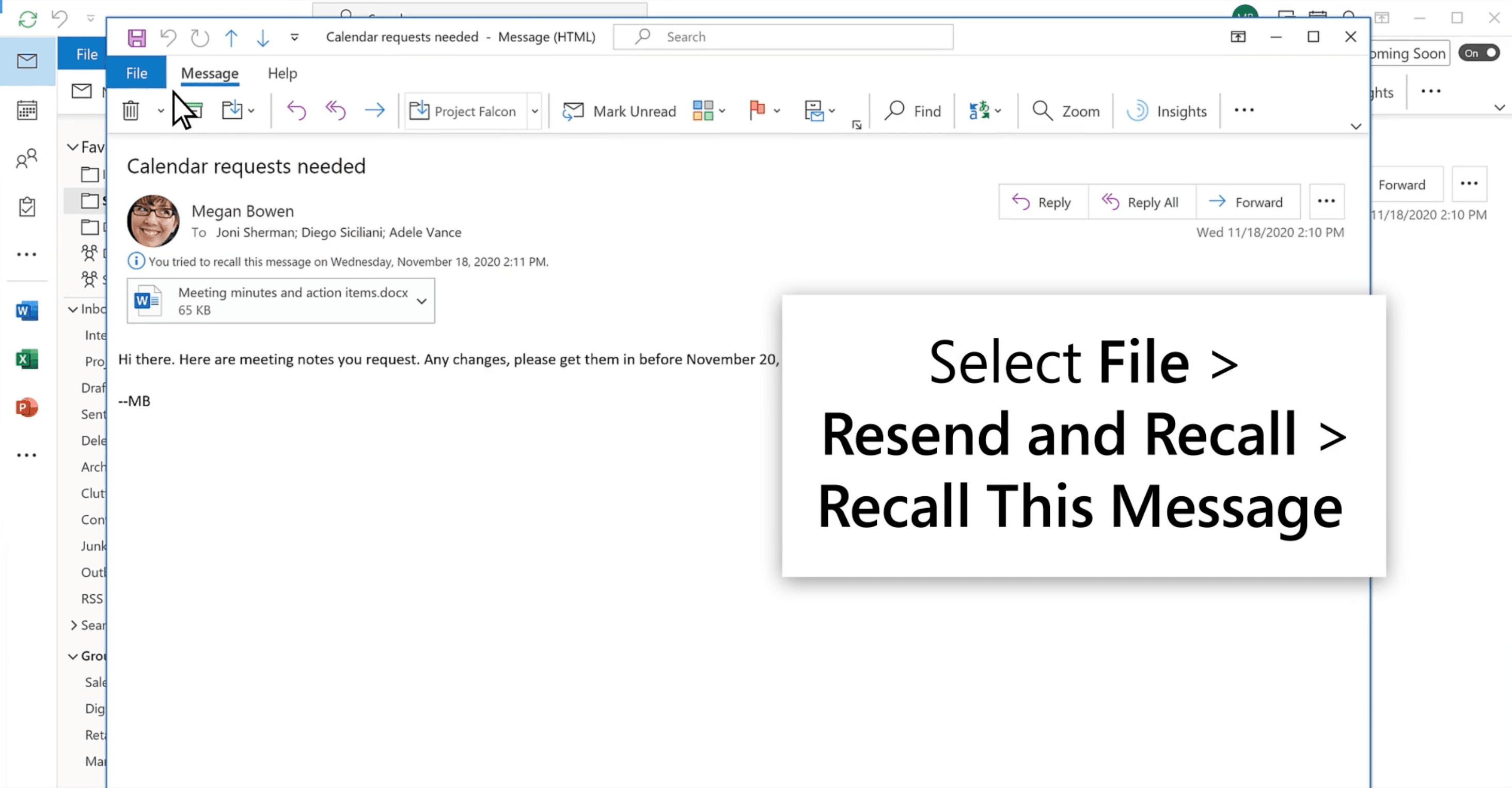
3. Go to the File tab
At the top of the window, select the File tab.
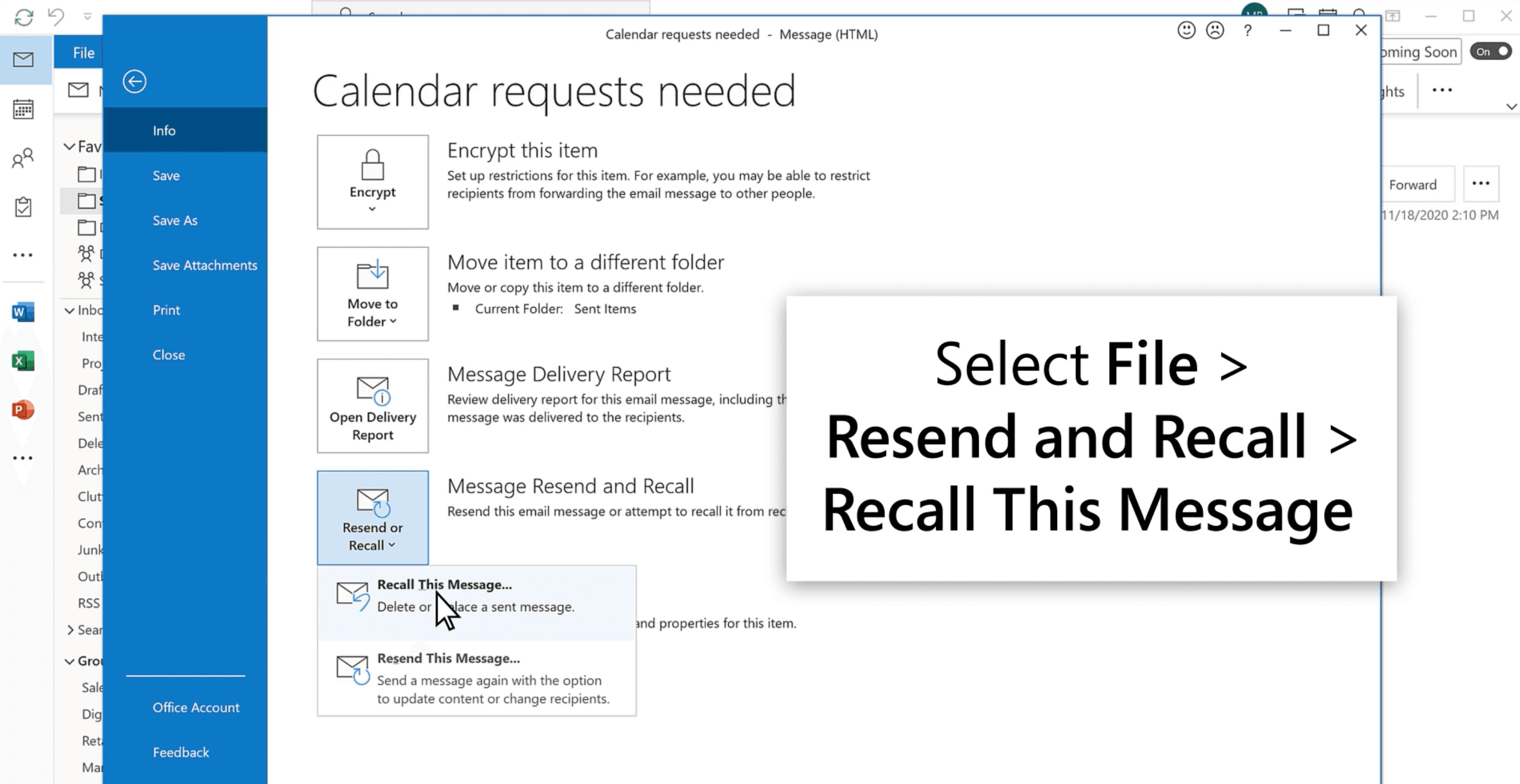
4. Choose Message Resent and Recall → Recall This Message
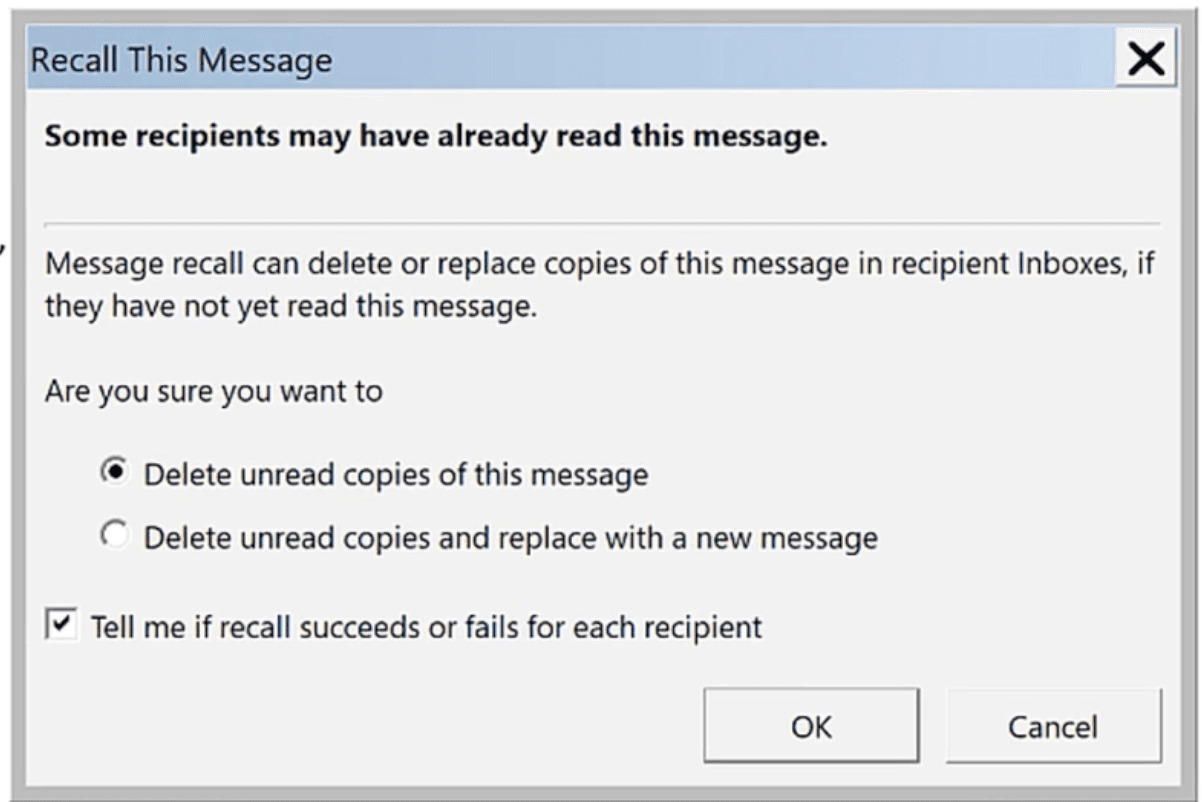
In the File window, choose Message Resend and Recall, then select Recall This Message. This opens Outlook’s built-in recall tool — the quickest way to take back or update an email before it’s read.
5. Select your preferred recall option
Here, you’ll see two options:
Delete unread copies of this message: Choose this if you simply want to retract the email.
Delete unread copies and replace with a new message: Choose this if you want to send a corrected version to open a new message window where you can edit and resend.
6. (Optional) Get notified if the recall works (or not)
Check the box labeled “Tell me if recall succeeds or fails for each recipient.” Outlook will send you a notification confirming whether your recall went through — a simple way to know exactly who still received the original email and who didn’t.
7. Click OK to confirm
Outlook will now attempt to retract or replace the message. If successful, the recipient’s inbox will either delete the original email or show your updated one instead.
Outlook email recall conditions and limitations
Outlook’s recall tool is powerful, but not foolproof. It only works under specific conditions:
Both sender and recipient must use Microsoft 365 or Exchange: The recall feature functions only within the same Microsoft Exchange or Microsoft 365 organization. If the email was sent to Gmail, Yahoo, Apple Mail, or any external address, the recall won’t work.
The recipient hasn’t opened the message: Once the email has been opened, recall becomes impossible. Outlook can only delete or replace unread messages.
The message must still be in the recipient’s Inbox: If the message has been moved (for example, by a rule or a filter), Outlook won’t find it — and the recall will fail.
Recall availability depends on Outlook version and settings: The recall feature works in Outlook for Microsoft 365 (desktop) and Outlook 2021, 2019, 2016, 2013, and 2010 (desktop). It’s not available in Outlook for Mac or most web versions. However, Outlook on the web includes an Undo Send feature (which we’ve explained below).
Recipients may still get a notification: Even when a recall succeeds, the recipient might still see a note that an email was recalled — particularly if their settings display recall alerts. According to Microsoft Support, recall outcomes vary depending on mailbox configuration and read settings, so success isn’t guaranteed.
Why can't I recall an email in Outlook?
Recalls don’t always go to plan. They can fail for a few common reasons:
The recipient already opened the email.
Their account isn’t hosted on Microsoft 365 or Exchange.
Inbox rules moved the message to another folder.
The recipient is outside your organization.
When this happens, if you selected “Tell me if recall succeeds or fails for each recipient,” Outlook sends a Message Recall Report to your inbox so you can see exactly what worked — and what didn’t.
If the recall fails, don’t worry. It happens to everyone. A quick, professional follow-up email can clarify the mistake and keep the conversation on track.
Alternatives to recalling an email in Outlook
Even with its limits, Outlook offers smarter ways to manage mistakes before they happen. These tools give you more control over what you send and when it leaves your outbox.
1. Use “Undo Send” in Outlook web and mobile
The Undo Send command gives you a short buffer before your email actually leaves your Outbox — a few extra seconds to change your mind, fix a typo, or add that missing attachment. It’s not a true recall, but it offers real control and peace of mind when you hit Send.
This feature is currently available for Microsoft 365 and Outlook.com accounts, including the new version of Outlook for Mac (not legacy Outlook).
To set it up:
Go to Outlook → Settings → Composing.
In the Composing dialog, use the – or + buttons to set your delay time (anywhere from 5 to 120 seconds).
When you send an email, you’ll see a small Undo prompt appear at the bottom of Outlook — select it to cancel delivery instantly.
2. Schedule or delay sending emails
Outlook lets you schedule or delay emails so they don’t send right away — giving you time to double-check details or make last-minute edits before they land in someone’s inbox.
This feature is available in Outlook for Microsoft 365, Outlook 2024, Outlook on the web, and the new Outlook for Windows (note: it doesn’t work with IMAP or POP accounts).
To delay or schedule a message:
While composing your email, select the dropdown arrow next to Send, then choose Schedule send.
Pick one of the suggested times or set a custom delivery time that suits you.
After you select Send, Outlook holds the message in your Drafts folder until it’s ready to go.
If you change your mind, open the scheduled message from Drafts, click the Edit pencil icon, and select Send Now.
3. Send a follow-up correction
If recall doesn’t work, the next best step is a quick, professionalcorrection email. Keep it short, clear, and solution-focused — the goal is to fix the mistake without drawing unnecessary attention to it.
A few examples for different situations:
Wrong attachment:
“Apologies — please see the correct file attached below.”
Missing information:
“Adding the details I missed earlier — thank you for your patience.”
Incorrect date or meeting time:
“Correction: the meeting will take place on Tuesday at 2 PM, not Wednesday. Sorry for the mix-up.”
Email sent to the wrong person:
“Please disregard my previous email — it was sent in error.”
Small typo or clarification:
“Quick note to clarify: the figure mentioned should read $15,000, not $1,500.”
Mistakes happen — it’s how you handle them that leaves an impression. A polite, straightforward correction shows accountability and keeps your communication professional.
4. Use “Rules” to delay all outgoing emails
If you’d like a built-in safety net for every message, Outlook’s Rules feature can automatically delay outgoing emails — giving you a short window to make changes before they’re delivered.
To create a delay rule in Outlook:
Go to File → Manage Rules & Alerts → New Rule.
Choose Apply rule on messages I send.
Add a short delay (for example, 1–2 minutes).
Once set, Outlook will hold each message in your Outbox for the specified time before sending. It’s a quiet but powerful safeguard — ideal for catching small errors, forgotten attachments, or those moments when you instantly spot a better way to phrase something.
Does Outlook recall actually work?
Yes — but only in certain environments. If both you and the recipient use Microsoft 365 or Exchange and the email hasn’t been opened, Outlook can recall or replace it before it’s read. Outside that setup — say, when you’re emailing a client on Gmail — recall simply won’t work.
Because of those limits, the smartest approach is prevention. Use Undo Send, schedule your emails, or add a brief Rules delay so you can double-check before anything leaves your Outbox.
And if you want even more control, tools like Fyxer AI can help manage your inbox intelligently — drafting replies, organizing messages, and keeping you one step ahead of mistakes.
Outlook recall can help in a pinch, but preparation (and the right tools) will always deliver better results.
Outlook email recall FAQs
Will the recipient know I recalled my email?
In many cases, yes. When you recall a message, Outlook may generate a small notification letting the recipient know an attempt was made. The visibility of that alert depends on their version of Outlook and organizational settings. Some users see it right away; others may never notice. There’s no guaranteed way to make a recall invisible, but moving fast and following up with a clear correction email keeps communication professional — and avoids confusion if they’ve already seen your original message.
How do I recall an email in Outlook without recipients knowing?
You can’t guarantee full invisibility. If the message is unread and recall conditions are met, it will disappear from the recipient’s inbox — but they may still see a recall notice, depending on settings.
How long do you have to recall an email in Outlook?
There’s no set time limit — recall only works while the message is still unread. Once the recipient opens it, the opportunity disappears. That’s why acting quickly is key. The moment you realize you’ve sent an email in error, open your Sent Items and start the recall process straight away. In fast-moving inboxes, even a few minutes can make the difference between quietly fixing a mistake and needing to send a follow-up correction.
Can I recall an Outlook email after 2 hours?
It depends entirely on timing and environment. If the message is still sitting unopened in the recipient’s inbox — and both of you are on Microsoft 365 or Exchange — recall can still succeed hours later. But in most workplaces, emails get opened quickly, so it’s best to act the moment you spot an issue. A short delay rule or Undo Send buffer can make all the difference for those times when two hours is already too late.
Why does Outlook recall take so long?
The recall process relies on your organization’s mail servers talking to each other in the background — and that doesn’t always happen instantly. In large companies with layered security systems or complex routing rules, those requests can take longer to process. The message might also sync across multiple devices before the recall completes, adding a few extra minutes to the wait.
What is the success rate of recall in Outlook?
According to CodeTwo, historically, Outlook’s recall feature wasn’t especially reliable — early versions succeeded only about 40% of the time. Microsoft’s recent update improved performance by moving recall from a client-side to a server-side process, and reports now suggest success rates above 90% in ideal conditions. Still, “ideal” rarely reflects real-world email behavior. If an email absolutely shouldn’t have been sent, there’s no 100% guarantee it won’t be seen. A quick, professional follow-up remains the safest way to clarify the situation and maintain trust.
How do I know if I successfully recalled an email in Outlook?
After you start a recall, Outlook tracks the outcome and automatically sends a notification to your inbox once it’s complete. You’ll receive a confirmation titled ‘Recall Success’ or ‘Recall Failure,’ showing whether the message was retrieved, replaced, or left untouched. These updates can take a few minutes to appear, depending on your organization’s servers. It’s worth reviewing the report closely — especially if you sent the email to multiple recipients — since success can vary from one person to another.
What happens if an Outlook recall fails?
When a recall doesn’t go through, the original email stays in the recipient’s inbox exactly as it was sent. At that point, the most effective move is damage control — send a short, direct follow-up explaining the correction or providing the right information. Avoid over-apologizing or drawing unnecessary attention to the mistake; just clarify what’s changed and move on. A calm, professional tone signals control and keeps the focus on the message that matters, not the one that slipped through.