


Blocking emails is the ideal way to manage spam, avoid unwanted messages, and feel in control of your inbox. Forbes notes that a leading reason for low productivity and employee burnout is the feeling of email overload. While taking control of the emails in your inbox is a great idea, it’s surprisingly easy for an important email to get accidentally blocked.
Knowing how to unblock email addresses in Gmail allows you to restore communication with your contacts or clients. Our guide explains how to find your blocked list and restore senders, plus there’s tips on how to manage your inbox effectively.
Why You Might Need to Unblock Emails
Blocked emails can cause unintended problems, such as missing critical work updates or personal messages.
Unblocking emails keeps important messages in your main inbox, and it can also help maintain professional relationships. Looking to lighten the email load? Fyxer can automatically organize your inbox and draft responses in your voice, saving you 5+ hours every week.
How to Unblock Email on Gmail
There are several ways to unblock email addresses in Gmail, depending on whether you’re using a desktop or mobile device.
Step 1: Identify Blocked Emails
Before unblocking, you need to determine which emails are blocked:
Check the Spam Folder
Sometimes emails from blocked senders may land in your Spam folder.

Access Your Blocked List
In Gmail, navigate to Settings → Filters and Blocked Addresses to view all blocked email addresses.

Step 2: Unblock a Sender on Desktop
Unblocking emails on your computer is straightforward:
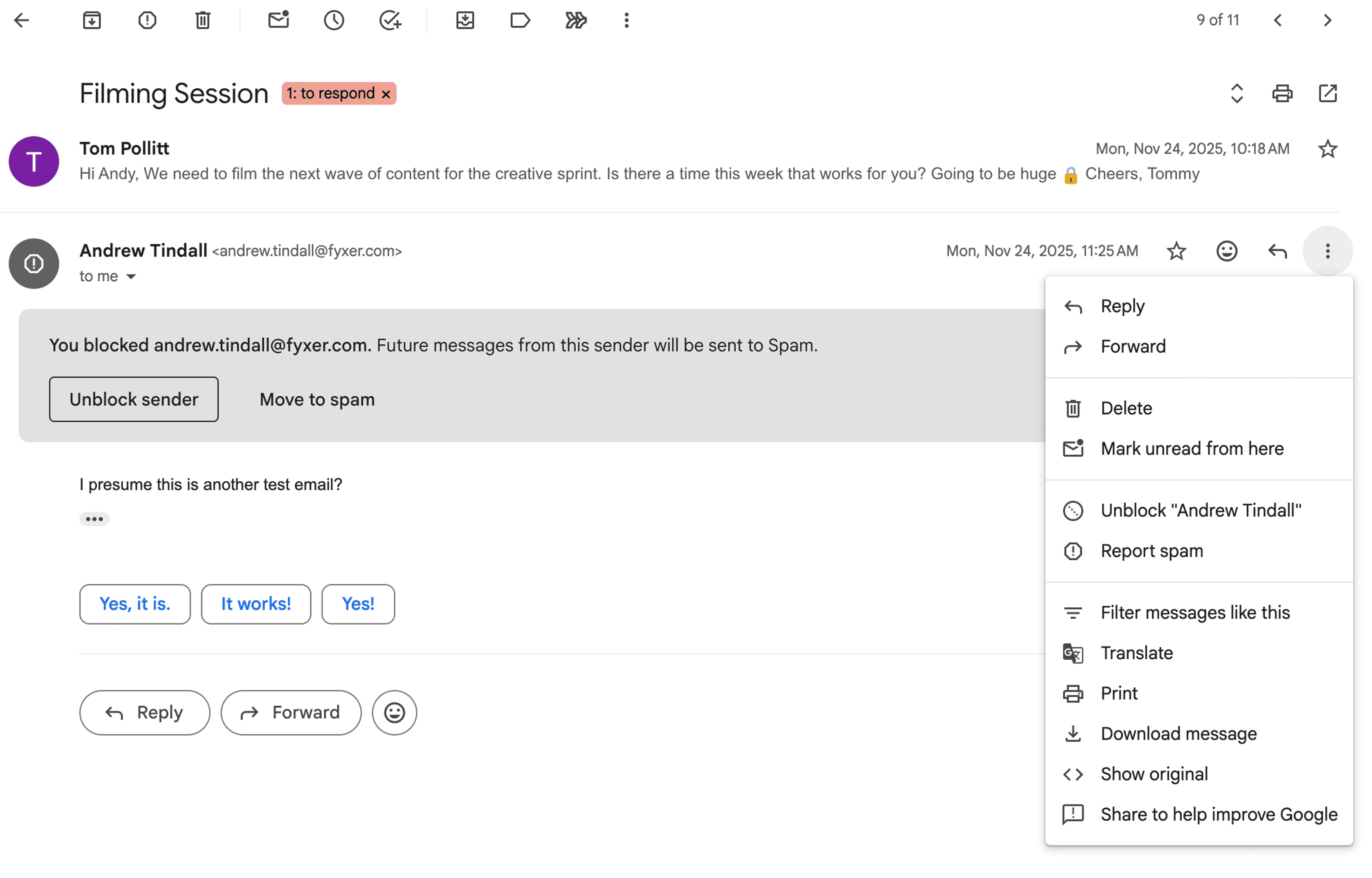
From an Email
Open the blocked email, click the “More” button (three vertical dots), and select “Unblock Sender.”
From Settings
Go to Settings → Filters and Blocked Addresses, find the sender you want to unblock, and click “Unblock.”
Following these steps will instantly restore communication with senders whose messages were unintentionally blocked.
Step 3: Unblock a Sender on Mobile
For Gmail app users on iPhone or Android:
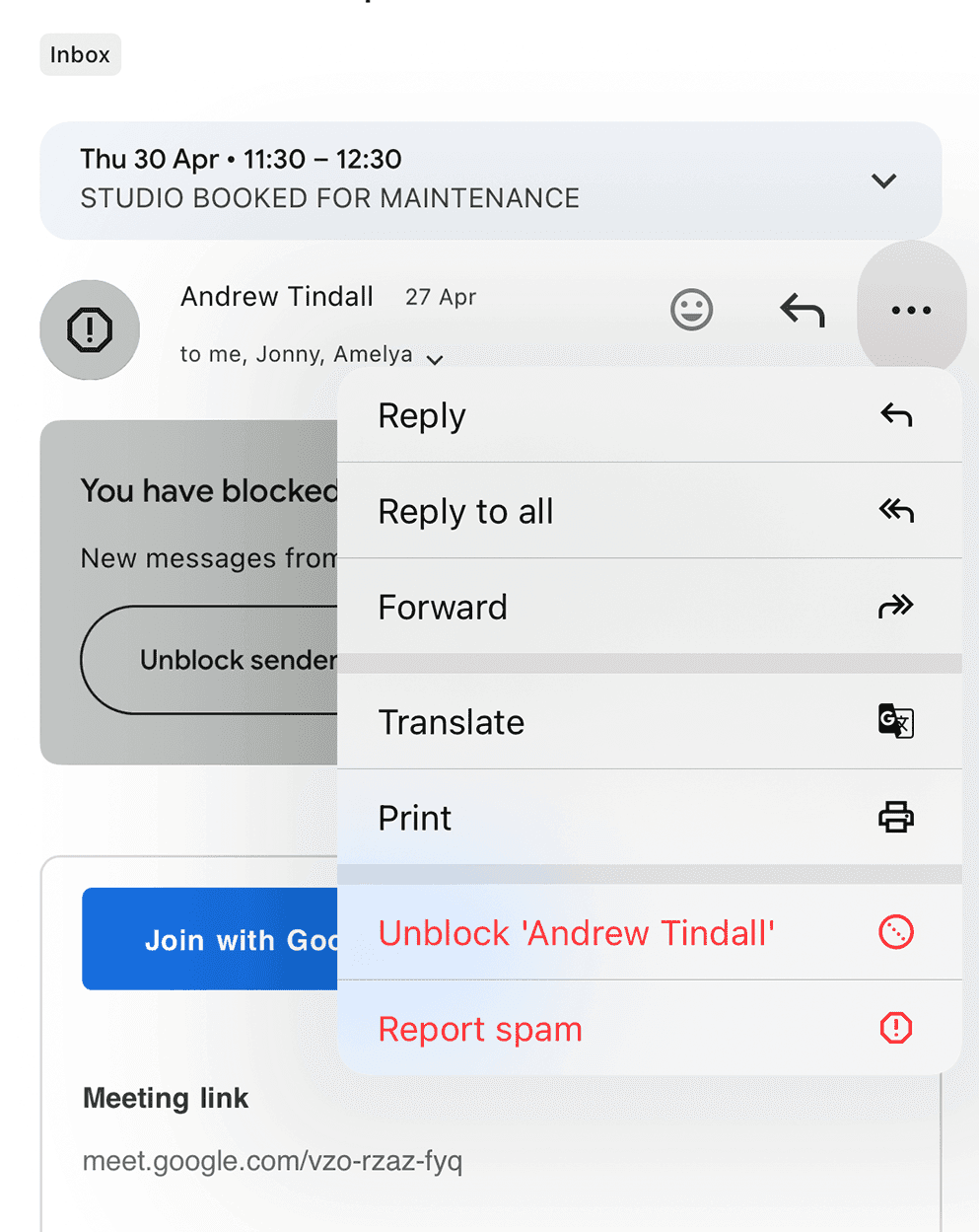
- Open the Gmail app and locate the email from the blocked sender.
- Tap “More” (three dots) at the top right.
- Select “Unblock Sender.”
Step 4: Manage Your Blocked List
Regularly reviewing your blocked list helps prevent important contacts from being unintentionally blocked
Option 1: Review Every 2 Months
Check your blocked addresses every two months to ensure no key contacts are included.
Option 2: Use Filters Instead of Blocking
Labels and filters can help organize emails without fully blocking senders, maintaining inbox control without risking missed communications.
Step 5: Verify Delivery
After unblocking a sender, it’s a good idea to confirm that emails are delivered:
Ask the Sender to Resend
If it’s a contact you know, ask them to resend an email to test that they’ve been unblocked.
Check the Spam Folder
Occasionally, emails from previously blocked senders remain in Spam even after unblocking.
More Unblocking Examples
Here are some other ways to unblock emails:
Accidental Blocking: Open the blocked email → “More” → “Unblock Sender.”
Multiple Blocked Senders: Navigate to Settings → Filters and Blocked Addresses → Unblock selected senders.
Mobile Unblocking: Tap the email in the Gmail app → “More” → “Unblock Sender.”
Recover Missed Messages: Check the Spam folder; emails may remain there until marked “Not Spam.”
Prevent Future Blocking: Use labels and filters to organize emails without blocking important contacts.
Inbox Tips and Advice
- Regularly Review Blocked List: Prevent accidentally blocking important senders.
- Check Spam Folder: Ensure important emails haven’t been misrouted.
- Use Filters Instead of Blocking: Labels and filters provide organization without cutting off communication.
- Mobile Access: Unblock emails anytime with the Gmail app.
- Communicate with Senders: Ask blocked senders to resend messages if necessary.
- Stay Informed: According to Forbes, mastering inbox management is essential for workplace productivity and avoiding missed opportunities.
Unblocking emails in Gmail is straightforward when you know the right steps. Whether using desktop or mobile, these instructions ensure you can restore communication with important contacts, recover missed messages, and maintain an organized inbox. Combining these strategies with smart tools like Fyxer can save further time and prevent any important emails going unread.
Frequently Asked Questions
FAQs: How to Unblock Email on Gmail
How do I unblock an email on Gmail?
Open the blocked email, click “More” → “Unblock Sender.” Alternatively, unblock from Gmail Settings → Filters and Blocked Addresses.
How do I unblock emails on the Gmail mobile app?
Open the email in the Gmail app, tap “More” → “Unblock Sender.”
Where does a blocked email go on Gmail?
Blocked emails usually land in the Spam folder. After unblocking, you may need to move them to the Inbox.
How do I find my blocked list on Gmail?
Navigate to Gmail Settings → Filters and Blocked Addresses to view all blocked email addresses.
Can I unblock multiple senders at once?
Yes. On Gmail desktop, select multiple senders under Filters and Blocked Addresses, then click “Unblock.”
Will unblocking automatically deliver missed emails?
Blocked emails might remain in Spam or be deleted, so ask the sender to resend important messages.
How can I avoid accidentally blocking important contacts?
Use Gmail filters and labels to organize emails without blocking senders.
You may also be interested in:

