

All of us use email every day at work. From receipts and contracts to meeting actions and personal notes, our inboxes hold important messages. Sometimes, you need to securely save these messages outside your inbox. That’s where saving an email as a PDF comes in.
According to Adobe, creating a PDF is a simple way to turn an email into an easy-to-read document that can be referenced again and again. So what is a PDF? A PDF (Portable Document Format) is a file type that makes sure what you see on screen remains consistent across devices. It’s secure, easy to share, and ideal for archiving important communications. In this guide, you’ll learn exactly how to save an email as a PDF, whether you’re on a computer, mobile phone, or using web-based mail.
How to save an email as a PDF on a computer
Saving an email as a PDF on a desktop or laptop just takes a few simple steps. The process may vary slightly depending on your email platform, but the logic remains the same: open the message, find the print or export option, and choose “Save as PDF.”
Gmail (web browser)
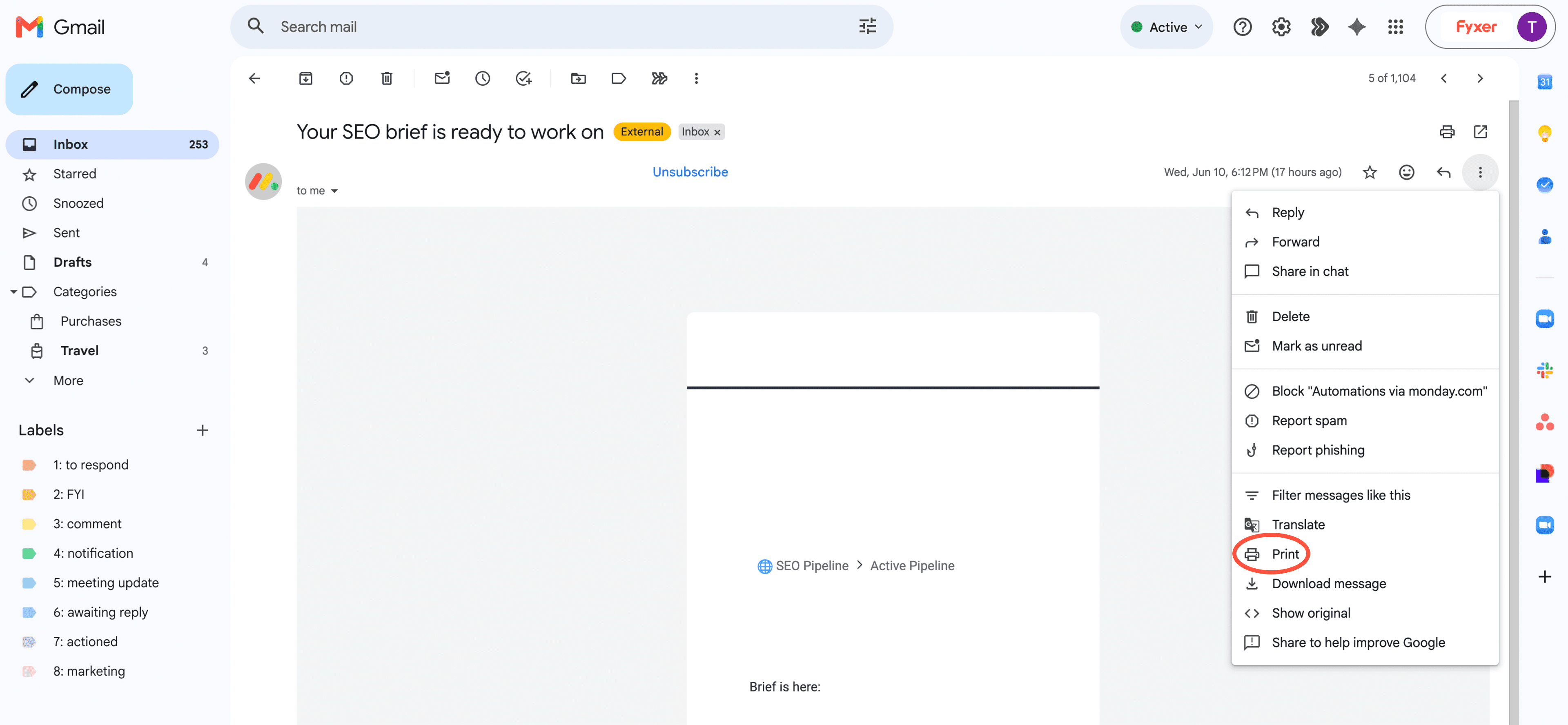
Step 1: Open Gmail and select the email you want to save.
Step 2: Click the three vertical dots (⋮) at the top right of the message.
Step 3: Choose “Print.”
Step 4: In the print window, change the destination printer to “Save as PDF.”
Step 5: Click “Save” and select where you’d like to store the file on your computer.
Tip: Rename the file with a descriptive title, such as “Invoice_March2025.pdf”, so it’s easy to find later.
Outlook (desktop app)
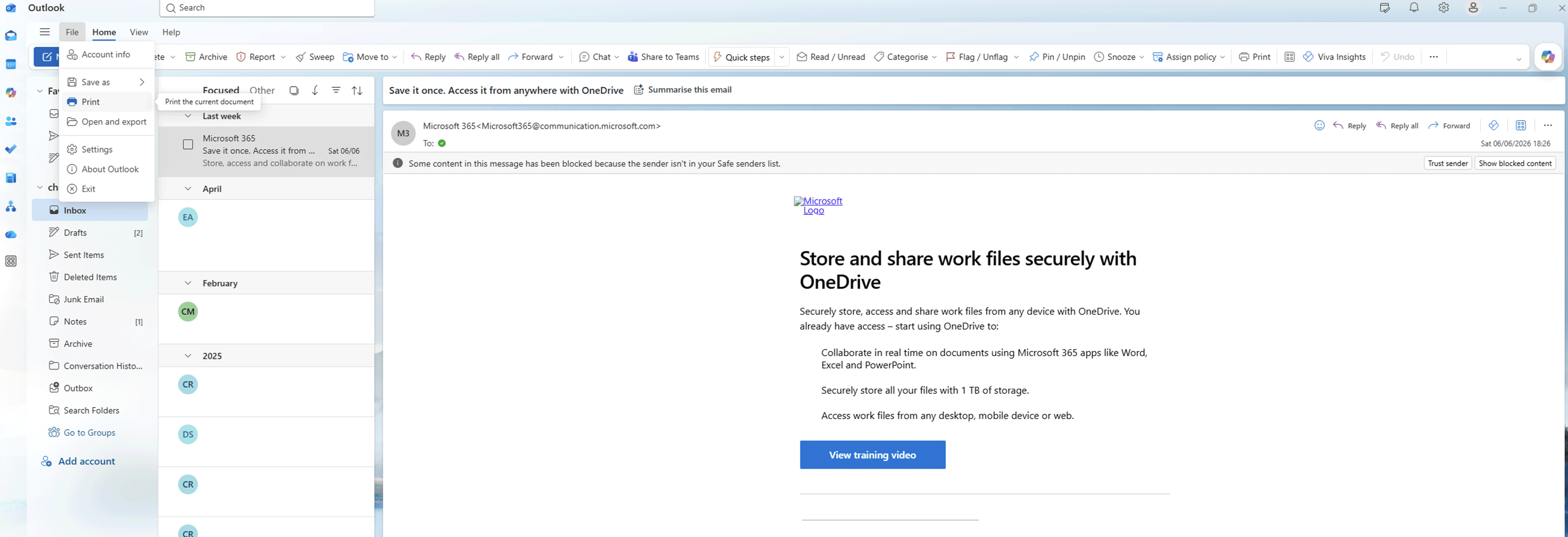
Step 1: Open Outlook and select the email you wish to save.
Step 2: Go to File → Print.
Step 3: In the printer options, select “Microsoft Print to PDF.”
Step 4: Click “Print,” choose a destination folder, and name your file.
If you’re using Outlook on the web, click “More actions (⋯)” → “Print,” and follow the same process.
Apple Mail (Mac)
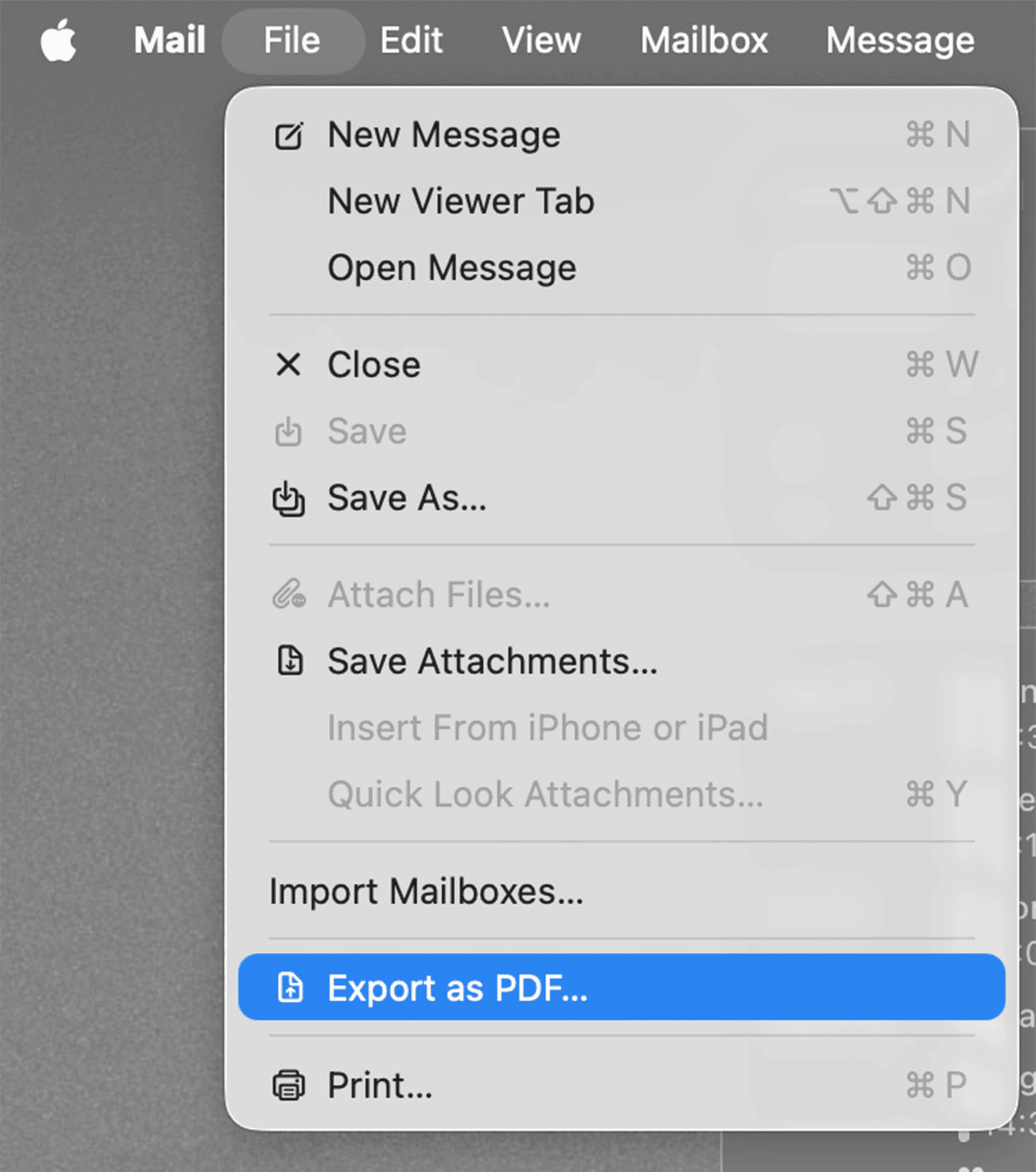
Step 1: Open the Mail app and choose your email.
Step 2: Go to the File menu and select “Export as PDF.”
Step 3: Choose a folder and filename, then click “Save.”
How to save an email as a PDF on a phone
If you’re on the go, you can still save emails as PDFs directly from your phone. The process depends on whether you’re using iOS or Android.
iPhone or iPad (iOS Mail app)
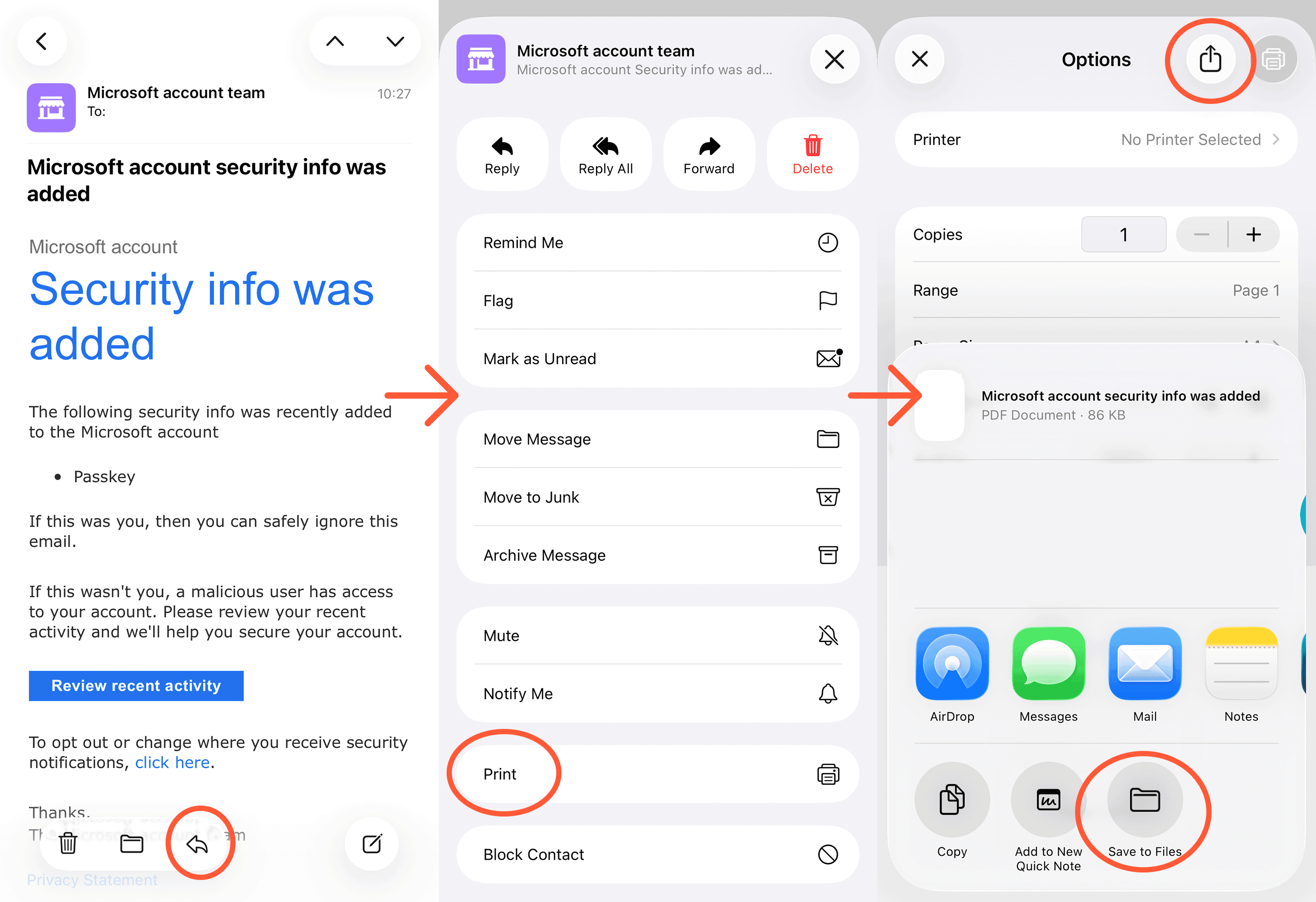
Step 1: Open the email in the Mail app.
Step 2: Tap the Reply/Share button at the bottom.
Step 3: Select “Print.”
Step 4: On the print preview screen, use two fingers to pinch out (expand) the preview.
Step 5: Tap the Share icon again and select “Save to Files” or “Save as PDF.”
Android (Gmail or default email app)
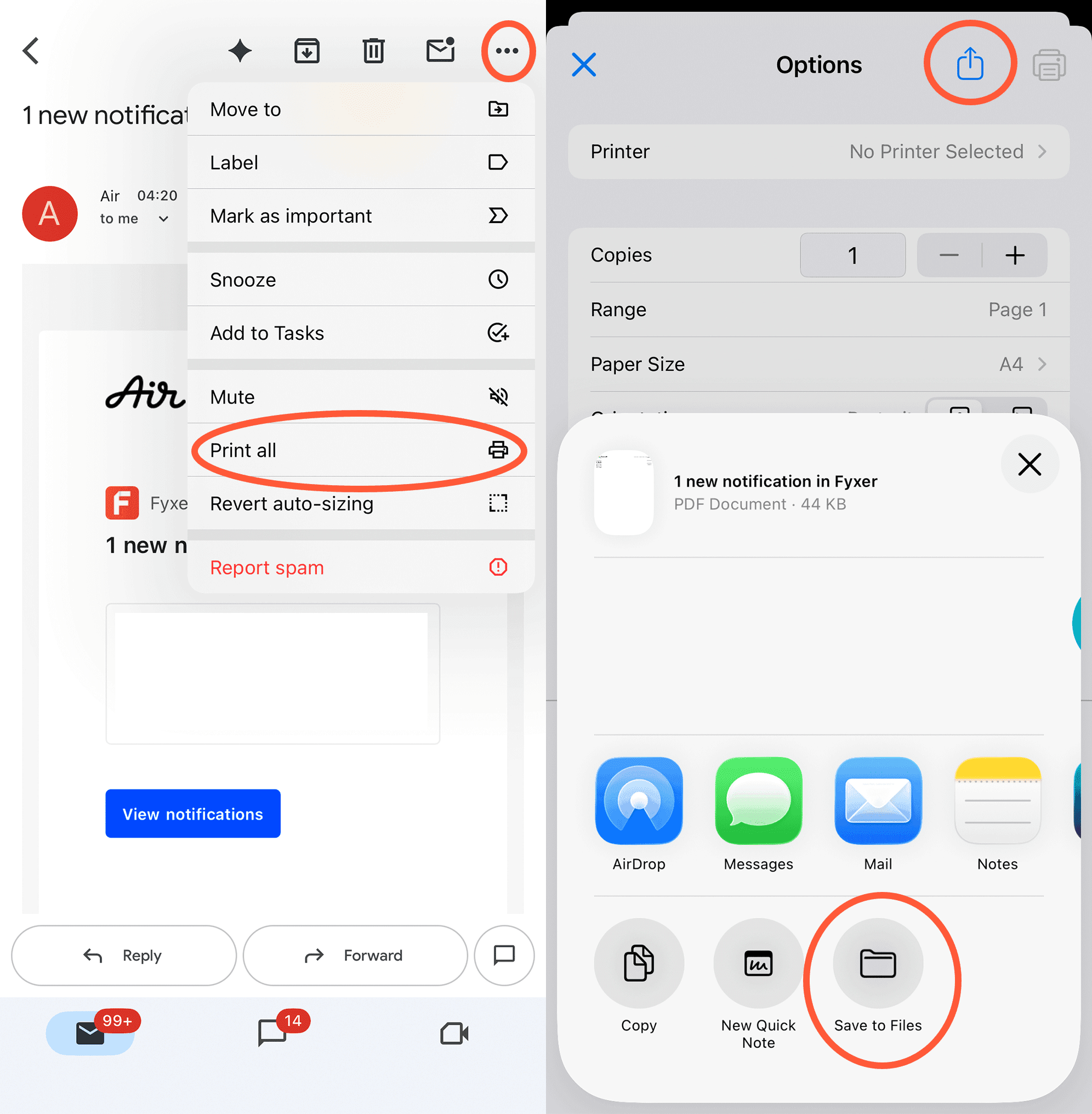
Step 1: Open the email you want to save.
Step 2: Tap the three-dot menu in the upper-right corner.
Step 3: Select “Print.”
Step 4: Tap the Printer dropdown and select “Save as PDF.”
Step 5: Choose a folder and tap “Save.”
Tip: Depending on your device, you might also see an option to “Download as PDF” directly within Gmail.
Alternative methods
Sometimes, you may need to save emails as PDFs in bulk or use advanced features such as automatic archiving. Here are a few useful alternatives:
Print to PDF
Most devices include a built-in “Print to PDF” function. You can access it through the Print command in nearly any application. This approach is helpful if your email client doesn’t offer a direct Save as PDF option.
Use third-party tools
Tools like MailStore Home, Clean Email, or Adobe Acrobat’s Email PDF feature can help you organize and convert multiple emails at once. They’re especially useful if you manage high volumes of communication and need structured digital archives.
Exporting multiple emails
If you want to create a single PDF with multiple messages, such as a complete conversation thread, you can copy all emails into a Word or Google Doc first, then export that document as a PDF. This keeps all related messages together.
Converting PDFs for sharing
Once saved, you can easily attach a PDF to a new email, upload it to cloud storage (like Google Drive or Dropbox), or sync it across devices.
Confidently save emails as PDFs
If you’ve followed the steps above, that’s it. Your email is now stored as a PDF file in your chosen folder.
Saving an email as a PDF is a simple yet powerful way to preserve important messages. You now know how to do this across devices - from Gmail on the web to iPhone and Android apps. It’s a straightforward skill that can help you take control of your inbox and keep your digital records safe and accessible.
Take a moment today to save one important email as a PDF. It might save you time later when you need quick access to a crucial message.