


Writing the same email over and over again isn’t just boring, it’s inefficient. If you’re managing multiple clients or projects then Outlook offers a simple solution to speed up the process: email templates.
By creating and saving templates, you can draft messages once and reuse them whenever needed. Email templates improve consistency, reduce errors, and save valuable time, making them an essential tool for professionals. Our guide to creating and saving email templates in Outlook will take you through every step of the process, including tips for personalization and common mistakes to avoid.
Why Email Templates Are Helpful
Email templates are more than just a nice-to-have, they can actually transform the way you manage communication. Professionals who rely on repetitive messaging, such as client updates, follow-ups, or internal notifications, often use templates. Here’s why:
Save Time
Writing the same email repeatedly can take hours each week. Templates allow you to draft a message once and reuse it instantly.
Ensure Consistency
Maintaining a consistent tone, style, and branding in all emails enhances professionalism and credibility.
Reduce Errors
Templates help prevent overlooked details or mistakes in standard communications.
Streamline Workflows
Using templates in combination with organizational tools improves multiple workflows.
How to Create and Save an Email Template in Outlook
There are several ways to create reusable emails in Outlook, ranging from traditional templates to Quick Parts and the My Templates add-in. Each method helps you save time while sticking to a professional tone.
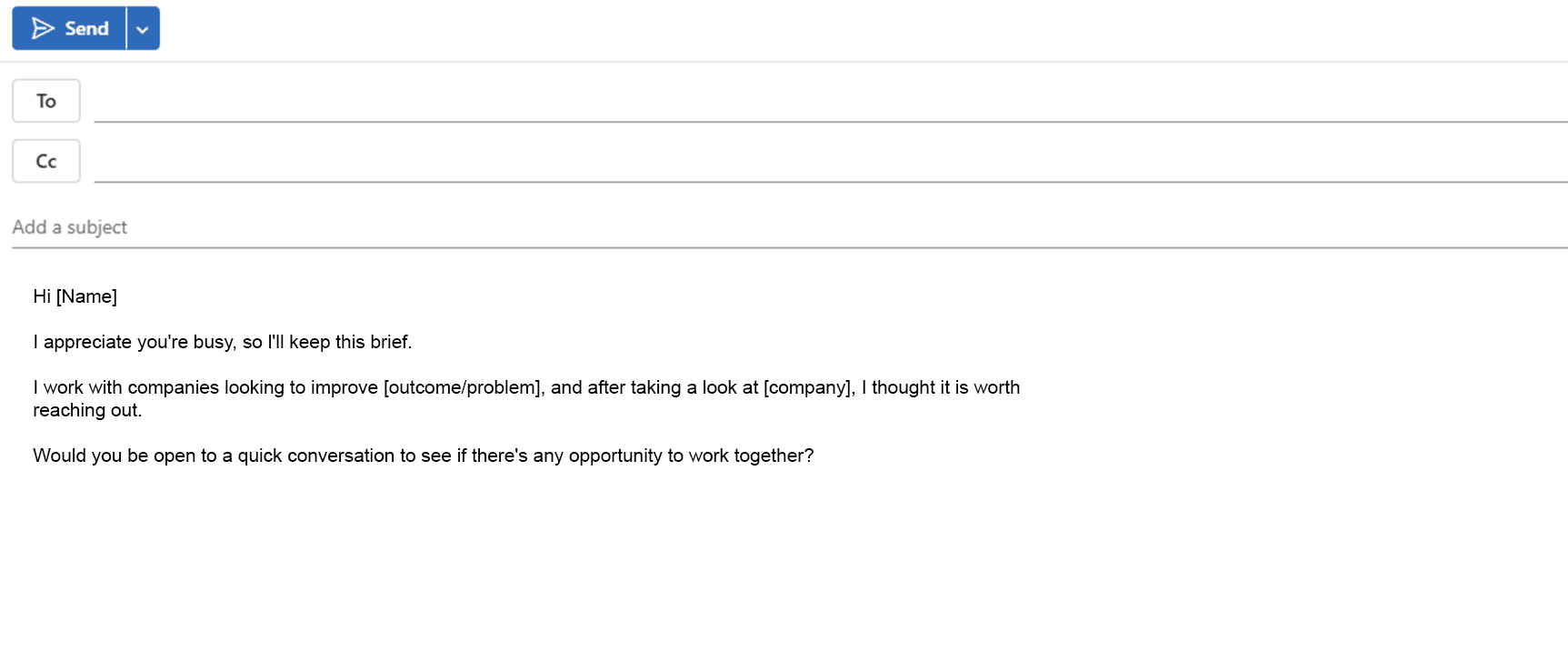
Step 1: Draft Your Email
Start by composing the email that you want to turn into a template. Aim to draft an email that can be reused with minimal editing. Business Insider emphasizes that you can only create the body copy of the email. All other information, like the intended recipient (or recipients), attachments and subject line will still need to be manually added after you've customized the template.
Tips:
1. Keep the subject line clear and professional.
2. Include all standard content, such as greetings, main message, and closing.
2. Add placeholders for personalized information, e.g., {{First Name}}, {{Company}}, which you can update each time you send the email.
Step 2: Save the Email as a Template
Once your draft is ready, save it as an Outlook Template (*.oft).
How to save a template:
- In Outlook, click File → Save As.
- Choose Outlook Template (*.oft) from the drop-down menu.
- Give the file an obvious name, making it easy to find (e.g., “Client Follow-Up Template”).
- Store templates in a dedicated folder for quick access.
Having a dedicated folder helps you to locate templates quickly, avoiding wasted time searching through your inbox or documents.

Step 3: Reuse and Edit Templates
Here’s how to use a saved email template:
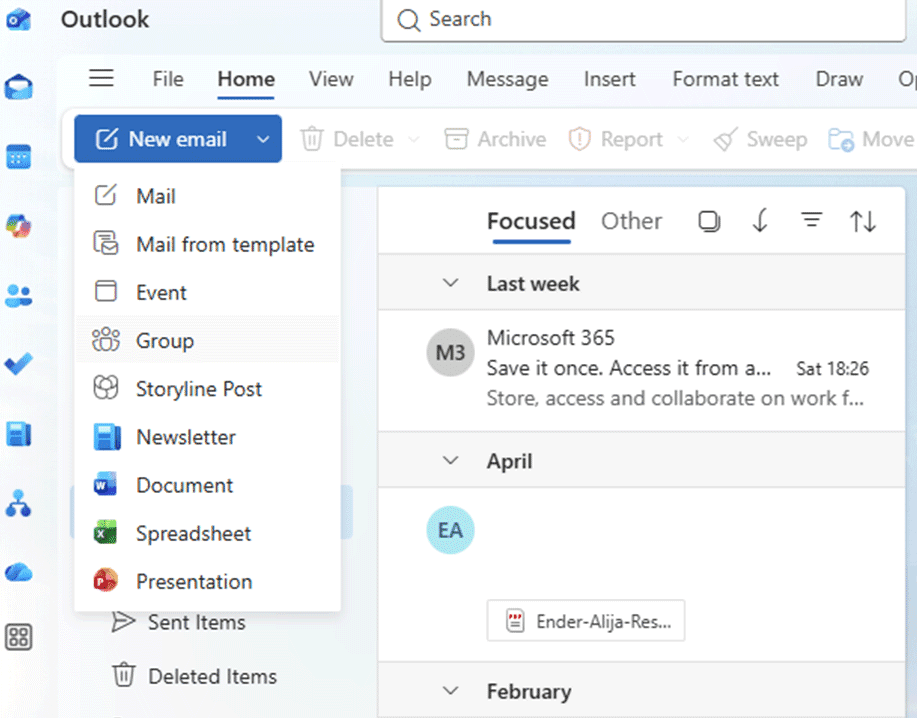
- Open Outlook and click New Items → More Items → Choose Form → User Templates in File System.
- Select the template you want and click Open.
- Update all placeholder text or personalize content before sending.
Templates are fully editable, allowing you to adapt each message without changing the original file. This flexibility is useful for client-specific details or last-minute adjustments.
Optional: Use Quick Parts or My Templates Add-in
Quick Parts
Quick Parts lets you save reusable snippets of text, such as standard greetings or disclaimers. Instead of creating a full template, you can insert these snippets into any email quickly.
My Templates Add-in
The My Templates add-in provides an interface within Outlook to store and access multiple templates directly in your message window. This is particularly useful for teams that send similar messages regularly, improving response times and communication consistency.
Using Quick Parts or the My Templates add-in is recommended for professionals who frequently send variations of standard emails, combining speed with flexibility.
Common Mistakes When Creating Email Templates
Even experienced users sometimes make mistakes when setting up templates. Avoid these common ones:
- Using unprofessional addresses or content – Keep language professional and avoid casual phrases in templates.
- Not using placeholders for personalization – Without placeholders, you risk sending generic, impersonal emails.
- Ignoring security or permissions – Avoid storing sensitive information in templates that may be shared with others.
- Overcomplicating templates – Long or complex templates can be confusing; keep them clear and concise.
- Failing to organize templates – Save files in clearly labeled folders to avoid wasted time searching.
Email Templates Can Make Every Day More Efficient
Creating and saving email templates in Outlook can make sending emails easier, it saves time, and it maintains professionalism. Whether you use traditional templates, Quick Parts, or the My Templates add-in, templates allow you to reuse messages efficiently while personalizing each email as needed.
To maximize benefits:
- Organize templates for quick access
- Include placeholders for personalization
If you’re looking to spend less time writing emails, without missing new client opportunities, you need Fyxer. It saves busy professionals 5+ hours every week by automatically organizing your inbox and drafting all email replies in your voice. By integrating Fyxer with Outlook, you can manage high volumes of emails without sacrificing personalization or professional tone, ensuring every response matches your communication style.
Frequently Asked Questions
FAQs: How to Create and Save an Email Template in Outlook
Can I create a fillable or editable email template in Outlook?
Yes. You can use placeholders or editable fields to personalize each email before sending.
How do I save an email as a template in Outlook?
Write your email, then go to File → Save As → Outlook Template (*.oft). Store it in an accessible folder.
Can email templates be shared with other users?
Yes. You can share *.oft files or use shared folders within your organization.
Can I edit an existing email template?
Yes. Open the template, make changes, and save it as a new file or overwrite the original.
What is the difference between Quick Parts and full email templates?
Quick Parts are reusable snippets for parts of emails, while templates are complete email drafts ready to send.
Are email templates compatible across Outlook versions?
Templates generally work within the same platform, but formatting may vary between desktop, web, and mobile versions.
Can I automate templates for recurring messages?
Yes. Combining templates with Outlook rules or scheduling tools allows for automated sending of repetitive emails.
You may also be interested in:
How Top Real Estate Agents Write Better Emails in Less Time
12 Introductory Email Templates That Get Responses: Your Guide to Perfect First Impressions

