
If you're trying to set up a Google Calendar for a group, the fastest route is creating a dedicated calendar (not sharing your personal one), naming it clearly, sharing it with your group's email address, and setting the right permission level for each person. The rest of this guide walks through each step.
Keeping a group in sync with separate calendars never quite works. Someone misses an update, or two events end up stacked on top of each other. For a sales rep juggling client calls across a dozen different calendars, for example, that overlap costs real time every week. A shared Google Calendar fixes that. Once it's set up properly, everyone sees the same events and the same changes as soon as they happen.
How to set up Google Calendar for a group
Setting up a group calendar takes a few minutes once you know where to look. Here's the process from start to finish, so the calendar actually works the way your group needs it to.
1. Create a new calendar
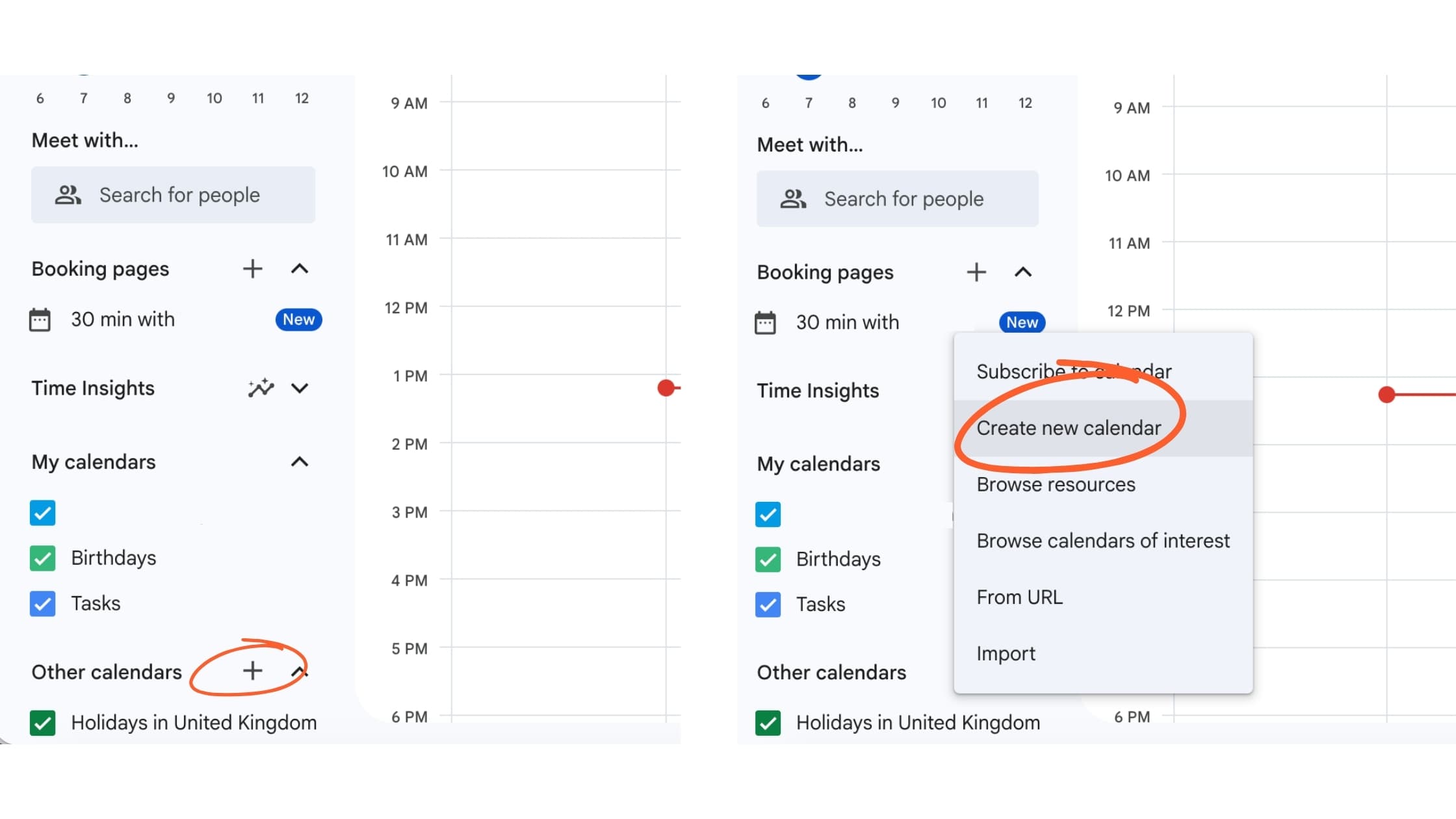
Don't use your personal calendar for this. In Google Calendar, click the plus icon next to "Other calendars" in the left sidebar, then select "Create new calendar." This keeps group events separate from your own schedule.
2. Name it and set the time zone
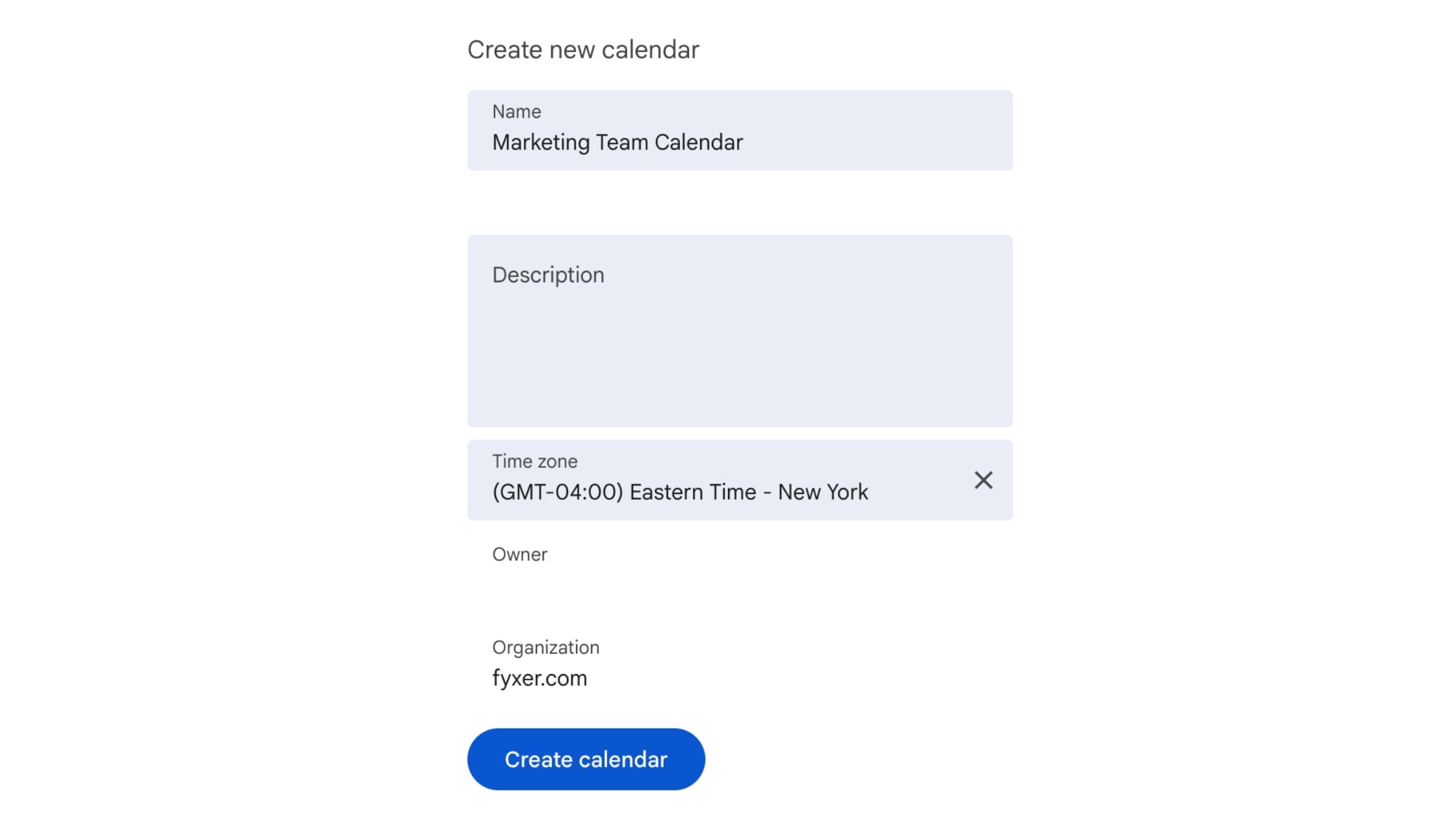
Give the calendar a clear, specific name (something like "Marketing Team Calendar" rather than just "Team"). Add a description, if needed. Set the correct time zone, especially if your group spans different locations. This prevents scheduling mistakes later on.
3. Share it with your group
Open the calendar's settings and go to "Share with specific people or groups." Add each person's email address, or use a Google Group email if you're inviting a larger or recurring group.
4. Set permission levels
Google Calendar offers a few levels of access:
- See only free or busy (hides event details)
- See all event details
- Make changes to events
- Make changes and manage sharing
Choose based on how much control each person actually needs. Not everyone needs full edit access.
5. Get the group using it
Once shared, group members need to add the calendar to their own view. They can do this from the invite email, or by searching for the calendar under "Other calendars" if they're already part of the same Google Workspace.
How to create a group calendar for multiple users
If you're sharing with a large team, adding people one by one is slow and easy to get wrong. Using a Google Group email address solves this. Instead of managing individual invites, you share the calendar once with the group's email address, and anyone added to that group automatically gets access. This is useful for teams that change membership often, since you only need to update the Google Group rather than the calendar settings.
Setting permissions and access levels for Google group calendars
Getting permissions right matters more than it might seem at first. Give too many people edit access and the calendar becomes cluttered with duplicate or conflicting events. Give too few people access and the calendar stops being useful as a shared source of truth.
- For a work team, give most people "see all event details" and reserve edit access for a few designated organizers.
- For a family or social group, "make changes to events" usually works fine, since the stakes of an accidental edit are lower.
- For a club or larger community, consider a small admin group with edit rights and broader "view only" access for everyone else.
Using your group calendar for scheduling
A shared calendar only helps if people actually use it to plan around each other. Google Calendar's group scheduling tools make that easier.
The "Find a time" feature lets you layer multiple calendars and spot a slot where everyone is free, without messaging each person individually. This works well for small to mid-sized groups, though it gets harder to read once you're trying to coordinate more than six or seven calendars at once.
Checking Google calendar group availability before sending a meeting invite saves a genuine amount of back and forth. According to Fyxer’s January 2026 Admin Burden Report, office workers lose 67 minutes a day to admin that AI could handle, with scheduling coordination is one of the most consistently cited components of that lost time. A lot of that comes down to manual checking, across calendars and time zones.
If your group regularly needs to schedule meetings with people outside the calendar (clients, candidates, vendors, suppliers), it's worth pairing your group calendar with a tool that handles the external side automatically. Fyxer's AI email assistant can generate a scheduling link tied to your live calendar availability and drop it straight into a reply, so the other person picks a time and the event books itself. No need for a long thread, or a message like "does Thursday work for you?"
What to avoid when setting up your Google group calendar
A few things consistently trip people up when setting up a group calendar:
- Sharing a personal calendar instead of creating a group one: This exposes someone's personal schedule and creates a single point of failure if they leave.
- Giving everyone edit access by default: It feels generous, but it usually leads to a messier calendar, not a more collaborative one.
- Skipping a naming convention for events: A calendar full of vague titles like "Meeting" or "Call" is hard to scan at a glance.
- Getting the time zone wrong: This is an easy miss for distributed teams, but it causes real scheduling errors.
- Not telling people the calendar exists: A group calendar only works if everyone's actually subscribed to it.
What’s the best calendar to share with a group?
For teams already using Gmail or Google Workspace, a dedicated group calendar inside Google Calendar is usually the simplest and most effective option. It requires no new software, no extra cost, nothing particularly new to learn, no separate login.
For teams working across different platforms, or with a heavy volume of external scheduling (client calls, candidate interviews, supplier confirmations, vendor meetings), a calendar paired with a dedicated scheduling tool tends to work better. The calendar holds the group's shared view; the scheduling tool handles the booking conversation with people outside the group.
What are the alternatives to Google Calendar?
Depending on what your group needs, a few other options exist:
- Outlook Calendar is the natural choice for teams already using Microsoft 365, with similar sharing and permission controls to Google Calendar.
- Calendly specializes in external scheduling links, useful if your group spends a lot of time booking meetings with people outside the organization.
- Dedicated team scheduling tools can layer extra features on top of a calendar, like automated reminders or built-in availability rules, though they often mean managing one more tool.
None of these replace the core idea of a shared calendar. They extend it for specific needs.
Is Google Calendar good for groups?
For most teams, yes, with some caveats.
Google Calendar is free and familiar, and it integrates naturally with Gmail and the rest of Google Workspace. Sharing is straightforward, and most people already know how to use it, which lowers the barrier to actually getting a group to adopt it.
Where it falls short is at scale. Permissions can get messy once a group grows past a certain size. There's no built-in way to assign tasks alongside events. And for cross-team scheduling involving external contacts, Google Calendar on its own doesn't do much beyond showing free or busy time.
How group calendars fit into the bigger admin picture
A shared calendar solves the visibility problem. It doesn't solve the time problem. Even with a well-organized group calendar, someone still has to check availability, write the scheduling email, follow up when no one replies, and recap what got decided after the meeting happens. Fyxer's January 2026 Admin Burden Index found that employees lose 5.6 hours a week to admin that AI could handle, with email cited as the single biggest time-waster.
That's where a calendar setup stops being enough on its own. Fyxer works alongside your group calendar rather than replacing it: it reads your real availability to suggest meeting times, drafts replies to scheduling emails in your own voice, and uses its AI Notetaker to turn the meeting itself into a clear summary and follow-up, automatically. It works inside Gmail and Outlook, so nothing about how your group already schedules things needs to change.
A group calendar gives your team, project, club, or family one shared place to see events and plan around each other, without the confusion of separate personal calendars. Set it up as a dedicated calendar rather than sharing a personal one, choose permission levels deliberately, and make sure everyone's actually subscribed. From there, the right scheduling tools depend on how much of your coordination happens inside the group versus with people outside it.