
Outlook gives you several ways to select more than one email at a time, depending on whether you need a continuous range, a scattered group, or everything in a folder. The methods differ slightly between the desktop app, the web version, and mobile, so this guide covers each one.
Selecting multiple emails in Outlook desktop (Windows)
The Windows desktop app has the most keyboard shortcut options of any Outlook version. Whether you need two specific emails or everything in a folder, there's a method that gets you there in seconds.
Ctrl+click: Individual emails anywhere in the list
Hold Ctrl and click each email you want to select. The emails do not need to be next to each other. Click an already-selected email while holding Ctrl to deselect it. This is the most flexible method when you want specific messages scattered across your inbox.
Shift+click: A continuous range
Click the first email in the range, then hold Shift and click the last. Everything between the two clicks gets selected. If you need to add individual emails outside that range, hold Ctrl and click them after making the Shift selection.
Ctrl+A: All emails in the folder
Press Ctrl+A to select every email in the folder you currently have open. This works on the inbox, any custom folder, search results, and the Sent folder. It selects only what is visible in that folder, not across all folders.
Checkboxes
In newer versions of Outlook for Windows, hovering over an email reveals a circle to the left of the sender name. Clicking it selects that email and switches the view to checkbox mode, letting you click additional circles to build the selection. If you do not see checkboxes, you are likely on an older version of the desktop app where keyboard shortcuts are the primary method.
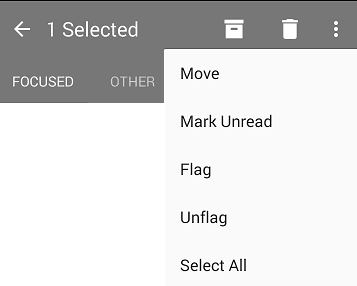
Selecting multiple emails in Outlook on a Mac
The Mac equivalents follow the same logic. Hold Cmd instead of Ctrl for individual selections, Shift+click for a range, and Cmd+A to select all in the folder. Checkboxes behave the same way as on Windows in current Outlook for Mac versions.
Selecting multiple emails in Outlook on web
Hover over any email in Outlook.com or the Microsoft 365 web app and a circle appears to the left of the message. Click it to select that email and activate checkbox mode. Continue clicking circles to add more messages.
To select everything currently visible in the folder, click the checkbox at the very top of the message list, above the first email. If the folder contains more emails than are loaded on screen, a prompt appears asking whether to select all messages in the folder.
Ctrl+A also works in the web version, selecting all emails visible in the current view.
Selecting multiple emails in the Outlook mobile app
On iOS and Android, long-press any email to enter selection mode. A checkmark appears to the left. Tap additional emails to add them to the selection. You can also tap the circle or profile icon to the left of any message to select it without long-pressing first, once selection mode is active.
A "Select all" option appears once you have entered selection mode, but it selects only the emails currently loaded on screen, typically around 60 at a time. If you need to select more, scroll down to load additional messages and tap Select all again.
What you can do once emails are selected
With multiple emails selected, the toolbar changes to show bulk action options. Depending on which version of Outlook you are using, these include:
- Delete: Moves selected emails to the Deleted Items folder. On Windows desktop, Shift+Delete permanently deletes them without going to Deleted Items, though Outlook asks for confirmation first.
- Move to folder: Moves all selected messages to a folder you choose. Useful for archiving a batch of emails from a completed project.
- Archive: Moves selected emails to the Archive folder. On Windows desktop, the E key shortcuts to archive the selected messages.
- Mark as read or unread: Applies the read state to all selected messages at once.
- Flag: Adds a follow-up flag to all selected emails simultaneously.
- Move to Junk: Marks selected messages as junk and moves them to the Junk Email folder.
Selecting emails after a search
Running a search in Outlook and then selecting emails with Ctrl+A or the top checkbox applies the selection only to the search results, not your full inbox. This is useful for bulk-deleting or moving all emails from a specific sender: search for the sender, select all results, and delete or move in one action.
On the desktop app, Ctrl+A after a search selects all visible results. In the web app, the top checkbox selects the visible batch and prompts you to extend to the full search results if there are more.
A note on Outlook versions
Microsoft has been rolling out a new Outlook for Windows since 2023, which replaces the classic desktop client over time. The new version aligns more closely with the web interface and includes checkboxes. The classic desktop app relies primarily on Ctrl and Shift keyboard shortcuts. If the checkboxes described in this guide are not visible, checking which version you have under Help > About Outlook confirms which applies to you.
Keeping up with a high-volume inbox
Selecting and deleting emails in batches is a reasonable way to clear a backlog. For ongoing inbox management, the manual triage involved in deciding what to select and where to move it is where time actually goes.
According to the Fyxer Admin Burden Index 2026, a survey of 5,000 UK and US office workers, email is the number one daily time-waster: 32% of US workers cite their inbox as their top drain. Fyxer's AI email organizer categorizes incoming email automatically before you open it, surfacing what needs a reply and filing everything else, reducing the need for bulk selection sessions in the first place.