You're somewhere in the middle of closing a deal. The final terms and agreements are somehow buried in last week's email. Or your legal team just asked for documentation on a contract dispute.
Most of the time, if you print an email from Outlook, you're doing it to save or protect something. A signed agreement, proof of what was actually agreed, or a timestamp for when a decision was made. But there's a catch: you can't print what you can't find.
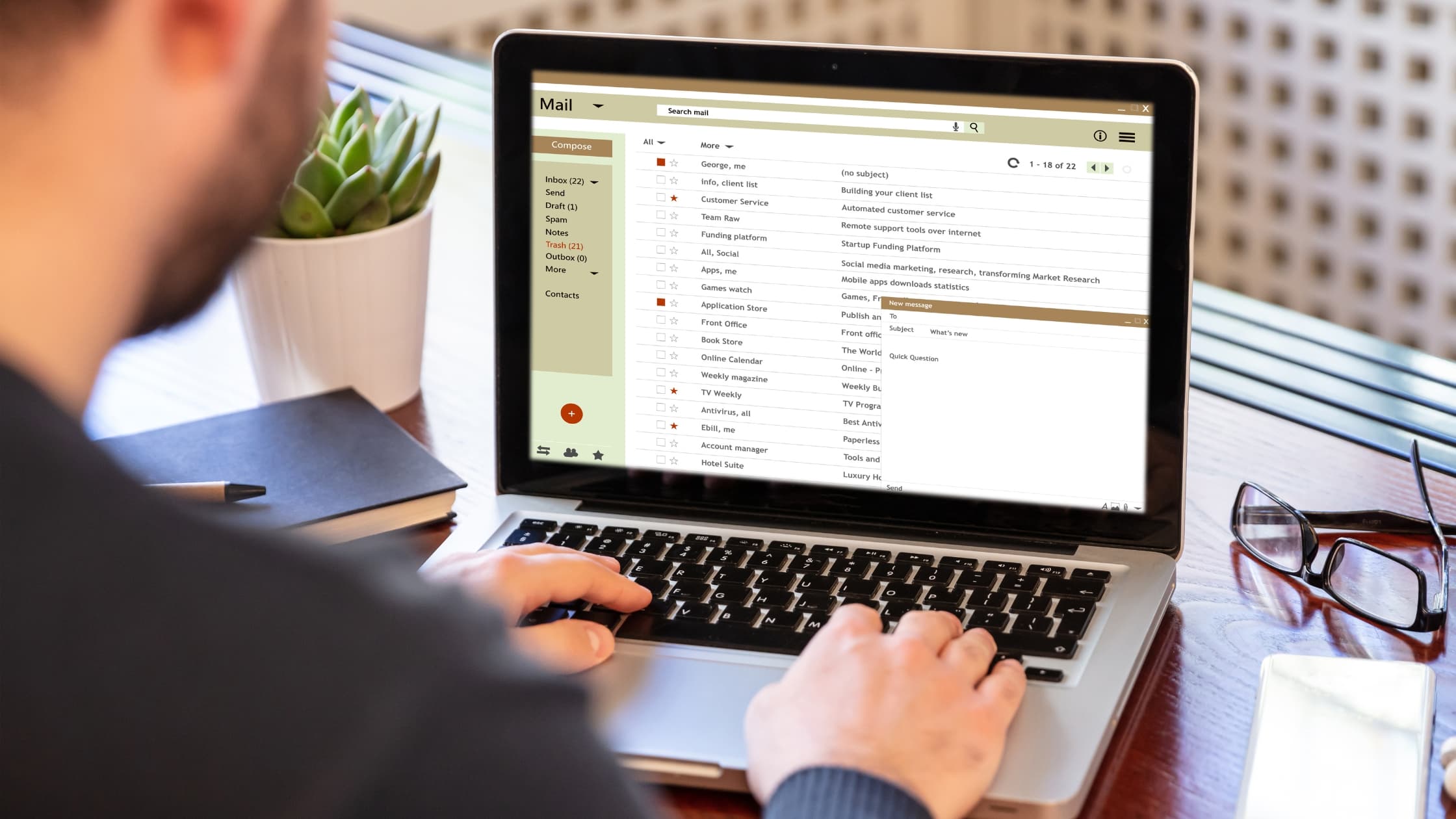
When your inbox is running 50+ emails a day, that specific message doesn't announce itself. It could be two weeks ago. It might be nested in an email chain that's been forwarded three times. By the time you find it, you've wasted your precious time when it should've been spent on the real work.
Fyxer keeps important client threads and decisions organized and visible, so when you need to print something critical for a deal or legal matter, it's already where you'd expect it.
Here's how to make sure the email you need is easier to find, and what your printing options are.
Why finding the right email takes time
When you need that one specific email, the one that has the exact language of an agreement or captures who said what on a given date, you're not just glancing. You remember roughly who sent it and roughly when, but you might be off by days or weeks. Was it in an email chain that went back and forth between you and the client, or did someone forward it to you separately? Did the original message get buried under replies and counter-proposals? Sometimes the email you actually need is at the bottom of a long chain, underneath three or four rounds of "as per our last email."
Research shows that 50% of inbox activity is noise. Marketing emails, notifications and automated alerts, none of it moves your work forward, yet all of it competes for your attention. When you're searching for one specific email, you're filtering out everything that doesn't matter.
Add volume on top of that. The average knowledge worker receives 29 emails a day that require a response. Some manager roles see double that. The email you need to print could have arrived last week, last month, or be buried deep in a conversation that's still ongoing. Finding it fast is the real skill.
Once you find it, printing is straightforward. But most managers don't know they have options. You can print directly from Outlook. You can save it as a PDF. You can export it as a file. Each method works better in different situations.
How to print an email from Outlook: Step-by-step
Outlook gives you four ways to print or preserve an email, and the right choice depends on why you're keeping it. Here's when to use each one.
Print directly from Outlook
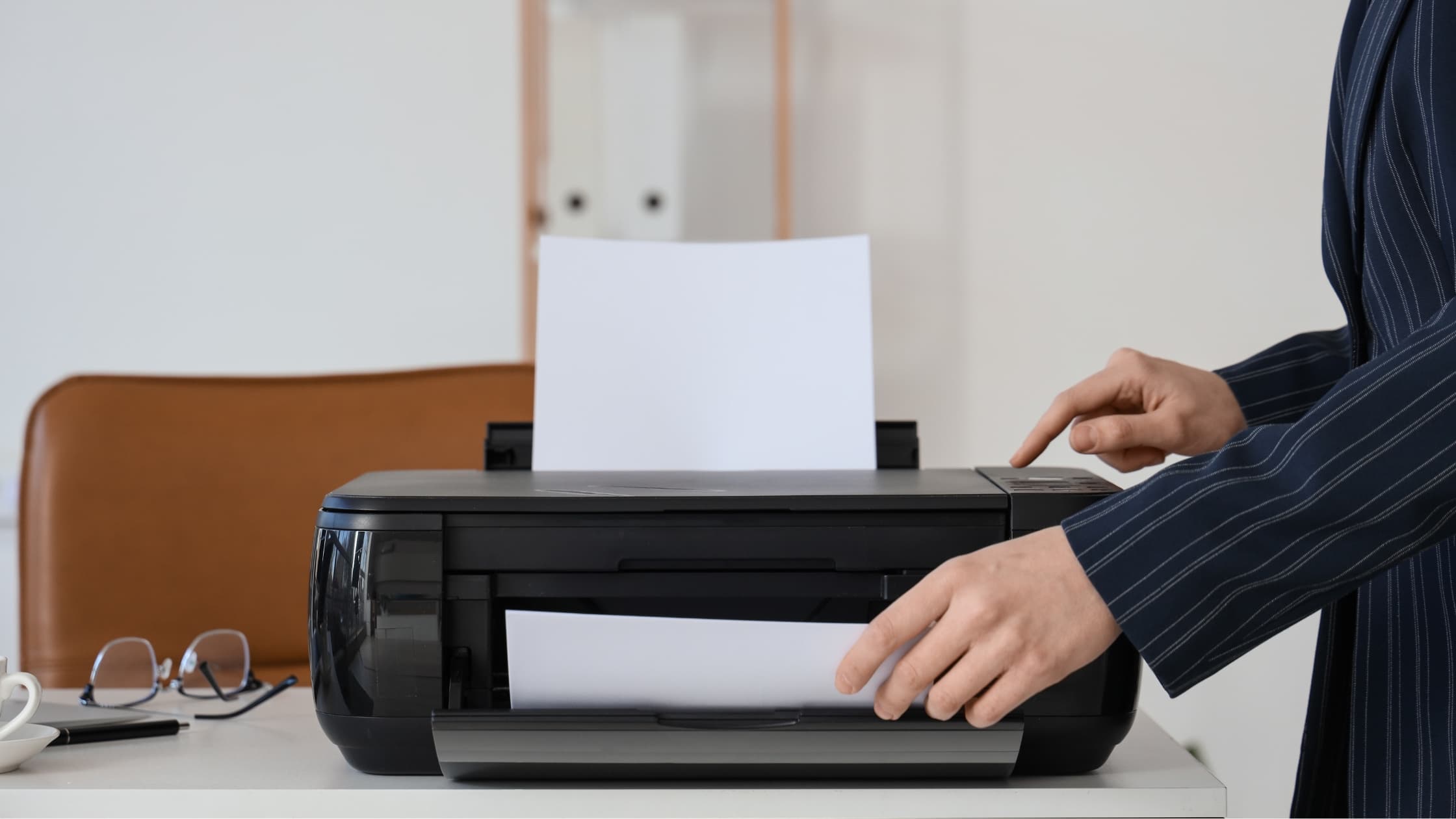
Open the email you want to print. Click File at the top left of your screen. Select Print. Choose your printer and any settings (single or double-sided, color or black and white). Click Print. The email will print with headers, body, and formatting intact.
This is the fastest option if you need a quick printout. The email appears on paper exactly as it looks on screen.
Save as a PDF in Outlook
Open the email. Click File > Print. In the printer dropdown, select "Print to File" or "Microsoft Print to PDF" (available on Windows). Decide where you want to save the PDF. Then Print. The email is now saved as a PDF instead of being printed on paper.
This method is useful if you want a digital copy that retains the formatting and doesn't require paper. It is easier to use PDFs to attach to other documents or files in a system.
Export email as an .msg file
If you need to keep the email in Outlook-native format with all headers and technical metadata intact, right-click and select "Save As." Name it, pick a folder. Now you have an .msg file that any Outlook user can open, and it preserves everything about how that message traveled through your system.
Save email as HTML
If someone on your team doesn't use Outlook, or you just need a copy that works in a browser, change the file type to "HTML Only" in the Save As dialog. It opens anywhere and keeps the formatting intact.
Why printing email actually matters
Most emails aren't worth printing. But the ones that are tend to matter a lot. A signed-off agreement, a decision with conditions attached, a conversation your legal team needs to see. Here's when printing is worth your time.
Closing a deal
The terms are finalized. The client confirms through email. Once you have the email, print it. File it alongside the contract. If there's ever a question about what was promised, you have the document.
Managing a legal or compliance matter
When something breaks, your legal team won't want your summary of what happened. They'll want the original conversation with the timestamps and routing information still attached. The email headers aren't just technical details; they're proof of when things were said and how they moved through your systems. Preserve it in .msg format first (that's where the full metadata lives), then also save a PDF version. Your legal team might need one or both, depending on what they're building the case around.
Preparing for a client meeting
You're meeting with an important account. You want to reference the email that set expectations, outlined deliverables, or confirmed a decision. Rather than scrolling through your laptop during a call, print the email beforehand. You have the exact wording in front of you.
Documenting a decision or approval
Your manager approved something, but the email outlines conditions or specific requirements. Print it so you have a document to reference as you execute. You won't have to search for the email again when you need to confirm what was actually agreed.
Creating a paper trail for a vendor or partner contract
A vendor sends terms, and you negotiate with them like email tennis. The final agreement arrives in your inbox. Rather than keeping it only in Outlook, print it and file it with your contract paperwork. It becomes part of the formal record.
When printing doesn't matter, don't print. Don't print emails you only reference occasionally, and don't print so much that you're creating stacks of paper that are harder to search than the email itself.
Before you print
When you need to print something important, you're racing against the clock. What should take two minutes turns into 10 or 15 because you have to look for it first. From the client or forwarded by your manager? In the main thread or a separate reply?
According to Fyxer's Admin Burden Index, the average knowledge worker spends 4.3 hours a day on email, time that could be better spent on the work that actually moves a deal forward.
When something critical is on the line, your inbox shouldn't be the thing slowing you down. Fyxer organizes your inbox automatically and surfaces the emails that matter. When you need to print an email for a deal, contract, or legal record, the right email is right there.
Printing Outlook email FAQs
Can I print an email with attachments?
Yes. When you print from Outlook, attachments are included in the printout. However, large attachments or multiple files might print across many pages. Consider printing just the email body if attachments are lengthy, then handle those files separately.
Will the email print with all headers and metadata?
When you print directly from Outlook, headers and basic metadata appear (From, To, Date, Subject). For full header information (server routing, authentication data), export the email as an .msg file instead. That saves the information and complete metadata.
What happens to email formatting when I print?
Outlook attempts to preserve formatting, but some elements may not print exactly as they appear on screen. Images might resize. Colored text might print differently. Preview before printing anything important. Use PDF export if you need pixel-perfect formatting preservation.
Can I print multiple emails at once?
You can select a batch and tell Outlook to print them all, but be warned: you'll get one long document with everything stacked together. If you're building a file where each email needs to be its own page, print them individually. It takes longer, but your records stay organized.
Should I print it on paper or save it as a PDF?
If you need a physical record for a file, print it on paper. If you need a digital copy that's easy to store, search, and share, save it as a PDF. For legal and compliance matters, do both. A PDF is searchable and doesn't degrade over time like paper.
What's the best file format for long-term record keeping?
For compliance and legal purposes, save as .msg (native Outlook format with full metadata) and PDF (readable without Outlook, easy to archive). This covers both technical requirements and accessibility.
.jpg&w=3840&q=75)