


The fastest way to find unread emails in Gmail is to type is:unread into the Gmail search bar and press Enter. That single operator surfaces every unread message in your account, across every folder and label. But if you're in a role where a missed email costs you a deal or a client relationship, knowing the shortcut is only half the job.
For salespeople and account managers handling 50+ emails a day, an unread message from a prospect can sit buried under marketing notifications for hours. According to the Fyxer Admin Burden Index, 2026, a survey of 5,000 UK and US office workers, the average office worker receives 29 emails per day that need a response, and over half of all inbox activity is noise. Getting to the signal faster is the real challenge.
This guide covers how to find unread emails, why Gmail's unread count is often misleading, and how to stop important messages from disappearing into the noise.
What "unread" really means
Gmail marks an email as "unread" when it arrives in your inbox and hasn't been opened yet. Unread messages appear in bold, giving you a visual signal that you haven't looked at them. Simple enough, right? Not always. Gmail's system gets tricky when it comes to conversation threads.
In Gmail, an entire conversation thread stays marked as unread until every single message in that thread has been opened. If even one email you received 2 weeks ago remains unopened, Gmail will keep the whole thread bold. This can make it look like you have unread mail when you've actually read the latest message.
For more on how Gmail's inbox works, check out Google's official support page.
Why Gmail shows unread emails you can't see
Sometimes your Gmail inbox displays an unread count even when you can't find any bold messages. This usually happens because of:
- Archived emails: Messages removed from your inbox but not deleted still count as unread.
- Hidden threads: Long conversation chains may have unopened messages deep in the history.
- Label mismatches: Emails sorted into specific labels or folders (such as marketing promotions) might not appear in your main inbox view.
These hidden messages create misleading unread counts, which is frustrating when you're trying to clear everything out.
How to find unread emails in Gmail
There are multiple ways to track down unread emails in Gmail, whether you're on desktop, using the app on your phone, or working with filters. Here's how to do it.
Hit “See all settings,” and tab over to “Inbox,” then under “Inbox type,” check “Unread first.”
Using Gmail Search
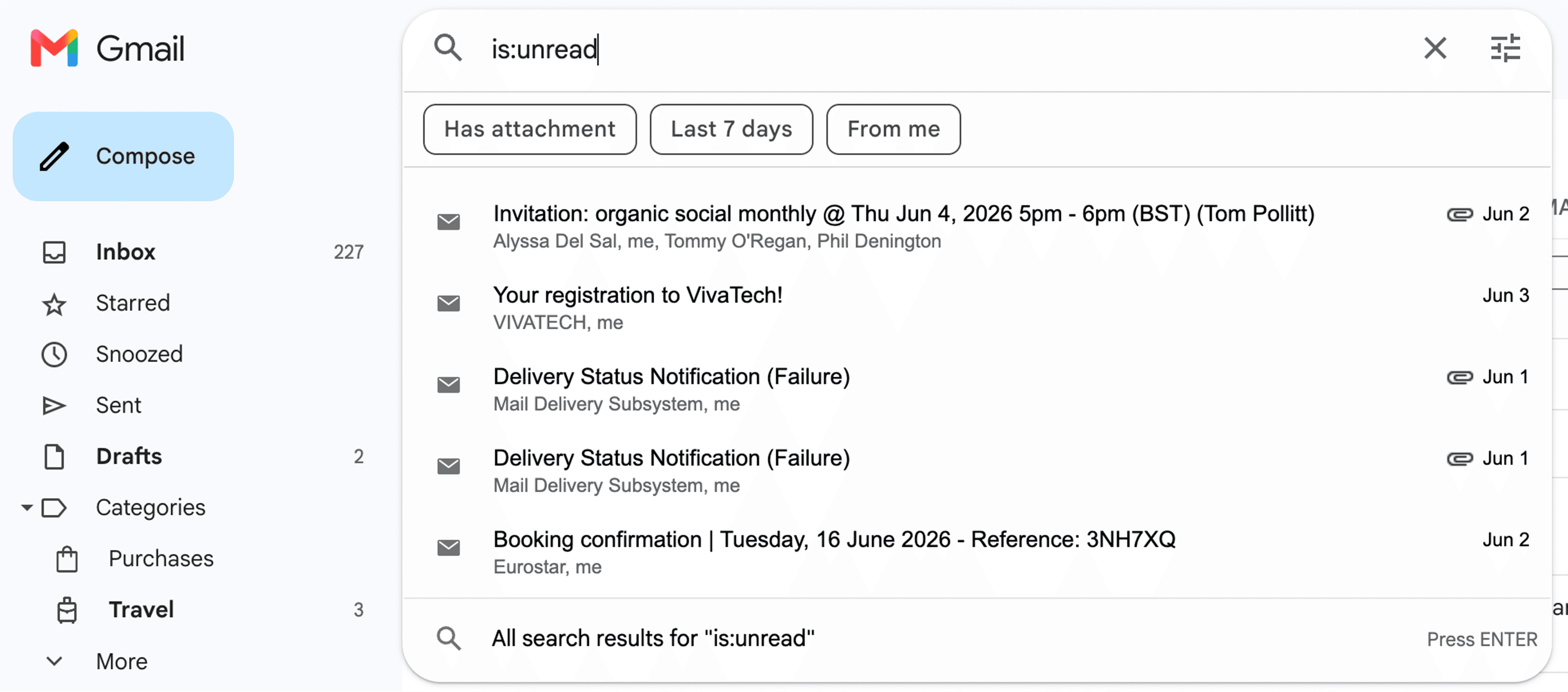
The fastest way to find unread emails is using Gmail's search operators. Here’s the operator you need: is:unread
Here's how to use it:
- Open Gmail in your browser or on the app on your phone.
- Click on the search bar at the top.
- Type is:unread and press Enter.
Gmail will show every unread email in your account. The Wall Street Journal has noted that surfacing unread messages at the top of your queue makes it far easier to prioritize what needs attention first.
You can combine this operator with other filters to narrow your search. For example:
- label:inbox is:unread: Shows unread emails only in your inbox.
- from:manager@company.com is:unread: Shows unread emails from a specific person.
This method saves you from endless scrolling and gets you straight to what you're looking for.
Find unread emails in specific labels
If you organize your emails with labels, you can search within them:
label:work is:unread
This displays only unread emails tagged under "Work," helping you focus on what matters most.
Using Gmail Filters
Filters let you automatically sort, label, or flag incoming emails based on criteria like sender, subject line, or keywords. They won't catch emails that are already sitting unread in your inbox, but they're a solid way to stay on top of high-volume senders going forward.
Here's how to set one up:
- Click the gear icon in Gmail and select See all settings.
- Go to the Filters and Blocked Addresses tab.
- Click Create a new filter.
- Fill in the criteria you want to filter by: a specific sender address, a subject line keyword, or a domain.
- Click Create filter and choose what happens to matching emails, such as applying a label, marking as important, or skipping the inbox entirely.
One practical use: if you get a high volume of emails from a domain you always need to act on, filter those by sender and auto-label them so they're always easy to find. Pair that with the is:unread search operator to surface anything from that sender you haven't opened yet.
Selecting all unread emails
Once you've found your unread emails, you might want to take action on all of them at once (like marking them as read or archiving them).
Here's how:
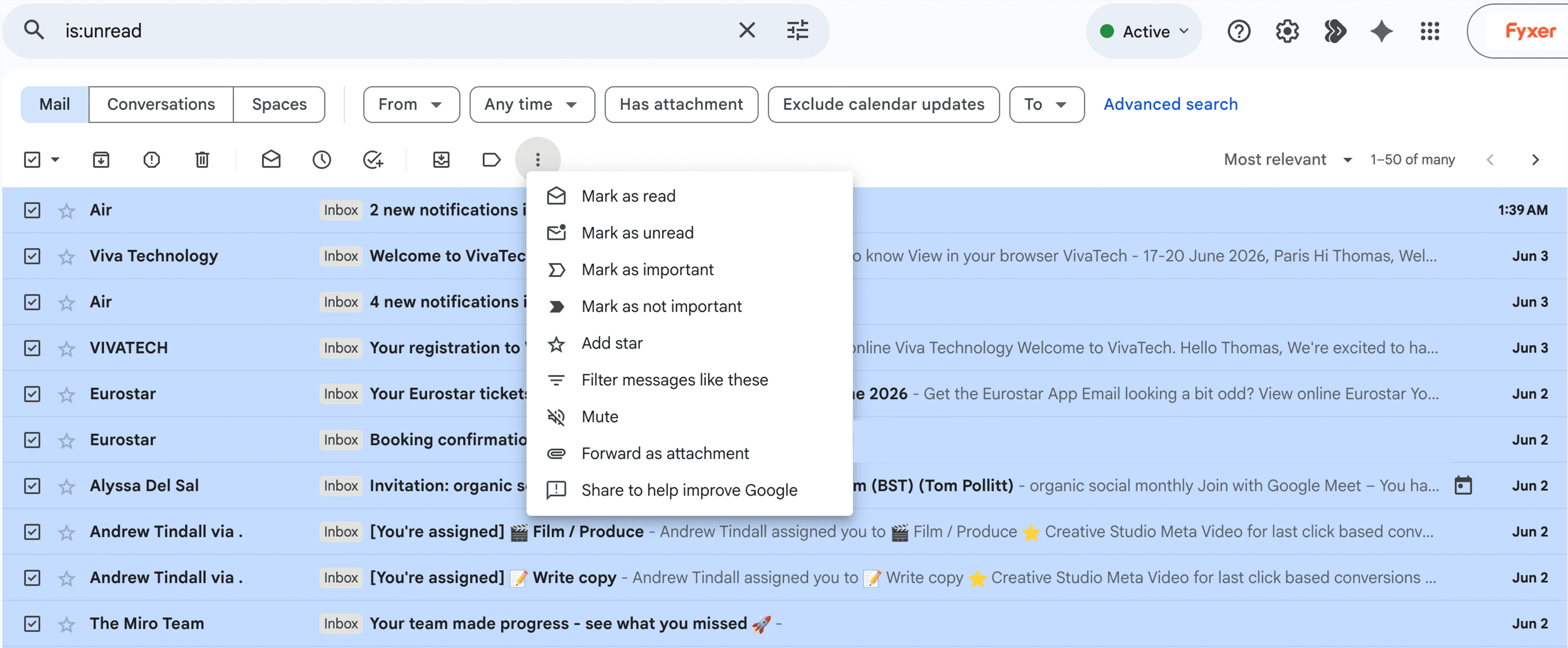
- Run a search using is:unread.
- Click the checkbox in the top-left corner of your inbox.
- Gmail will select all emails on the current page (usually 50 messages).
- Click Select all conversations that match this search to include every unread email.
- Apply your action: mark as read, archive, or delete.
This feature lets you clear your inbox quickly without opening each message individually.
Phone tips: Unread emails in the Gmail app
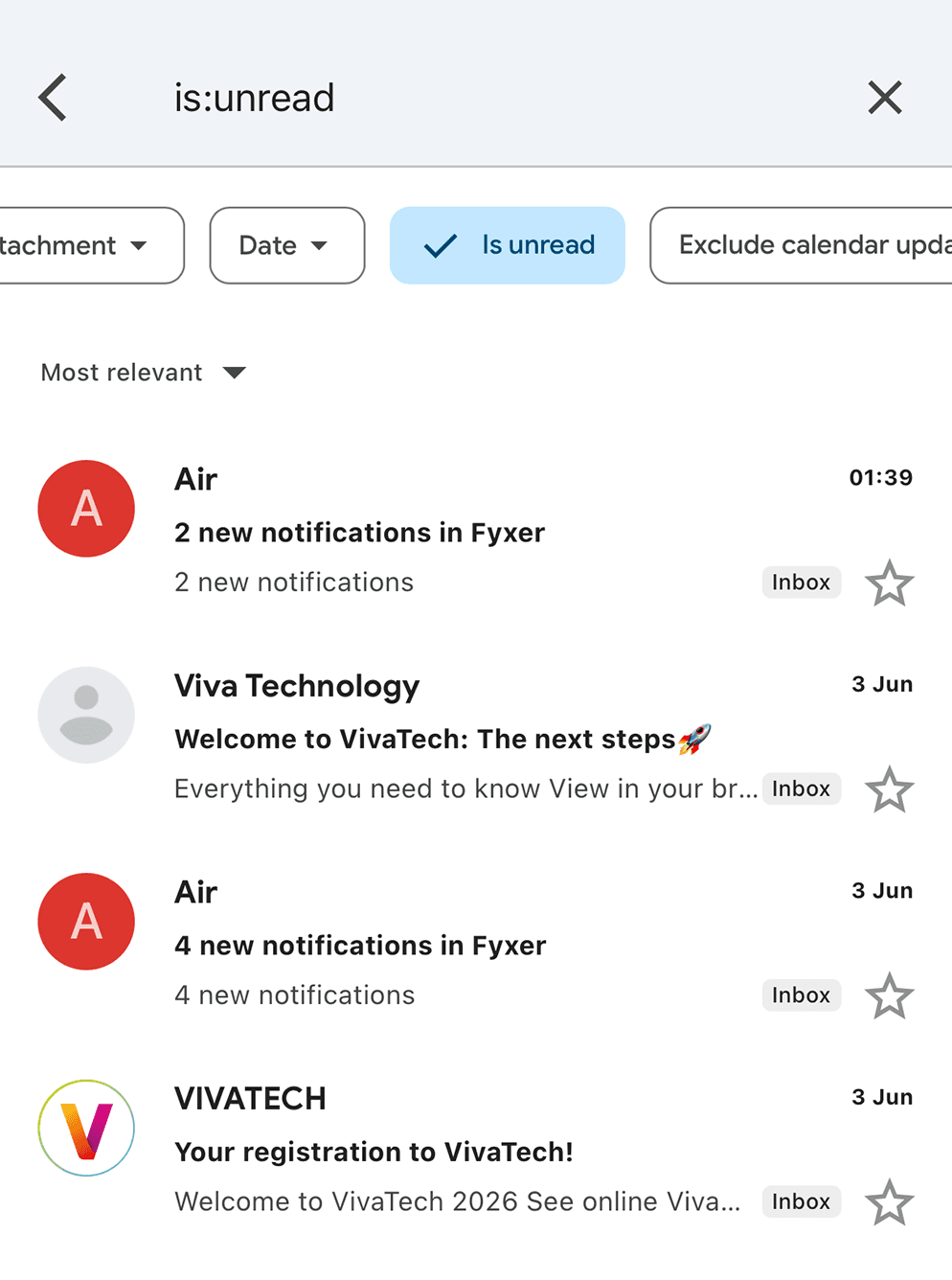
Finding unread emails on your phone works slightly differently but is just as straightforward.
- Open the Gmail app on iOS or Android.
- Tap the search bar and type is:unread.
- You can also create a label for unread emails to make them easier to find on your phone.
- Customize swipe gestures to mark emails as read or archive them quickly.
Managing and reducing unread email overload
After you've located unread emails, the next step is managing them so they don't pile up again.
- Use Fyxer: Fyxer reduces the inbox overload. It stops important messages getting lost by categorizing your Gmail inbox and drafting your responses. You’ll get back an average of 6.5 hours every week to focus on other work.
- Mark emails as read: Batch-marking unread emails as read reduces visual noise and fixes misleading unread counts. After selecting all unread emails, click Mark as read from the menu. Gmail updates the status immediately.
- Clearing stubborn notifications: Sometimes Gmail keeps showing unread email notifications even after you've read everything. This can happen because of hidden conversation threads, emails marked as unread in a different Gmail tab, or sync issues with your phone. To fix persistent notifications, try searching for [is:unread] to reveal hidden messages, then mark everything as read or archive unnecessary emails, and sync your Gmail app or refresh your browser.
More tips for email productivity
- Use priority inbox: Gmail's Priority Inbox automatically separates important emails from less critical ones, helping you focus on unread messages that actually matter.
- Archive regularly: Keep your inbox clean to avoid unread confusion. Archiving moves messages out of your inbox while keeping them searchable later.
- Learn keyboard shortcuts: Enable Gmail keyboard shortcuts for faster management. Press Shift + I to mark emails as read quickly.
- Combine filters and labels: Automatically sort unread messages by sender, subject, or priority for easier organization.
Take control of your inbox
Finding and managing unread emails in Gmail doesn't have to be stressful. By understanding how Gmail marks messages as unread, using search operators, setting up filters, and taking bulk actions, you can regain control over your inbox. Users on their phones can use the same search techniques and labels to make sure nothing gets missed. Regular archiving and smart productivity habits will help you reduce inbox overwhelm, respond to important emails faster, and maintain a streamlined Gmail experience.

