How to attach a Google Doc to an email (Gmail, Outlook, and more)
There are a few ways to attach or share a Google Doc via email, and the right method depends on what you need the recipient to do with it.
Tassia O'Callaghan
Attaching a Google Doc to an email sounds simple, but there are several ways to do it, and the method you choose affects what the recipient can do with the document when they open it.
Share a link without setting the right permissions, and they'll hit an access error before they've even read the first line. Or send a PDF export when someone needs an editable version, and they'll have to ask you to resend it.
If you're sending proposals, reports, or collaborative drafts on a regular basis, the method you default to makes a real difference to how much follow-up work you create for yourself.
This guide covers the main options: sharing a link, exporting as PDF or Word, sending directly from Google Docs, and attaching via Gmail or Outlook. The right choice depends on what the document is for and who's receiving it.
Option 1: Share a link to the Google Doc (recommended for most cases)
For most professional scenarios, sharing a link is the cleanest approach. The recipient gets access to the live document, so any updates you make afterward are reflected immediately, there's no attachment to track, and you avoid the version confusion that comes from sending multiple copies of the same file.
To share a link, simply:
Open your Google Doc and click the blue Share button in the top-right corner.
Under "General access," set the permissions to either "Anyone with the link" (if the document isn't sensitive) or invite specific people by email.
How to attach a Google Doc to an email (Gmail, Outlook, and more) | Fyxer
If you're working in Gmail, pasting the link into the compose window prompts you to update the access level directly there, saving you from switching back to the Docs tab.
Before sending, check who can actually open it. "Restricted" limits viewing to people you've explicitly invited, which is the right call for anything confidential. "Anyone with the link" is more practical when the document doesn't contain sensitive information and you're sharing it with someone outside your organization.
Option 2: Attach a PDF copy
A shared link isn't always the right call. If the recipient doesn't have a Google account, if the document is finalized and shouldn't be edited, or if you need the formatting to hold up consistently across different devices and operating systems, downloading it as a PDF and attaching it as a file is the better option.
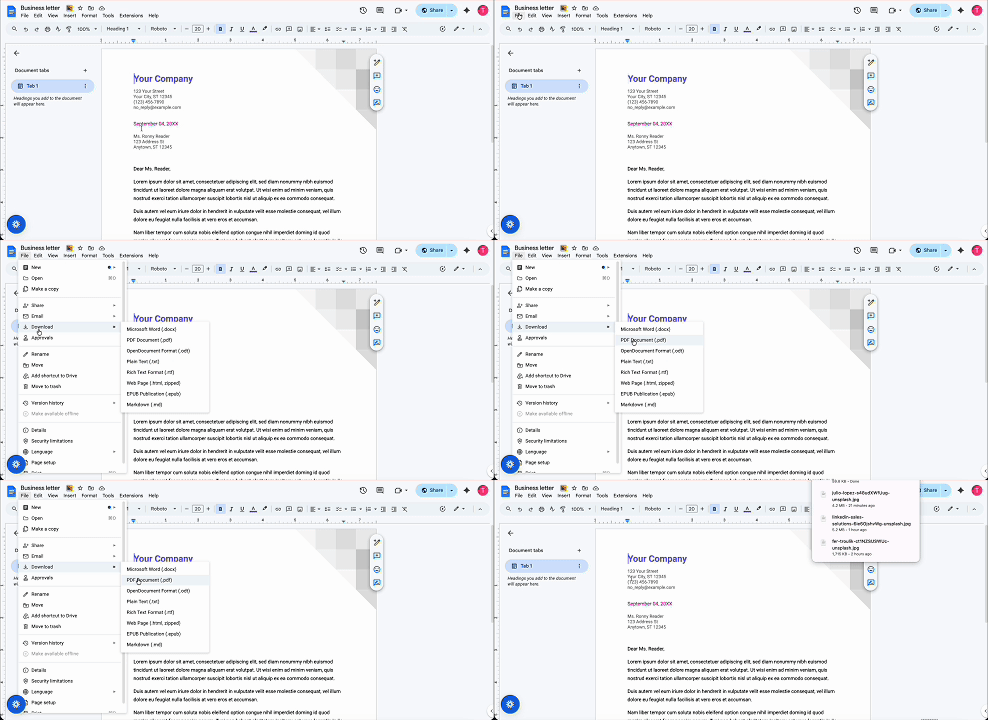
To download a Google Doc as a PDF:
Go to File > Download > PDF Document (.pdf). The file will save to your computer, and you can attach it to your email the same way you would any other document.
PDFs are the standard choice for proposals, contracts, or anything formal where you want the layout locked and the content unchanged.
Option 3: Attach a Word document copy
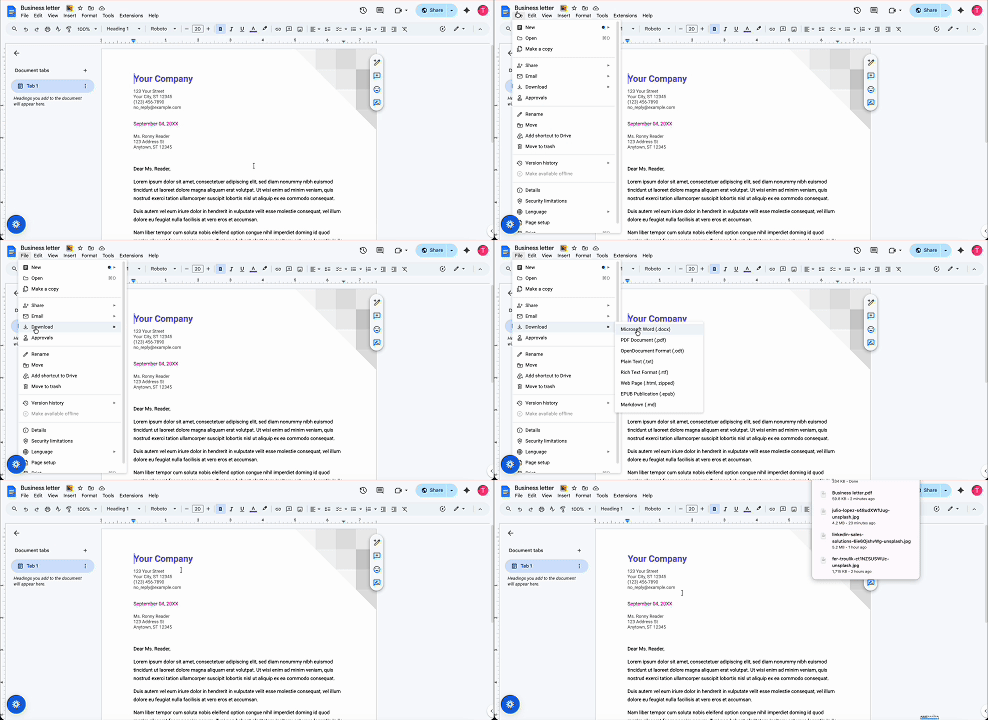
If the recipient works in Microsoft Word and needs to make edits, download the file as a .docx instead. To do this:
Go to File > Download > Microsoft Word (.docx). The formatting generally carries over well, though heavily customized layouts (tables, non-standard fonts, complex headers) may look slightly different in Word.
The practical limitation with this approach is “version drift”. Once you email a .docx copy and both parties start editing independently, you're working from two separate files.
Any changes the recipient makes won't be reflected in your original, and vice versa. For anything collaborative, the shared link approach in option 1 keeps everyone on the same page and avoids that problem entirely.
Option 4: Send directly from Google Docs via email
Google Docs has a built-in send option, so you don't have to leave the document to share it.
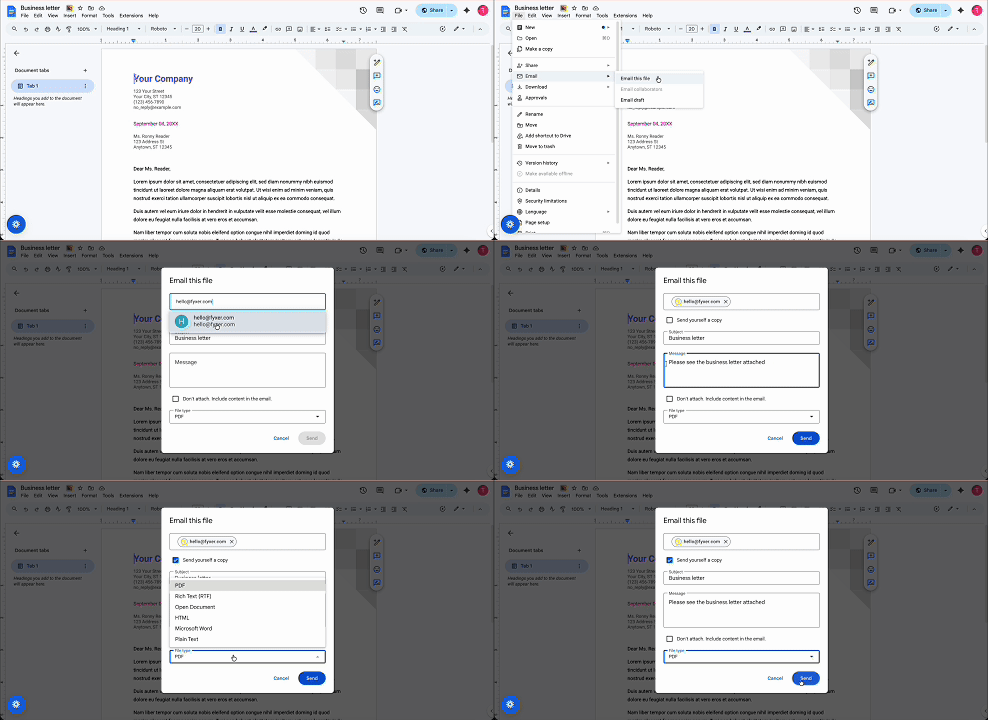
To send directly:
Go to File > Email > Email this file, choose your format (PDF, .docx, or plain text), add a message, and send.
This approach works well for quick internal sends where the email itself doesn't need to be anything more than a delivery mechanism: you've finished a draft, your manager needs to see it, and you want it in their inbox in under a minute without switching tabs or thinking about attachments.
It's a convenient shortcut for one-off sends. However, it's slightly less flexible than composing an email manually, particularly if you need to include other attachments alongside the document or want more control over how the email is formatted.
How to attach a Google Doc in Gmail
If you're composing an email in Gmail and want to pull a Google Doc from Drive without downloading it first, open the compose window and click the Google Drive icon at the bottom of the toolbar (the triangular icon, to the right of the attachment clip). Your Drive files will appear, and you can search for or browse to the document you want to share.
Gmail will then ask whether to send it as a Drive link or as an attachment in PDF or Word format. Choosing the Drive link keeps everything in its native Google format and is the fastest option when collaboration is the goal.
How to attach a Google Doc in Outlook
Outlook doesn't connect directly to Google Drive, so the process involves an extra step.
Download the document first, as a PDF or .docx, depending on what the recipient needs, and attach it to your Outlook email the same way you'd attach any file. Alternatively, copy the shareable link from Google Docs and paste it into the body of the email, but make sure you've set the permissions correctly first. A link that returns an access error is worse than no link at all.
Which method should you use?
The decision mostly comes down to two questions: does the recipient need to edit the document, and do they use Google's tools?
Share a link if the document is live, collaborative, or still being updated. It keeps everyone working from the same version and avoids the friction of reconciling feedback from multiple copies.
Use a PDF when the document is final, and the formatting needs to hold: proposals, reports, contracts, or anything where you don't want the content touched.
Use a .docx when the recipient uses Word and needs an editable version outside Google's ecosystem, but go in knowing you'll be managing separate copies from that point forward.
Use Gmail's Drive attachment option when you're already composing in Gmail and want to skip the download step entirely.
Version control and why it matters more than people think
Email a PDF to five people and ask for feedback, and you'll end up with five separate comment threads to reconcile (assuming they all reply). Share a link to the same document, and they're all annotating in one place, which makes it significantly easier to act on.
Research on workplace collaboration found that shared digital tools reduce miscommunication and speed up decision-making, partly because everyone is working from the same source material rather than their own copy.
The reflex to attach a file is hard to shake. Most people default to it because it feels decisive, like you've handed something over. But for anything that involves more than one round of input, you're generally just creating work for yourself later. The shared link is almost always the cleaner choice, and the one you'll be glad you used when the edits start coming in.
Keeping document-related email under control
Send a finalized proposal as a shared link with edit access still on, and you might find someone has left comments directly in the document before you've had a chance to present it. Send a PDF to a room full of people who need to mark it up, and you'll spend the next day consolidating feedback from five different email threads.
These are small mistakes, but they generate follow-up emails: a permissions issue, a format that won't open, a version that's already out of date by the time it lands in someone's inbox. If you find that email overhead from this kind of back-and-forth is eating into your day, read our guide on how to manage email overload and to bring more structure to that workflow.
For anyone managing a high volume of document-related email, tools like Fyxer can reduce the inbox overhead that builds up around sharing, permissions requests, and follow-ups.
Quickfire summary: Adding a Google Doc to an email
Most of the time, the right answer is a shared link. It keeps the document live, keeps everyone in the same place, and removes the version problems that come with sending copies. The other options exist for good reasons, but they're exceptions rather than defaults.
Whichever method you use, check the permissions before you hit send. A link that no one can open, or a PDF sent to someone who needed to make edits, creates extra email either way.
Attaching Google Docs to emails FAQs
Can you attach a Google Doc directly to an email?
Not in the traditional sense. Google Docs live in the cloud, so you have two main options: share a link to the document, or download it as a PDF or Word file and attach that. Sharing a link is usually the better choice for anything collaborative, since it keeps everyone working from the same version. Downloading and attaching makes more sense when the document is finalized and you need the formatting to stay exactly as-is.
How do I share a Google Doc with someone who doesn't have a Google account?
If the recipient doesn't have a Google account, a shared link won't work for them. The simplest fix is to download the document as a PDF (File > Download > PDF Document) and attach it to your email as you would any other file. If they need to edit it, download it as a .docx instead, though be aware that any changes they make won't sync back to your original Google Doc.
What's the difference between sharing a Google Doc link and attaching it as a file?
A shared link gives the recipient access to the live document, so any edits either party makes are reflected in real time. Attaching a downloaded copy creates a static snapshot: whatever the document said at the time of download is what they receive. For anything collaborative or still being revised, a shared link is almost always the cleaner option. For final deliverables like contracts or proposals, an attached PDF is the right call.
How do I attach a Google Doc in Outlook?
Outlook doesn't connect directly to Google Drive, so there's an extra step involved. Download the document first, either as a PDF or a .docx depending on what the recipient needs, then attach the file to your email as normal. Alternatively, copy the shareable link from Google Docs and paste it into the email body. Just make sure the permissions are set correctly before you send. A link that returns an access error when the recipient tries to open it is more frustrating than no link at all.




.gif&w=1080&q=75)