


Email security matters. Whether you’re sharing a contract, medical form, or financial details, encryption helps protect your information from being read by anyone other than the intended recipient. Gmail offers built-in encryption that works automatically, plus an optional feature called Confidential Mode for messages that need extra protection.
Used together, these features make Gmail a reliable choice for handling sensitive information without adding unnecessary complexity.
How Gmail encryption works
Every email you send through Gmail is automatically protected using Transport Layer Security (TLS) encryption. TLS ensures that messages stay private while moving between mail servers.
When both the sender’s and recipient’s email providers support TLS, the message content is encrypted in transit. That means anyone who intercepts the data between those two servers will only see scrambled text instead of readable content.
However, TLS doesn’t encrypt emails end-to-end. Once the message reaches the recipient’s inbox, its security depends on their email provider. This is why Gmail also includes Confidential Mode, a tool that adds another layer of control.
Working with Outlook? Here’s how to send encrypted emails in Outlook
Confidential Mode explained
Confidential Mode allows you to:
- Set an expiration date for your message.
- Require a passcode (sent via SMS or email).
- Restrict recipients from forwarding, copying, downloading, or printing your message.
This combination of encryption and access control helps ensure sensitive information stays in the right hands.
If you’re communicating with clients, contractors, or HR teams about confidential data, use Confidential Mode for extra peace of mind.
Note: Confidential Mode doesn’t apply full end-to-end encryption like some third-party services (like ProtonMail). Instead, it limits what recipients can do with the content and attachments.
Related: How to unsend an email in Gmail
How to send encrypted filed in Gmail (desktop)
Gmail’s Confidential Mode is built into every personal and Google Workspace account. Here’s how to use it on desktop.
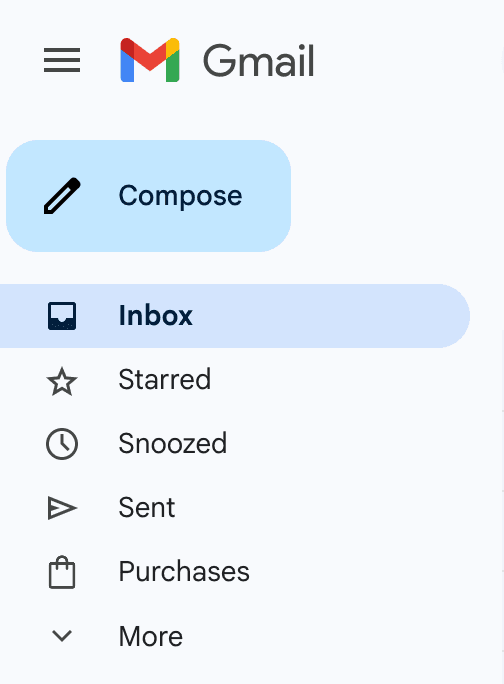
Step 1: Open Gmail and click “Compose”
Go to mail.google.com. Click Compose in the top-left corner to open a new message window.
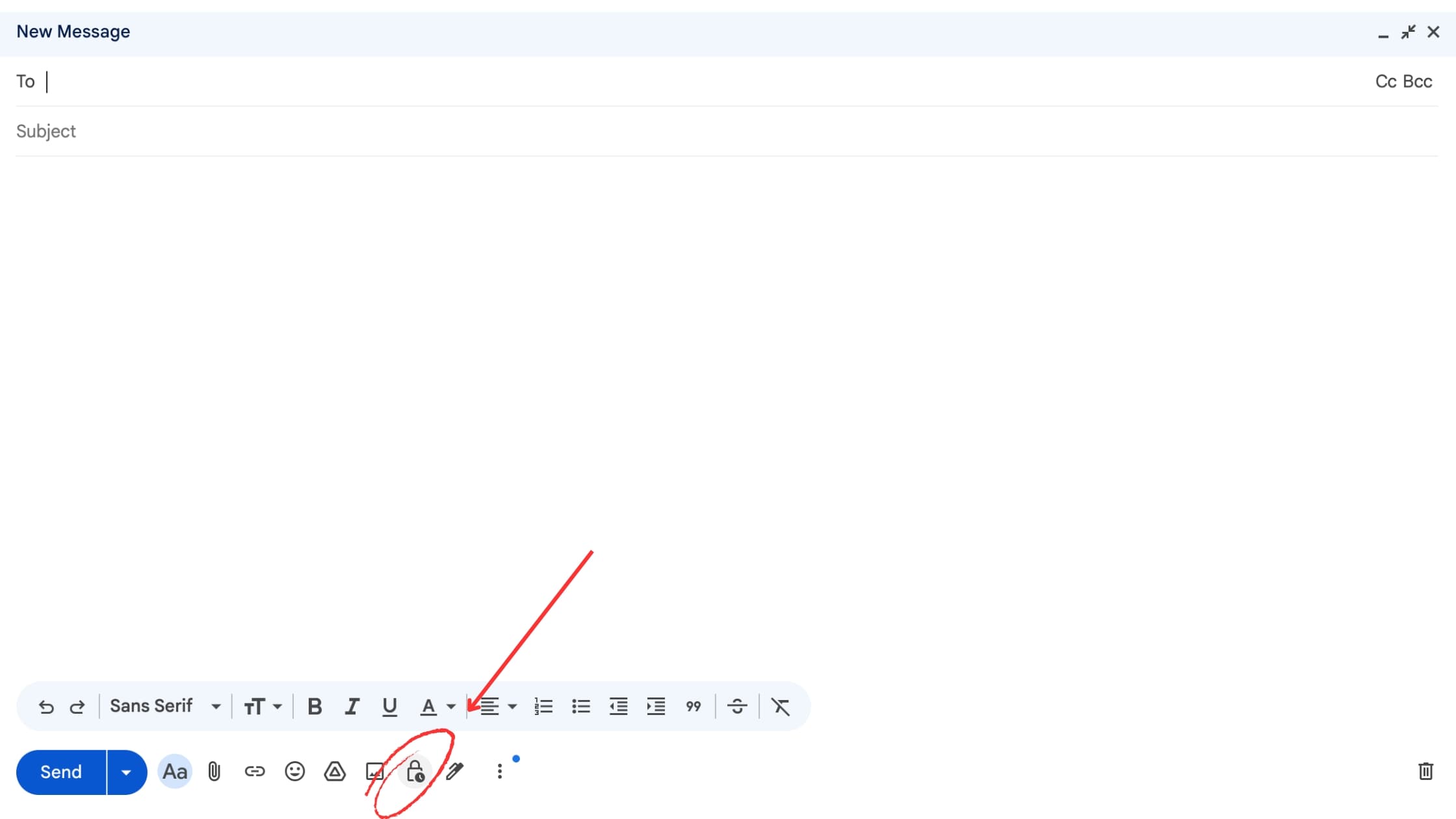
Step 2: Click the “Lock & Clock” icon
At the bottom of the message window, you’ll see a small lock and clock icon. This opens Confidential Mode. If you don’t see it, click the three-dot menu (More Options) to reveal it.
Step 3: Set an expiration date
Choose how long recipients can access your email. Options include 1 day, 1 week, 1 month, 3 months, or 5 years. After this time, the message will automatically expire.
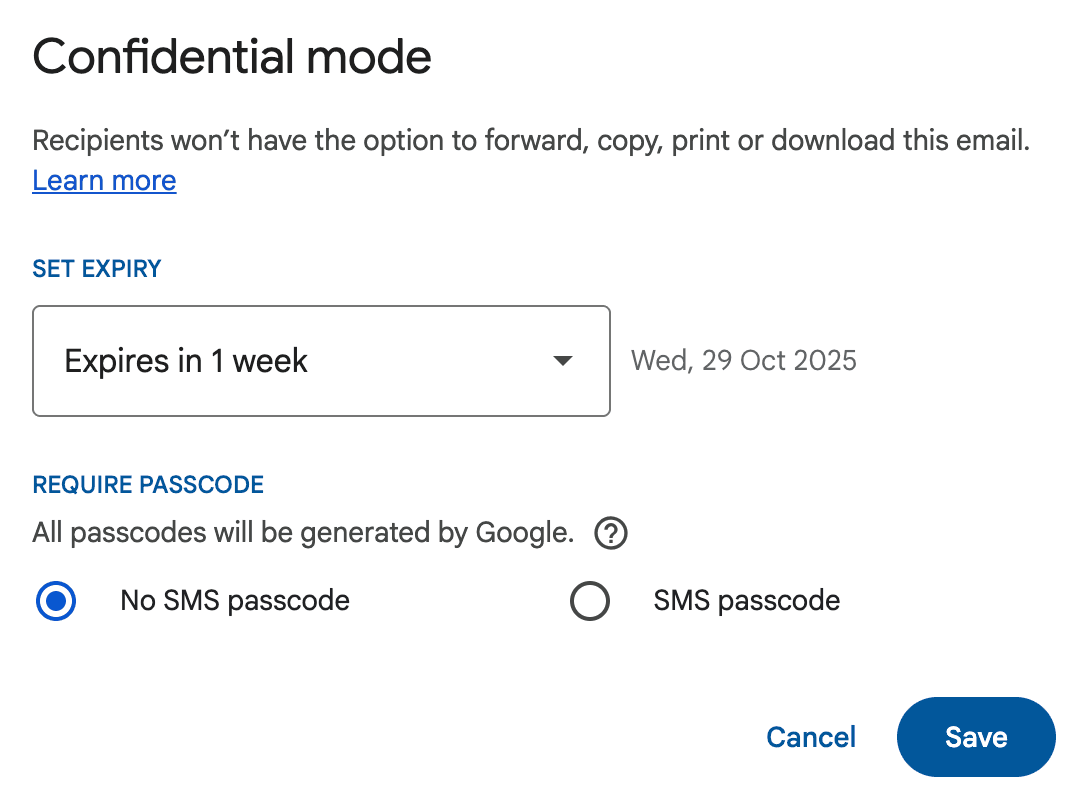
Step 4: Add a passcode
You can choose:
- No SMS passcode: Recipients using Gmail will open the message directly.
- SMS passcode: Recipients receive a text message with a one-time code before they can open it.
We recommend using an SMS passcode when sending sensitive information outside your organization.
Step 5: Click “Save” then “Send”
Once you’ve set your preferences, click Save. Write your email and click Send when ready.
Your recipient will see a secure message with limited actions (no copying, forwarding, downloading, or printing).
How to send encrypted filed in Gmail (mobile app)
The Gmail app for iOS and Android supports Confidential Mode, so you can send secure emails from your phone.
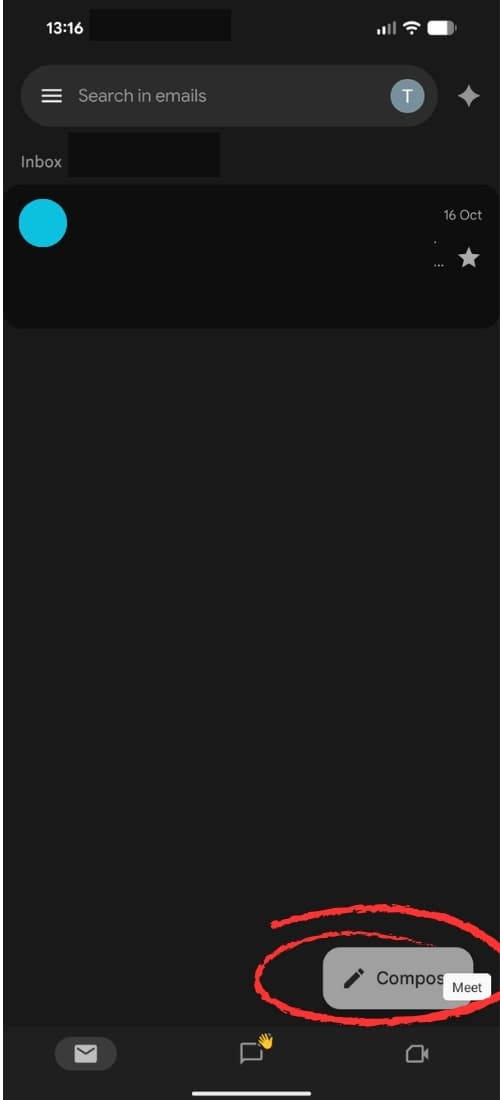
Step 1: Open the Gmail app
Launch Gmail on your mobile device and tap Compose in the bottom-right corner.
Step 2: Tap the three dots
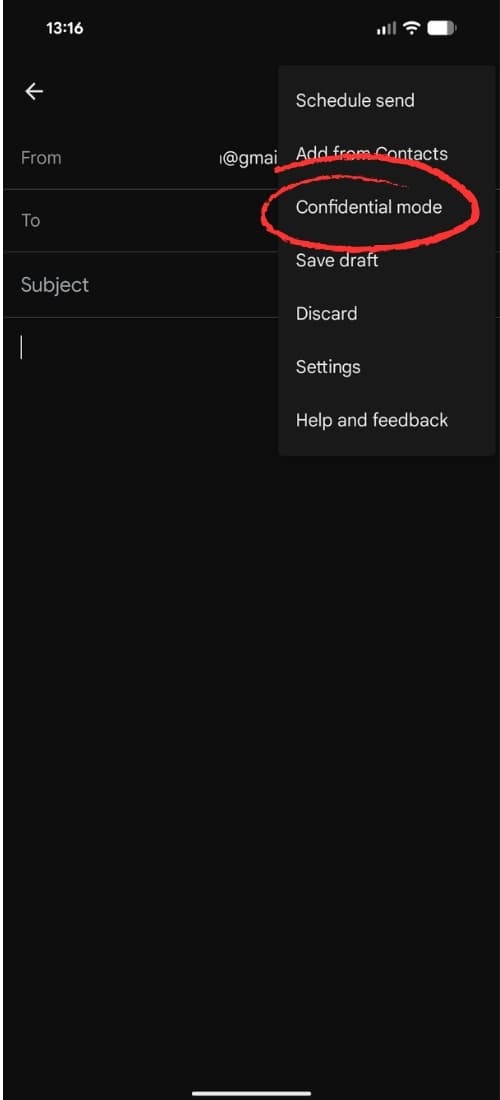
In the upper-right corner of the screen, tap the three dots (⋮) menu, then choose Confidential mode.
Step 3: Set expiration and passcode
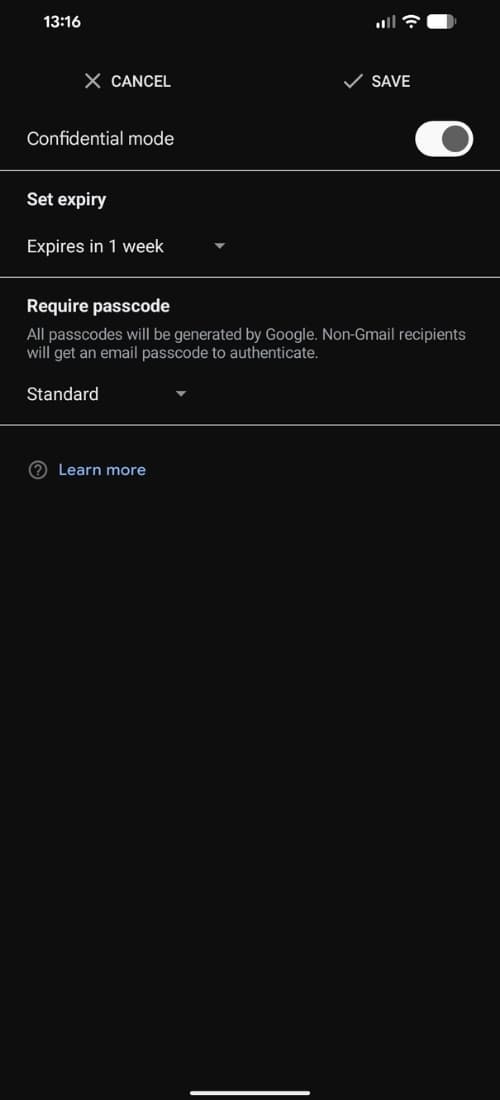
Select your preferred expiration period and whether to use an SMS passcode. Enter the recipient’s phone number if you choose the passcode option.
Step 4: Tap “Save” and send your message
After saving your settings, finish composing your email and tap Send. Recipients will get a secure email that restricts what they can do with the content.
Note: The mobile interface may vary slightly between Android and iOS, but Confidential Mode settings are consistent.
Opening encrypted emails in Gmail
Recipients using Gmail can open encrypted or Confidential Mode messages directly in their inbox. The email will appear as usual, with visible expiration details at the bottom.
If the sender required an SMS passcode, the recipient will receive a text message containing the code needed to access it.
For non-Gmail users, the process is slightly different. They’ll receive an email notification with a secure link that opens the message in a private browser window. They may be asked to verify their identity via passcode before viewing.
Tip: Encourage recipients to check their spam or promotions folders if they can’t find the passcode email. If the recipient reports that the secure link doesn’t work, ask them to open it in an incognito or private browsing window to avoid cached session issues.
Related: How to find archived emails in Gmail
Removing access to a confidential email in Gmail
You can revoke access to an encrypted email before its expiration date. This is helpful if you sent the wrong file or shared information with the wrong person. But it’s worth noting that if your message has already expired, this option won’t be available.
Step 1: Go to your “Sent” folder
Open Gmail and select Sent from the sidebar.
Step 2: Open your confidential message
Click the message you sent in Confidential Mode.
Step 3: Select “Remove access”
At the bottom of the message window, click Remove access. The recipient will instantly lose the ability to view the email or its attachments.
You can restore access later by selecting Renew access.
How to verify encryption in Gmail
To confirm whether your message was encrypted, look for the small lock icon next to the recipient’s name in your message.
- Gray lock: Standard TLS encryption was used.
- Green lock: Enhanced S/MIME encryption (available for Google Workspace Enterprise accounts).
- Red unlocked icon: The recipient’s provider doesn’t support encryption. Consider using Confidential Mode or a secure file-sharing service.
Benefits and limitations of Gmail encryption
Encryption is an essential layer of security for personal and professional email communication. Gmail makes it accessible to everyone, but understanding its strengths and limits helps you use it effectively.
Benefits
- Protects sensitive data: Encrypts messages in transit, keeping them private from interception.
- Adds control with Confidential Mode: Lets you manage expiration dates and access permissions.
- Simple setup: Built directly into Gmail, no additional software required.
- Cross-device compatibility: Works consistently on desktop, mobile, and web.
Limitations
- Dependent on recipient’s provider: TLS encryption only works if both providers support it.
- Not full end-to-end encryption: Messages may still be accessible within Google servers.
- Confidential Mode limits, not locks: It prevents copying or forwarding but doesn’t encrypt attachments end-to-end.
- Enterprise features vary: Advanced encryption (S/MIME) is available only for Google Workspace accounts.
If your organization handles sensitive data like legal files or medical records, consider combining Gmail’s encryption with additional enterprise-grade security solutions.
Ultimately, Gmail gives you a strong foundation for email security through automatic TLS encryption and its Confidential Mode feature. You can send messages that expire, restrict access, or require passcodes — all without leaving your inbox.
Still, no email system is completely immune to breaches. For highly sensitive information, it’s smart to pair Gmail’s encryption with secure file-sharing tools or enterprise-grade protections.
That’s where Fyxer helps. Fyxer organizes your inbox, drafts follow-ups, and manages communication securely, without ever sending emails on your behalf. Your data stays private, protected, and fully under your control—so you can handle the important stuff confidently.
Start your free trial at fyxer.com
Gmail encrypted emails FAQs
Does Gmail automatically encrypt all emails?
Yes. Gmail automatically uses TLS encryption whenever possible. If the recipient’s email service doesn’t support TLS, Gmail sends the message unencrypted. You’ll see a red open-lock icon indicating this.
What’s the difference between Gmail encryption and Confidential Mode?
TLS encryption protects the connection between mail servers. Confidential Mode adds access controls such as expiration dates and passcodes. You can use both together for better protection.
Can I send encrypted emails to non-Gmail users?
Yes. Non-Gmail users receive a secure link to view the message in a private browser. If you enable SMS passcode verification, they’ll need to enter a one-time code before accessing it.
How do I verify if an email was encrypted?
Look for the lock icon next to the recipient’s name. A gray or green lock means encryption is active. Clicking the icon will show more details about the encryption type.
Can I attach files to encrypted emails in Gmail?
Yes, attachments are supported in Confidential Mode. However, they aren’t encrypted end-to-end. Gmail simply prevents them from being downloaded, forwarded, or printed by the recipient.
Can I revoke an encrypted email after it’s sent?
Yes. Open the email from your Sent folder and click Remove access. The recipient will immediately lose the ability to open the message.
Is Gmail secure enough for business use?
For most small to mid-size businesses, yes. Gmail’s built-in encryption and Confidential Mode provide solid protection. Large organizations may benefit from upgrading to Google Workspace Enterprise for S/MIME encryption, which offers higher security standards.

