


When you regularly email the same group of people, retyping every address can quickly become tedious. Gmail’s email groups make that process simpler by letting you reach everyone with a single group name.
Creating and managing groups can also save hours over time. According to McKinsey, professionals spend nearly 28% of their workweek reading and responding to emails. Setting up contact groups reduces manual typing, minimizes mistakes, and speeds up communication.
Also called Gmail contact groups or Google Contacts email groups, they keep communication organized and consistent — whether you are sharing project updates, client news, or family plans. With one setup, you can streamline how you connect, reduce admin time, and keep your inbox running smoothly.
Working with Outlook? Here’s more on how to make an email group in Outlook.
How to create an email group in Gmail (Using Google Contacts)
Gmail does not include a built-in tool for group creation. Instead, you use Google Contacts to create and manage your lists. Gmail automatically syncs with your Contacts, so the process is seamless once your groups are set up.
Follow these steps to create your first group email in Gmail.
1. Go to Google Contacts
Visit contacts.google.com and sign in using the same Google account you use for Gmail. You will see all your saved contacts here.
2. Select the contacts you want to include
Hover over each contact’s profile picture or initial and select the checkbox beside it. You can search by name, email, or organization if your contact list is long.
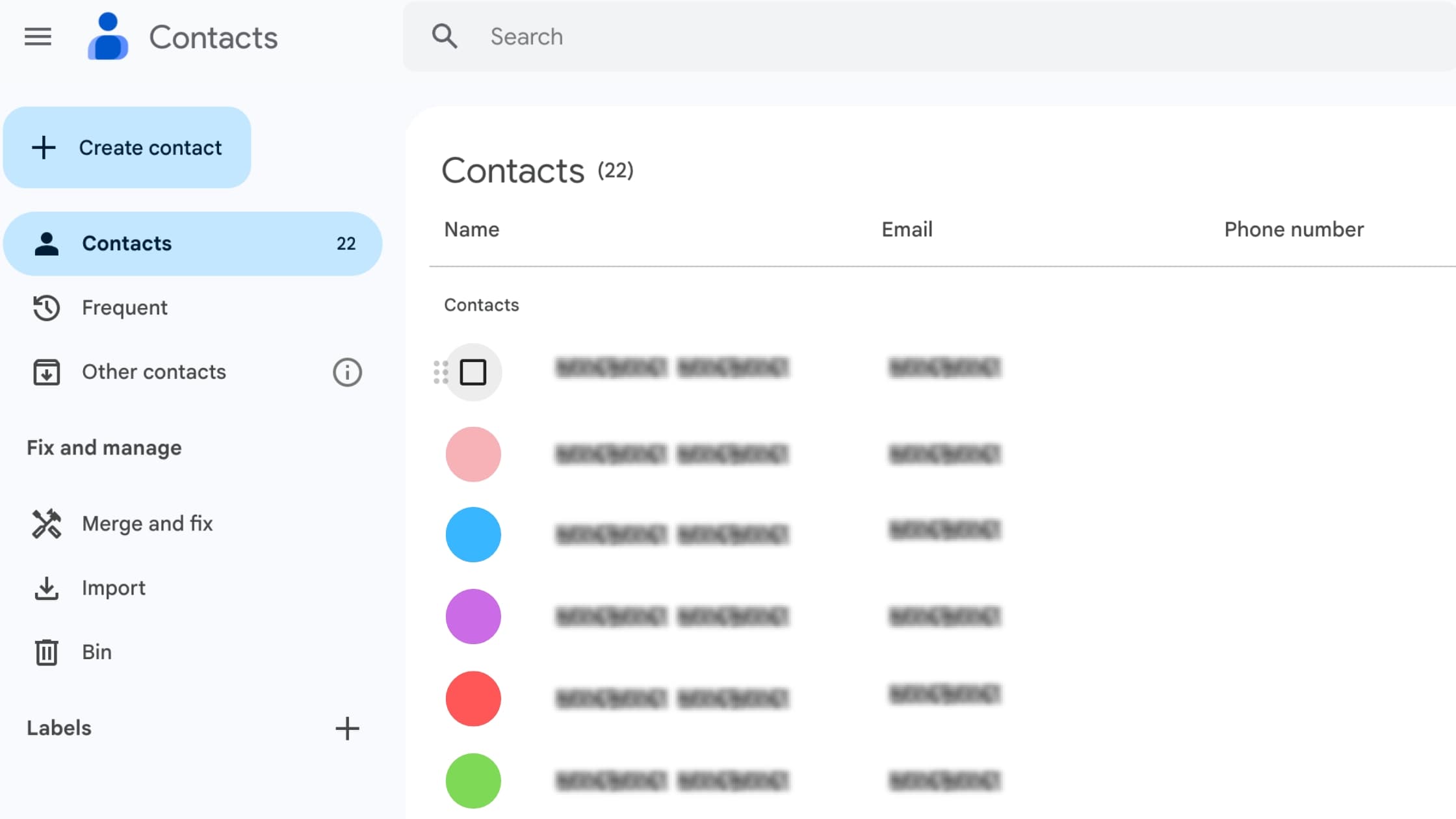
3. Click the “Label” icon
At the top right corner of the page, click the Label icon that looks like a small tag. This is where you assign or create a label for your group.
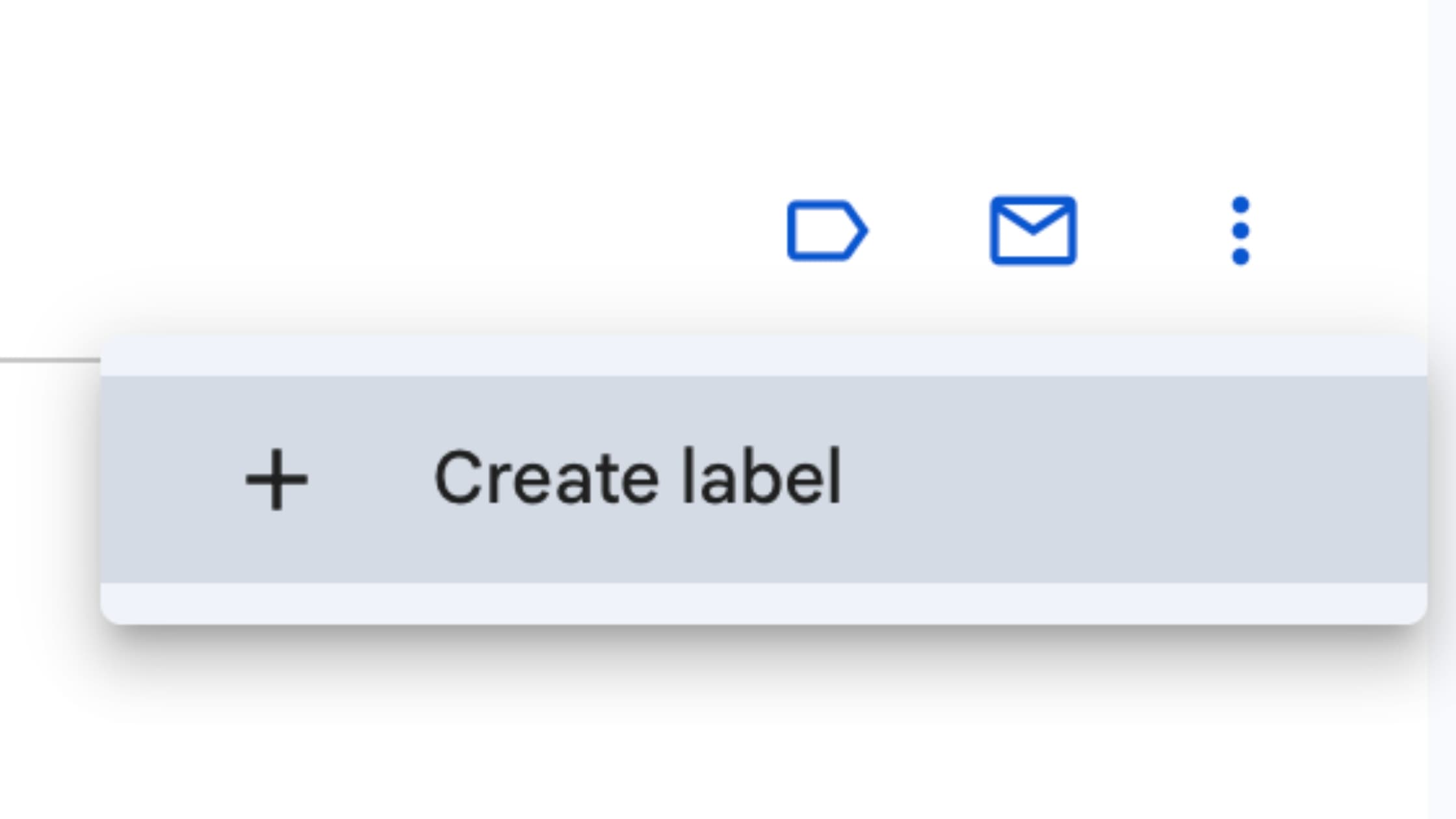
4. Create a new label
Select Create label, then give your group a descriptive name such as Marketing Team, Client Updates, or Family Newsletter. Click Save to confirm.
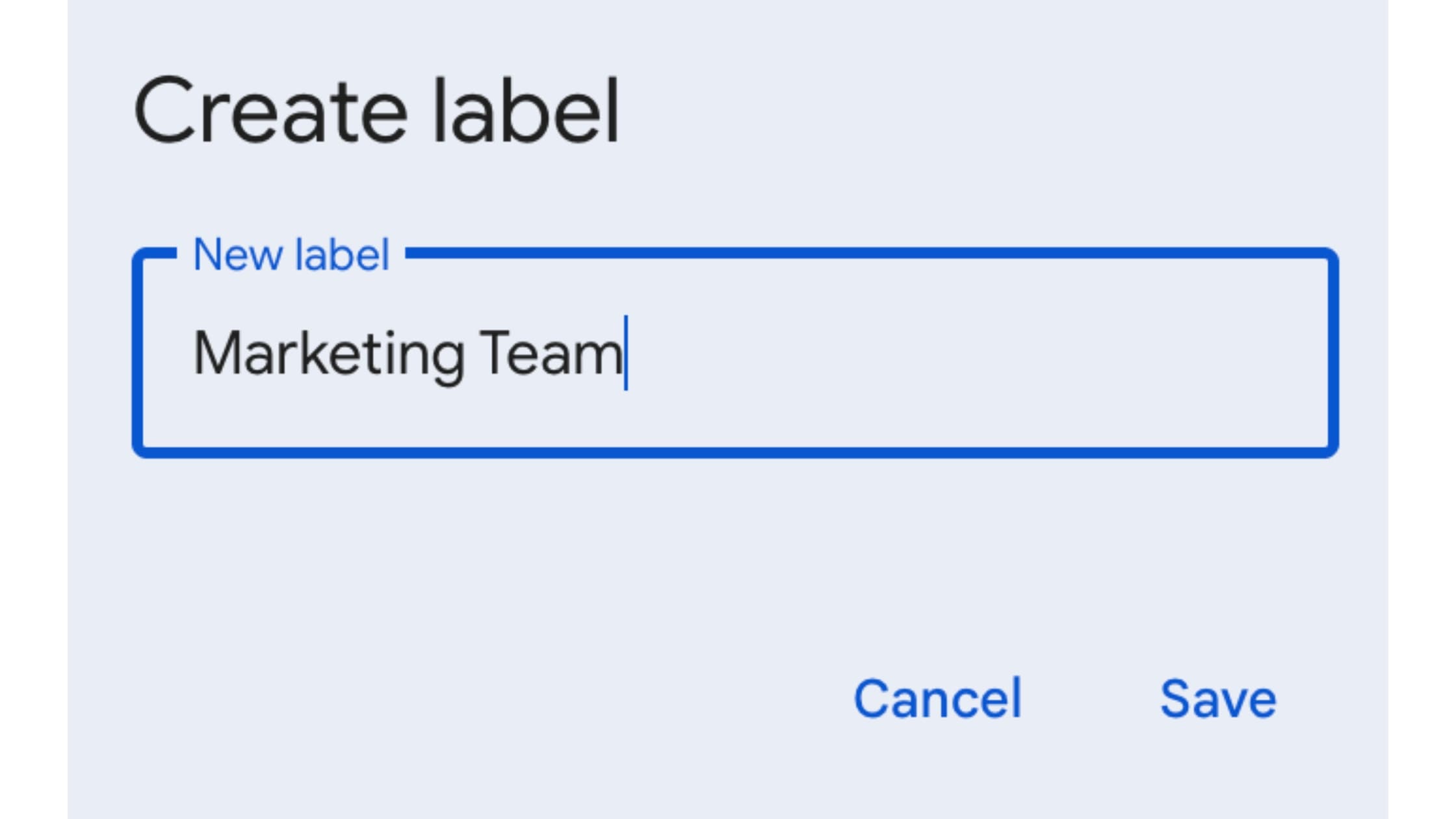
5. Verify your new group
Once saved, the label will appear in the sidebar under Labels. Clicking the label will show every contact in that group.
Tip: Labels in Google Contacts act as groups in Gmail. When you email that label name, Gmail automatically includes everyone in it.
How to send an email to a group in Gmail
Once your Gmail contact group is ready, sending an email to everyone is easy.
- Open Gmail and click Compose.
- In the To field, start typing your group’s label name.
- Select it from the suggestions that appear.
- Gmail automatically expands the group to show all included addresses.
- Write your message and click Send.
You can preview each email address before sending, which helps you double-check recipients. This process works smoothly on desktop and the web version of Gmail.
How to edit or delete an email group in Gmail
Teams and contact lists often change. You might need to add a new colleague, update an address, or remove someone from the list.
Here is how to manage your existing Gmail mailing list in Google Contacts.
To add contacts
- Open Google Contacts and click the label (group) you want to update.
- Select Add contacts.
- Search for the person’s name or email, then click Add.
To remove contacts
- Open the same label.
- Select the contact you want to remove.
- Click the three dots and choose Remove from label.
To delete a group
- Open the label.
- Click the three dots again and select Delete label.
Deleting a label removes the grouping, not the contacts themselves. Your contact data stays safe.
How to create an email group in Gmail on mobile
If you prefer managing contacts from your phone, you can create and organize groups directly in the Google Contacts app, much like using Google Contacts on web. Once set up, they sync automatically with your Gmail app.
Step 1: Open the Google Contacts app
Download and open the Google Contacts app on your Android or iPhone, making sure you are signed in to the same Google account you use for Gmail.
Step 2: Select your contacts
Tap and hold one contact until it’s highlighted, then tap any additional names you want to include in the group. You can search for each person using the magnifying glass icon at the top.
Step 3: Tap the Label icon
Once your contacts are selected, tap the Label icon (the small tag symbol). This is where you organize contacts into named groups.
Step 4: Create or choose a label
Select Create label to start a new group, or choose an existing label to add these contacts to a current list.
Step 5: Name and save your group
Give your label a clear, recognizable name — like Team Updates or Family Chat — then tap Save to finish.
Your new group will appear in your Google Contacts list and sync with Gmail automatically. When composing a new message in the Gmail mobile app, simply type the label name in the To field, and Gmail will fill in all the matching addresses.
Note: The Gmail app is designed for sending and managing emails, not for building groups. To create or edit contact groups, always use the Google Contacts app.
Tips for managing email groups in Gmail efficiently
Keeping your email groups organized saves time and avoids confusion.
Here are some simple management tips:
- Use clear, descriptive labels: “Project Alpha Team” or “Marketing Team” is easier to identify than “Team 1.”
- Keep contact information up to date: Outdated emails can cause bouncebacks and missed updates.
- Audit groups regularly: Review your lists every month to remove inactive contacts or add new ones.
- Watch your sending limits: Personal Gmail accounts allow up to 500 recipients per message before reaching Google’s daily limit.
- Use Google Workspace for larger teams: Workspace accounts include Groups for Business, which lets organizations manage permissions and mailing lists securely.
Best practices for group email etiquette
When you send to groups regularly, thoughtful communication keeps things professional and efficient. A few small habits make a big difference in how your messages are received.
- Use CC and BCC correctly: If everyone needs to reply, use CC. For privacy or large lists, use BCC.
- Keep replies short: Avoid long reply-all threads that fill inboxes with noise.
- Be clear with subject lines: Make your intent obvious so recipients can prioritize at a glance.
- Protect privacy: Never share personal email addresses in public or external messages.
- Set expectations early: Let recipients know if a message needs action, a response, or is for information only.
- Avoid unnecessary attachments: Link to shared drives or documents instead to prevent storage issues.
- Proof before sending: A quick readthrough helps catch missing recipients or tone issues before hitting Send.
- Respect working hours: If you are emailing a large team, consider scheduling messages to arrive during business hours.
- Review the recipient list: Double-check names before sending to avoid accidental oversharing or off-topic inclusions.
Related read: How to unsend an email in Gmail
Troubleshooting: Why your group email in Gmail might not work
If Gmail does not recognize your group or fails to expand it, check the following:
- Spelling: Group names are case-sensitive. Type a few characters slowly to trigger suggestions.
- Syncing: Refresh Gmail or Contacts if you just created or updated a group. On mobile, close and reopen the app.
- Recipient limits: Gmail limits personal accounts to 500 recipients per day and Workspace accounts to around 2,000.
- Permissions: If a contact blocks or restricts messages, delivery may fail for that address.
If managing contact groups and email lists feels like yet another admin task, Fyxer can help.
We organize your inbox, categorize conversations, and prepare draft replies so you can spend less time managing messages and more time focusing on your work.
Fyxer helps you stay in control, keep communication clear, and reduce time spent on repetitive email tasks.
Start your free trial today at fyxer.com.
Gmail groups FAQs
Can I create multiple email groups in Gmail?
Yes. You can create as many labels as you like. Each label can include any number of contacts, but Gmail limits how many you can send to in a single message.
What is the difference between Google Contacts labels and Google Groups?
Labels are personal lists you create in Contacts. Google Groups are managed mailing lists with permissions and archives, typically used by businesses.
Can I share my Gmail contact group with others?
Yes. You can export a contact group by dragging it into an email and sending it as an .msg file. Recipients can drag it into their own Contacts to import it.
How many recipients can I include in one group email?
For most Gmail accounts, you can send to up to 500 recipients per message. Workspace admins can increase this limit to about 2,000 recipients.
Does Gmail have a built-in group creation tool?
No. Gmail uses Google Contacts for creating and managing groups. Visit contacts.google.com for full functionality.

