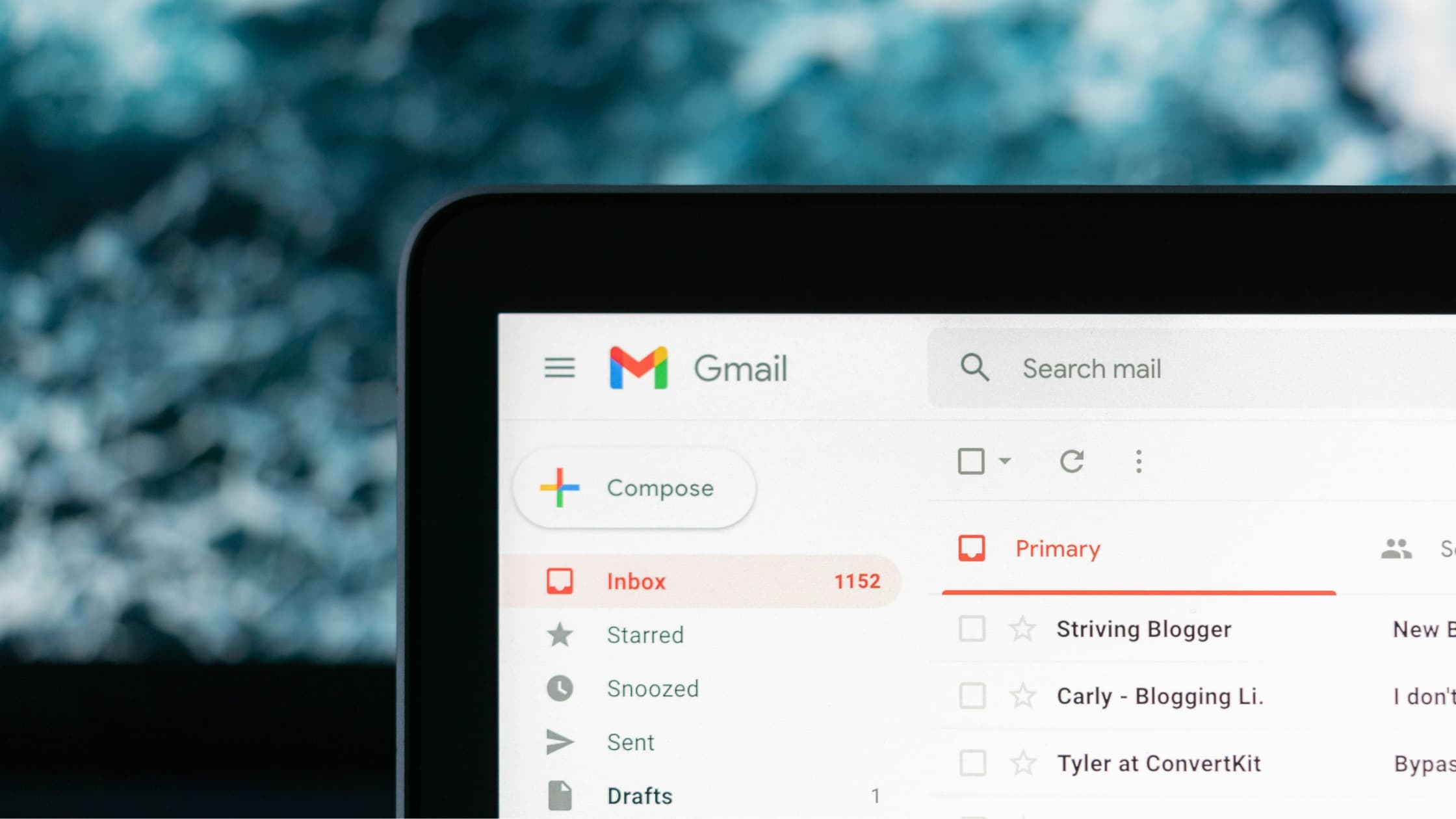
Archiving is one of the simplest ways to keep your inbox organized. It removes clutter without deleting the messages you might need again. The problem is, once an email disappears from view, it’s easy to forget where it went. Whether you’re trying to track down an old client conversation, a travel receipt, or an approval buried months ago, unarchiving helps you bring it back in seconds. The process looks a little different in Gmail, Outlook, and Apple Mail, but once you know where to click, restoring an archived message is effortless.
What does ‘archive’ mean in email?
Archiving is a way to clean up your inbox without losing messages. When you archive an email, it moves out of your inbox view but stays safely stored in your account. It doesn’t delete the message or remove attachments. You can still search, label, and restore it whenever you need.
Archiving is useful when you’ve finished with a conversation but might need to reference it later. Common examples include completed project threads, travel confirmations, receipts, and past client communications.
Unlike deleting, which removes emails permanently after a certain period, archiving keeps them accessible. It’s a good habit for anyone who wants a tidy inbox without risking the loss of valuable information.
How do I unarchive an email in Gmail?
Unarchiving an email in Gmail is straightforward once you know where archived messages are stored. Whether you’re working from your desk or checking messages on your phone, the process follows the same logic: find the email in All Mail, then move it back to your inbox. Here’s how it works on desktop and mobile.
Unarchiving emails on Gmail desktop or web
Finding archived emails in Gmail takes only a few clicks once you know where to look. Everything is stored neatly out of sight, so the key is knowing how to bring it back into focus.
- Go to Gmail.
- In the left-hand menu, click All Mail.
- Browse or search for the message you want to restore.
- Select the email and click Move to Inbox in the toolbar.
If you don’t see All Mail, click More in the sidebar to expand your folders. Gmail doesn’t have a specific Archive folder, so archived emails are kept in All Mail until you move them back.
Pro tip: Use search filters to save time.
- Type
in:allto see every message, including archived ones. - Type
in:inboxto show only archived messages. - Add a sender’s name or keyword to narrow results even more.
These shortcuts are especially useful if you archive regularly or manage multiple accounts.
Unarchiving emails on the Gmail app (Android and iOS)
You can unarchive messages on the go just as easily as on desktop. The Gmail app keeps the process quick and intuitive.
- Open the Gmail app.
- Tap the search bar and enter a name, subject, or keyword.
- When you find the message, tap to open it.
- Tap the three-dot menu icon in the top-right corner.
- Choose Move to Inbox.
The email instantly reappears in your inbox and syncs across all your devices. If you use labels or folders, you can also move the message to a specific location instead of the inbox.
How to automatically unarchive future replies in Gmail
When someone replies to an archived thread, Gmail automatically moves it back into your inbox. This setting is enabled by default.
If you’d like to adjust it:
- Go to Settings → See all settings.
- Under the General tab, find Send and Archive.
- Choose whether to display the “Send and Archive” button in replies.
This small tweak can save you from missing follow-ups on archived conversations.
How do I unarchive an email in Outlook?
Outlook makes it simple to bring archived messages back to your inbox. Whether you’re using the desktop app, web browser, or mobile version, the steps are quick and consistent once you know where to look.
Unarchiving emails on Outlook desktop (Windows or Mac)
If you use Outlook on your computer, archived emails sit neatly in a dedicated folder. You can restore them to your inbox in just a few clicks.
- Open Outlook and look for the Archive folder in the sidebar.
- Click to open it.
- Select one or more messages you want to restore.
- Click Move to → Inbox or simply drag and drop them into the Inbox.
If you use the desktop app with a connected Microsoft 365 or Exchange account, your archived messages are stored in the Archive folder by default. For local accounts, older archives may be stored in a .pst file on your computer.
Unarchiving emails on Outlook web (Outlook.com)
The web version of Outlook works much like the desktop app, with the Archive folder easy to find in the sidebar. Here’s how to move messages back to your inbox online.
- Log in to Outlook.com.
- In the left panel, select the Archive folder.
- Choose the message(s) you want to unarchive.
- Click Move to → Inbox from the top toolbar.
You can also right-click an email and select Move to Inbox directly.
Unarchiving emails on the Outlook app
If you’re using Outlook on your phone or tablet, unarchiving is just as simple. The process takes seconds and your restored messages sync automatically across all devices.
- Open the Outlook app.
- Tap the menu icon (three horizontal lines).
- Select Archive.
- Long-press an email to select it.
- Tap Move to Folder → Inbox.
Your message will instantly return to the main inbox.
How to find archived emails in Outlook
If you can’t see the Archive folder, check the following:
- Collapsed Folders: Click the arrow beside your email address in the sidebar to expand all folders.
- Search: Use the search bar and choose “All Mailboxes” or “All Outlook Items” to include archived messages in your results.
- Local Archives: In the desktop app, archived items may be stored in a local file. Go to File → Open & Export → Open Outlook Data File and browse for archived
.pstfiles.
Outlook also allows you to create Search Folders for archived content, helping you retrieve emails faster in the future.
How do I unarchive an email in Apple Mail?
Apple Mail keeps archived emails easy to access, whether you’re using a Mac, iPhone, or iPad. The process is quick once you know which folder to check.
Unarchiving emails on macOS (Desktop)
If you’re working on a Mac, Apple Mail’s Archive folder is just a few clicks away. Here’s how to move any message back into your inbox.
- Open the Mail app.
- In the left sidebar, click Mailboxes → Archive.
- Select the email(s) you want to restore.
- From the top menu, choose Message → Move to → Inbox.
Unarchiving emails on an iPhone or iPad
Unarchiving on mobile is just as simple. With a quick swipe, you can move any archived email back to your inbox and keep everything synced across devices.
- Open the Mail app.
- Tap Mailboxes in the upper-left corner.
- Choose Archive.
- Swipe left on the email and tap Move Message → Inbox.
Not every email account supports archiving. Some IMAP or Exchange configurations store archived emails differently, so you may see a “Move to Folder” option instead.
If your Archive folder is missing, go to Settings → Mail → Accounts, select your account, and make sure the Archive option is enabled.
How to search for archived emails
Archived emails are easy to overlook, especially if you use multiple devices. Here’s how to find them efficiently:
- Use sender names or keywords: Search the name, subject line, or a unique phrase from the message.
- Add filters: Try Gmail’s
older_than:1yor Outlook’s “Has Attachments” to refine results. - Include all folders: In Outlook, expand your search scope to “All Mailboxes.”
- In Apple Mail: Click View → Filter → Include Archived Messages.
Once you find an archived message, label or move it to a folder you use regularly. This keeps future searches simple and organized.
Is it better to archive or delete emails?
Archiving hides emails from view but keeps them stored safely. Deleting, on the other hand, removes them permanently after the retention period or when the Trash folder is emptied.
If you’re unsure whether to keep a message, archiving is usually the smarter choice. It clears visual clutter while preserving your data for reference or compliance purposes.
According to Statista, more than 45% of global email traffic is spam. Keeping your inbox organized helps you separate useful communication from noise. Archiving is a quick, secure way to do that without risking loss of important threads.
A smarter way to manage old emails
Knowing how to unarchive emails helps you stay organized, retrieve important information, and manage projects more effectively. Whether you’re using Gmail, Outlook, or Apple Mail, it only takes a few clicks to restore what you need.
If managing your inbox still feels overwhelming, Fyxer can help. It organizes, prioritizes, and drafts emails so you can spend less time sorting and more time doing.
Unarchiving emails FAQs
When I archive an email, where does it go?
When you archive an email, it simply moves out of your inbox to keep things tidy. In Gmail, you’ll find it under All Mail, while Outlook and Apple Mail store it in an Archive folder. The message isn’t deleted, just hidden from your main view so you can focus on active conversations. You can search for it, label it, or move it back to your inbox whenever you need it.
How long do archived emails stay archived?
Archived emails don’t expire. They stay in your account indefinitely unless you delete them manually or your company has retention policies that automatically remove older data. This means you can safely archive messages for long-term reference without worrying about them disappearing. It’s one of the simplest ways to keep your inbox clean without losing valuable information.
Can I unarchive multiple emails at once?
Yes, you can. Most email platforms let you select several messages at once and move them back into your inbox or any folder you prefer. In Gmail, check multiple boxes and click Move to Inbox. In Outlook and Apple Mail, use the multi-select or drag-and-drop features to restore emails in bulk. It’s a fast way to clean up your archive and keep important messages visible again.
Will unarchiving resend notifications?
No, unarchiving doesn’t send any new notifications. It simply moves the message from storage back into your inbox. The sender won’t be alerted, and no one else will see the change. This is useful when you need to revisit a thread privately without disrupting the conversation.
What if I can’t find the Archive folder?
If your Archive folder isn’t visible, it’s usually hidden by default. Try expanding your folder list or looking under More in Gmail’s sidebar. In Outlook or Apple Mail, you may need to adjust account settings to show archived folders. Once enabled, everything you’ve archived will appear automatically.
Is unarchiving the same as deleting?
No, unarchiving brings a message back into your inbox, while deleting removes it entirely after it leaves the Trash or Deleted Items folder. Archiving is reversible; deleting usually isn’t. If you’re unsure whether to keep or remove something, archiving is the safer option. It keeps your inbox manageable without losing anything important.