

If your inbox has gone quiet and you're not sure why, the fix is usually one of three things: a spam filter that misfiled a message, a mailbox that's hit its storage limit, or a forwarding rule quietly rerouting mail in the background.
For anyone managing a high volume of email, like account managers, sales reps, anyone whose inbox is central to their day; a silent inbox is a genuine work problem. Most issues are fixable in a few minutes. Here's how to find the cause and sort it in Gmail and Outlook.
Common reasons you’re not receiving emails
Before opening any settings, it helps to know what you’re looking for. Most missing email problems come down to one of these:
- Spam or junk filters caught a legitimate message
- Your inbox storage is full, so new emails can’t land
- A filter, rule, or forwarding setting is rerouting messages automatically
- The sender used the wrong email address
- Your email client has stopped syncing due to a connection or app issue
- Incorrect IMAP or POP settings are preventing your client from pulling messages
- Two-factor authentication is blocking a third-party app from connecting
- The email provider’s servers are temporarily down
Work through them in order. The fix is usually one of the first three.
Quick checks before you change anything
Run through these first. They cover the most common causes in under two minutes:
- Check your Spam and Trash folders for misfiled messages.
- Confirm your inbox has available storage space.
- Send yourself a test email from a different account to see if it lands.
- Review any filters, forwarding rules, or blocked addresses you’ve set up.
- Confirm your email client is online and syncing on all devices.
If the test email doesn’t arrive, the issue is likely account-level: storage, filters, or settings. If it does arrive, the problem is probably with a specific sender or how their domain is being handled by your spam filter.
Why am I not getting emails in Gmail?
Gmail is reliable, but its automatic filtering is aggressive. A few misplaced settings can block whole categories of incoming mail silently.
1. Check the Spam folder
Gmail’s filters are good, but they make mistakes. Legitimate messages from new senders, domains with poor reputations, or emails with certain formatting regularly end up in Spam.
- Open Gmail and click More in the left sidebar to find the Spam folder.
- If a message shouldn’t be there, open it and click Not spam. This moves it to your inbox and helps train Gmail’s filter going forward.
- Add the sender to your contacts to reduce the chance of future misclassification.
Gmail deletes messages from Spam automatically after 30 days. Check it before that window closes if you're waiting on something time-sensitive.
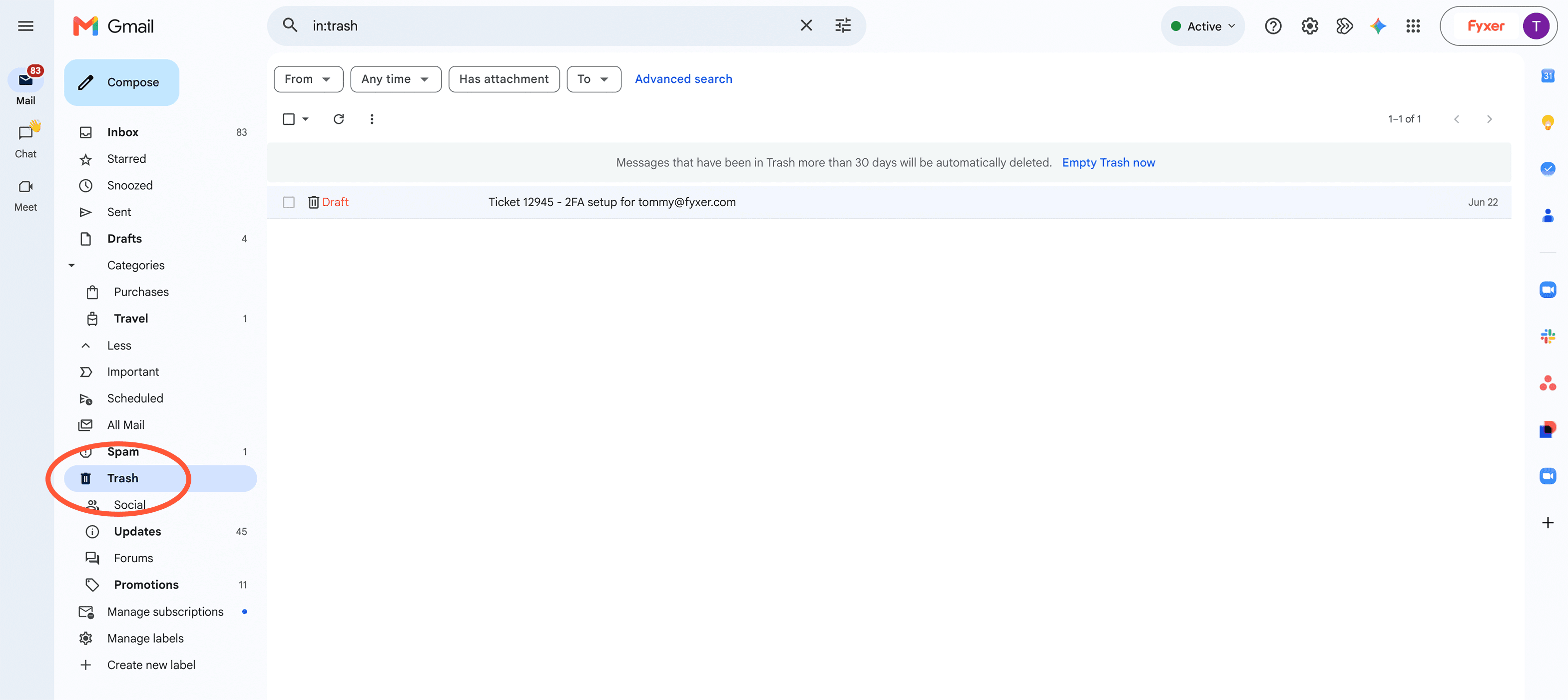
2. Check the Promotions and Other tabs
Gmail’s tabbed inbox separates messages into Primary, Promotions, Social, and Updates. Emails from businesses, newsletters, and automated platforms often land in Promotions even when they’re messages you actually wanted.
- Click each tab to see what’s been sorted there.
- To move a message to Primary, right-click it and select Move to tab → Primary. Gmail will ask if you want future messages from that sender to go there too.
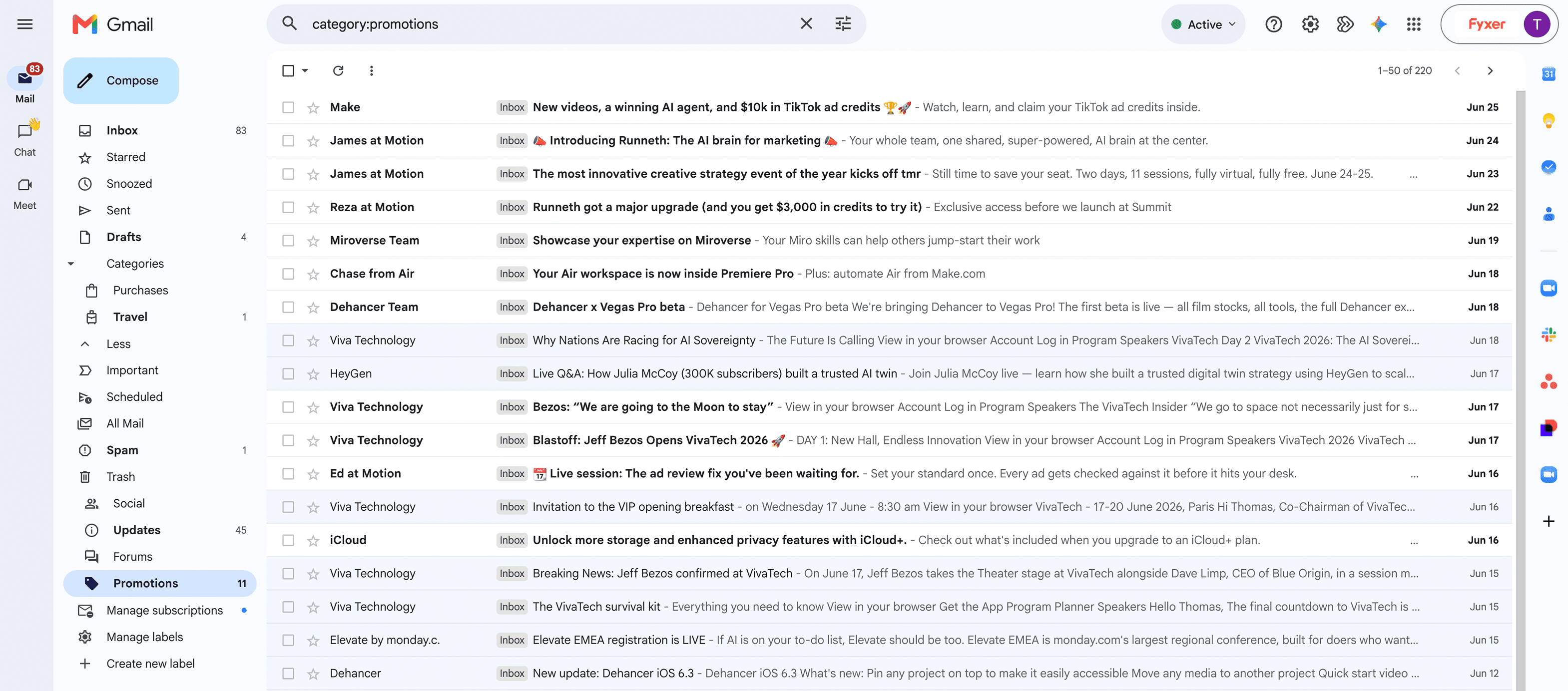
3. Review filters and blocked addresses
Custom filters can archive, delete, or skip your inbox entirely. If you set one up in the past, or if a third-party app created one on your behalf, it may still be running.
- Go to Settings → See all settings → Filters and Blocked Addresses.
- Check whether any filters apply to senders or subjects you’re currently expecting mail from.
- Review the Blocked Addresses list and remove anyone who shouldn’t be on it.
Some email unsubscribe tools create filters as a side effect. Even after you’ve deleted the app, the filter stays. Delete any you no longer recognize.
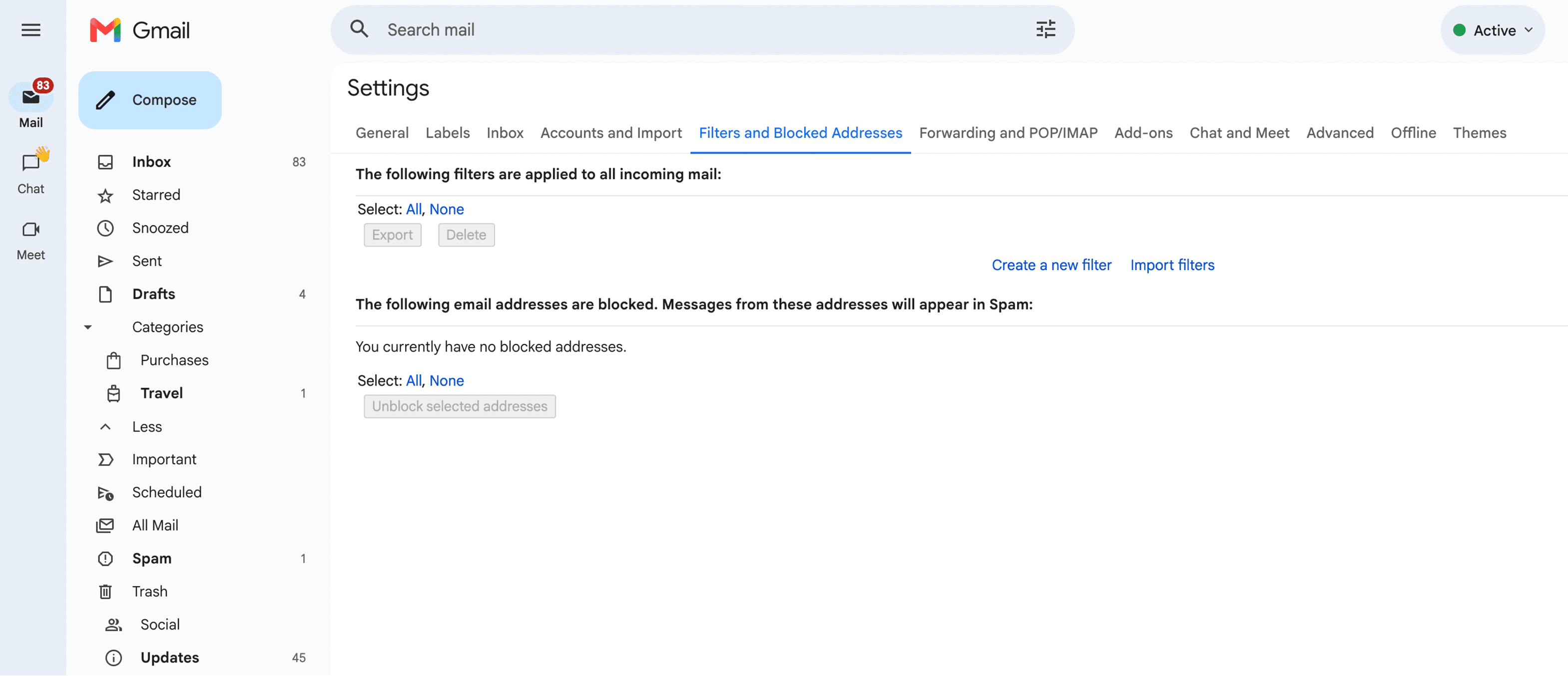
4. Check forwarding settings
If email forwarding is enabled, incoming messages may be going to a different address entirely, leaving your main inbox empty.
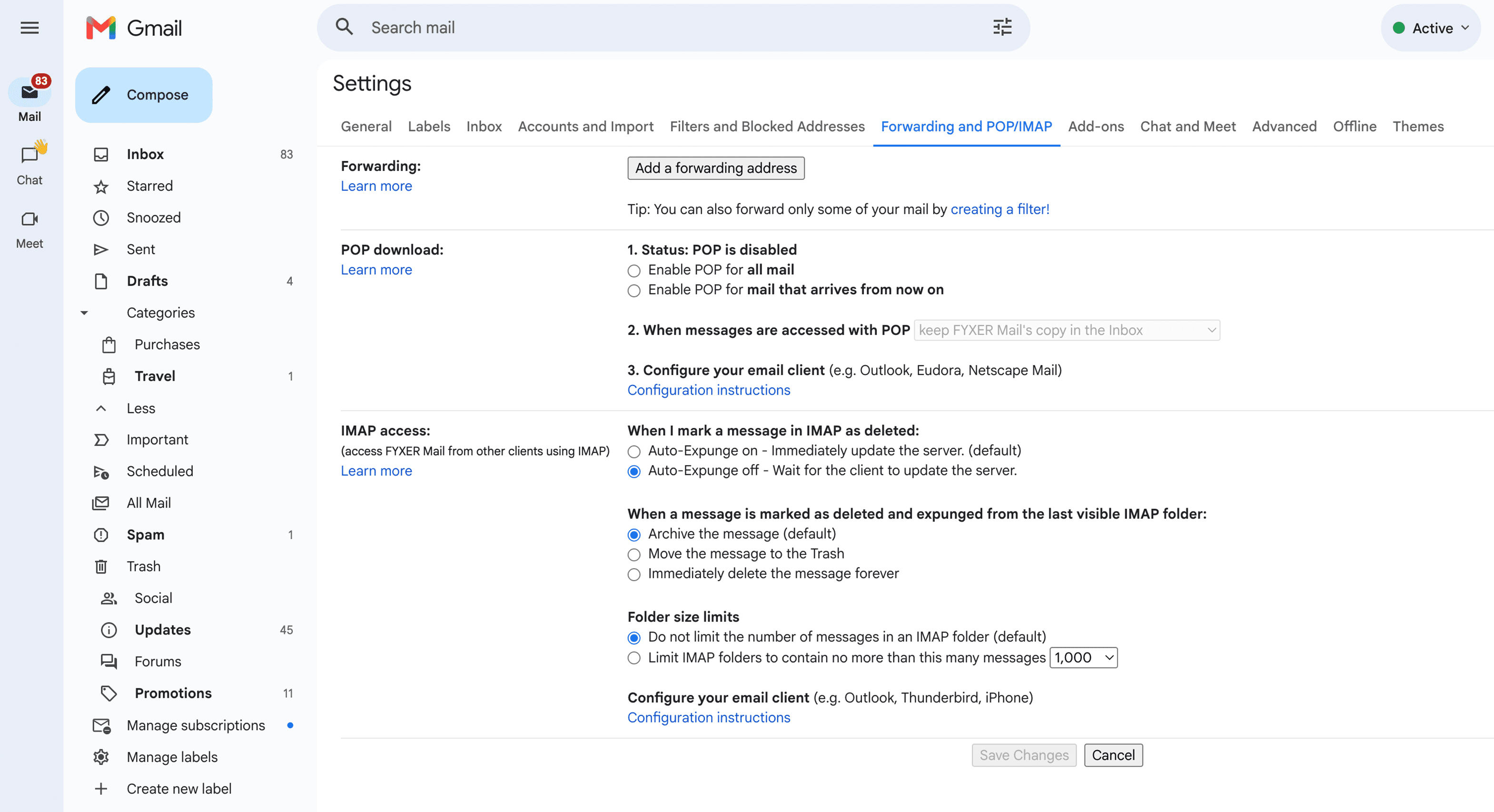
- Go to Settings → Forwarding and POP/IMAP.
- Check whether forwarding is turned on, and which address it’s pointing to.
- If it’s an address you don’t recognize or no longer use, disable it.
5. Free up storage space
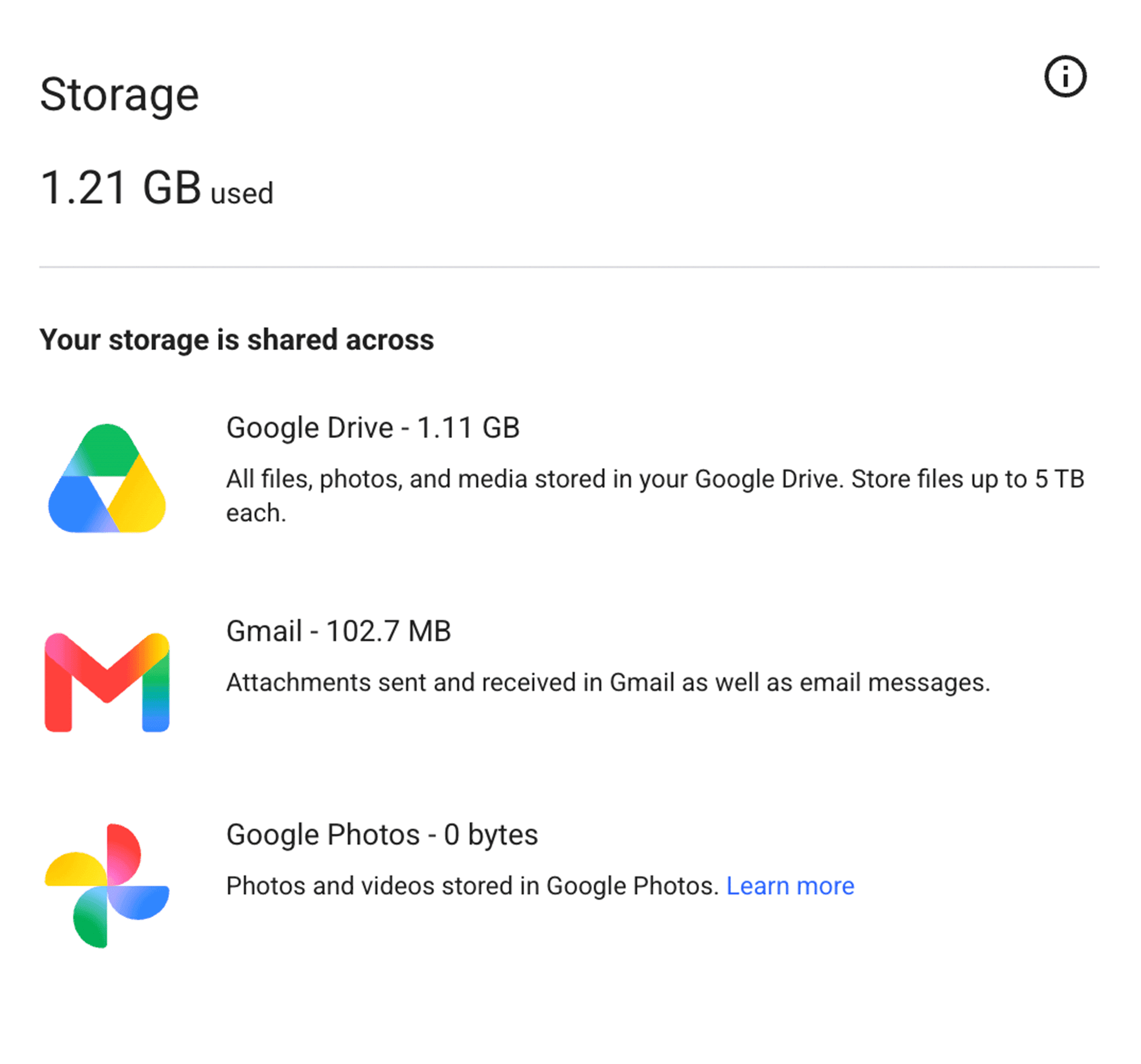
Gmail shares its 15 GB storage limit across Google Drive, Gmail, and Google Photos. Once you hit the cap, new emails stop arriving entirely. They bounce back to the sender.
- Visit Google One Storage to see how much you’ve used.
- In Gmail, search has:attachment larger:5M to find large emails. Delete or download the attachments.
- Empty your Trash and Spam folders. Both count toward your total.
Most people don’t hit 15 GB quickly on email alone. If you’re close, Google Drive or Photos is usually the culprit.
6. Fix account sync issues
If Gmail has stopped pulling new messages, the problem is often a browser cache issue or a temporary connection drop.
- Refresh your browser. If that doesn’t help, try Gmail in an incognito window.
- Clear your browser’s cache and cookies, then log back in.
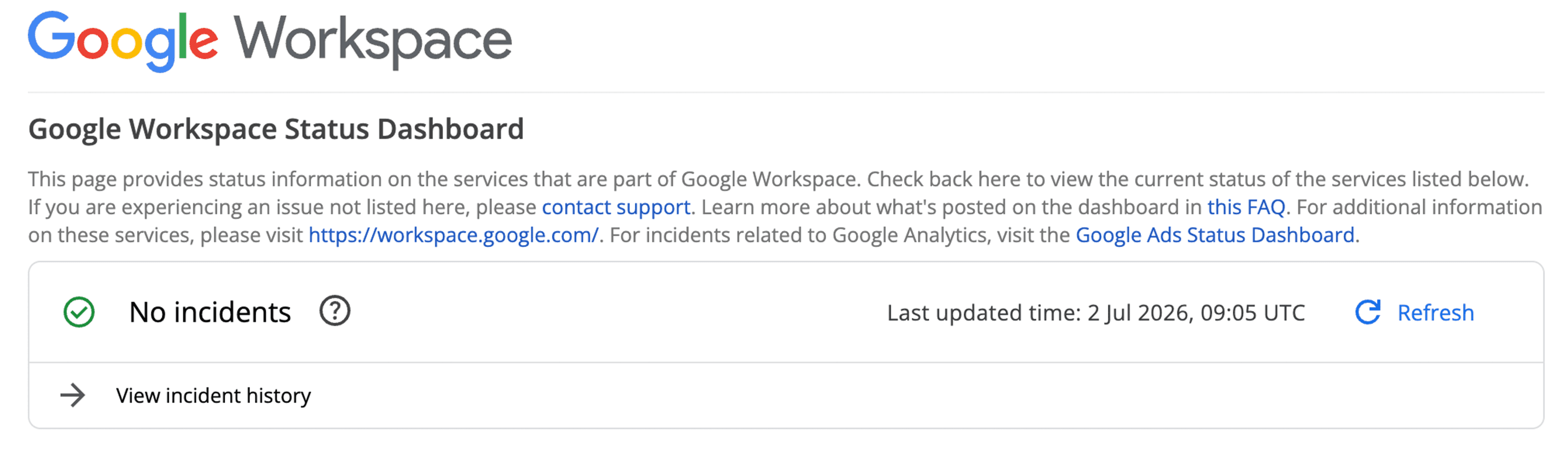
- If the issue persists, check the Google Workspace Status Dashboard to see if Gmail itself is experiencing an outage.
Gmail on mobile: extra steps
Sync issues on the Gmail app are common, especially after an update or after background app activity is restricted by your phone’s battery settings.
- Open the Gmail app and tap Menu → All Mail to check if messages are arriving but not in the main inbox view.
- Check the Spam and Promotions tabs.
- Go to your phone’s Settings → Accounts → Sync Gmail and confirm sync is enabled.
- Make sure notifications are turned on in both the Gmail app and your device settings.
- If none of the above works, uninstall and reinstall the app. Your emails won’t be deleted. They live on Google’s servers.
Related: Why am I not getting emails in Gmail?
Why am I not getting emails in Outlook?
Outlook has a few features that can quietly swallow incoming messages without making it obvious. The Focused Inbox and Junk Email folder are the most common culprits.
1. Check the Junk Email folder
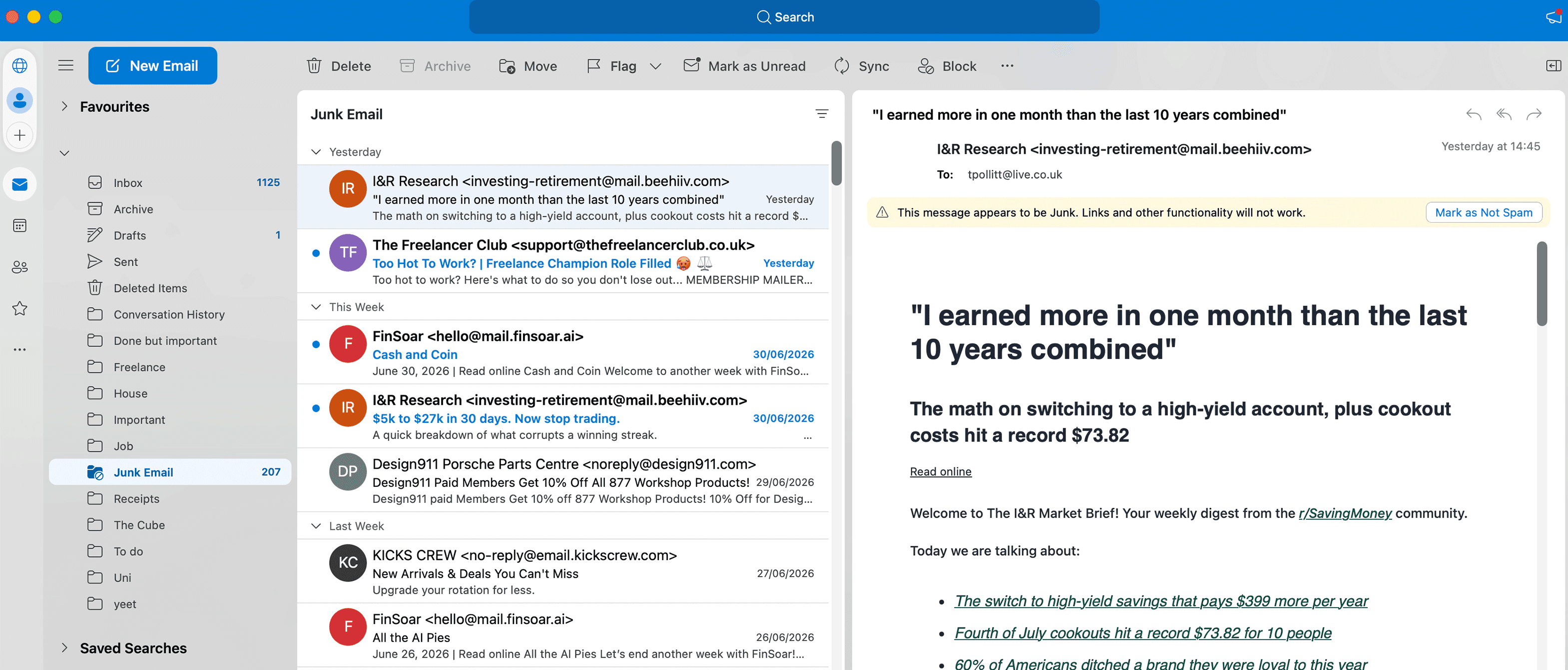
Outlook’s spam filter catches a lot, including things it shouldn’t. Start here.
- Go to Junk Email in your sidebar.
- Right-click any legitimate message and select Not Junk to move it back to your inbox.
- Add the sender to your safe senders list to prevent it from happening again.
- 2. Check the Focused Inbox
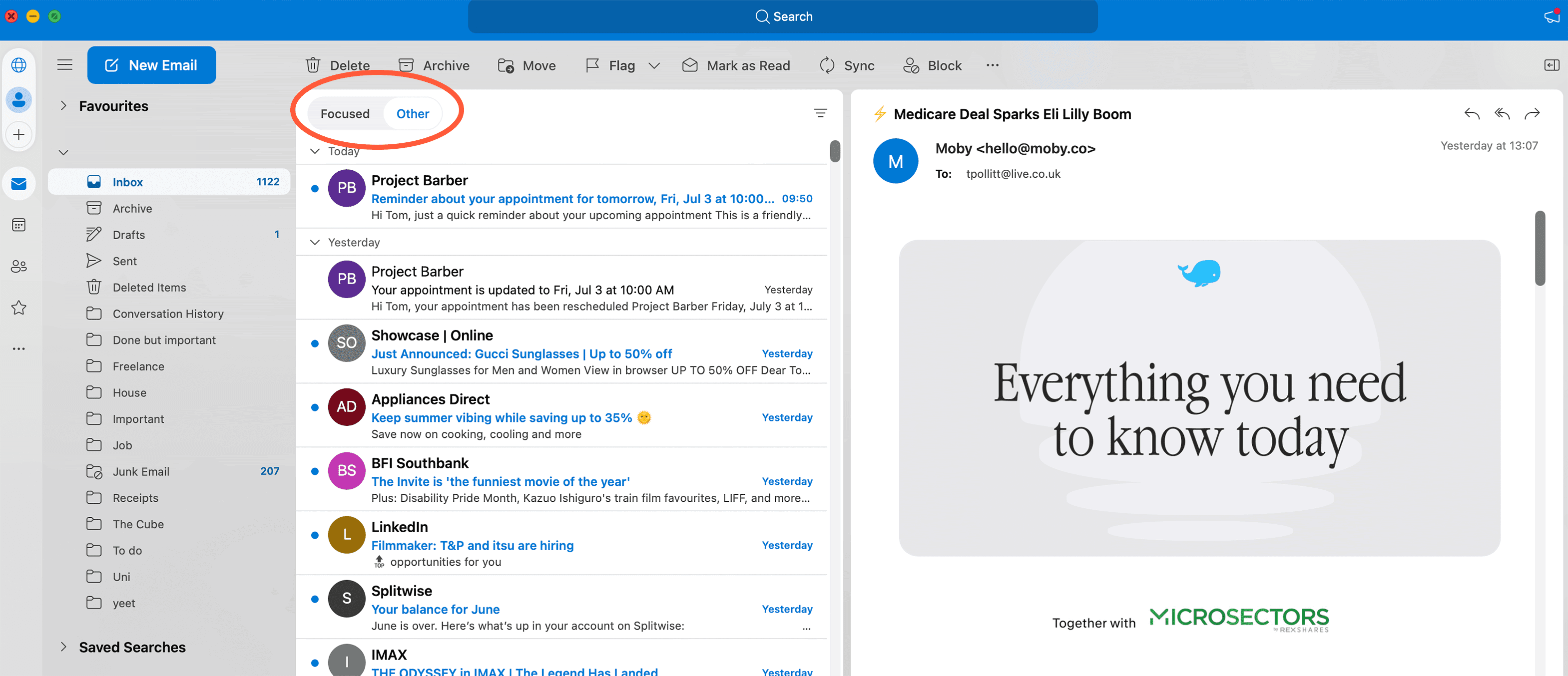
Outlook splits your inbox into Focused and Other tabs. Emails from contacts or senders Outlook doesn’t recognize often go to Other, where they’re easy to miss.
- Click the Other tab and see if your missing messages are there.
- To move a message to Focused, right-click it and select Move to Focused.
- If you’d rather have a single unified inbox, go to View → Show Focused Inbox and toggle it off.
3. Review rules and filters
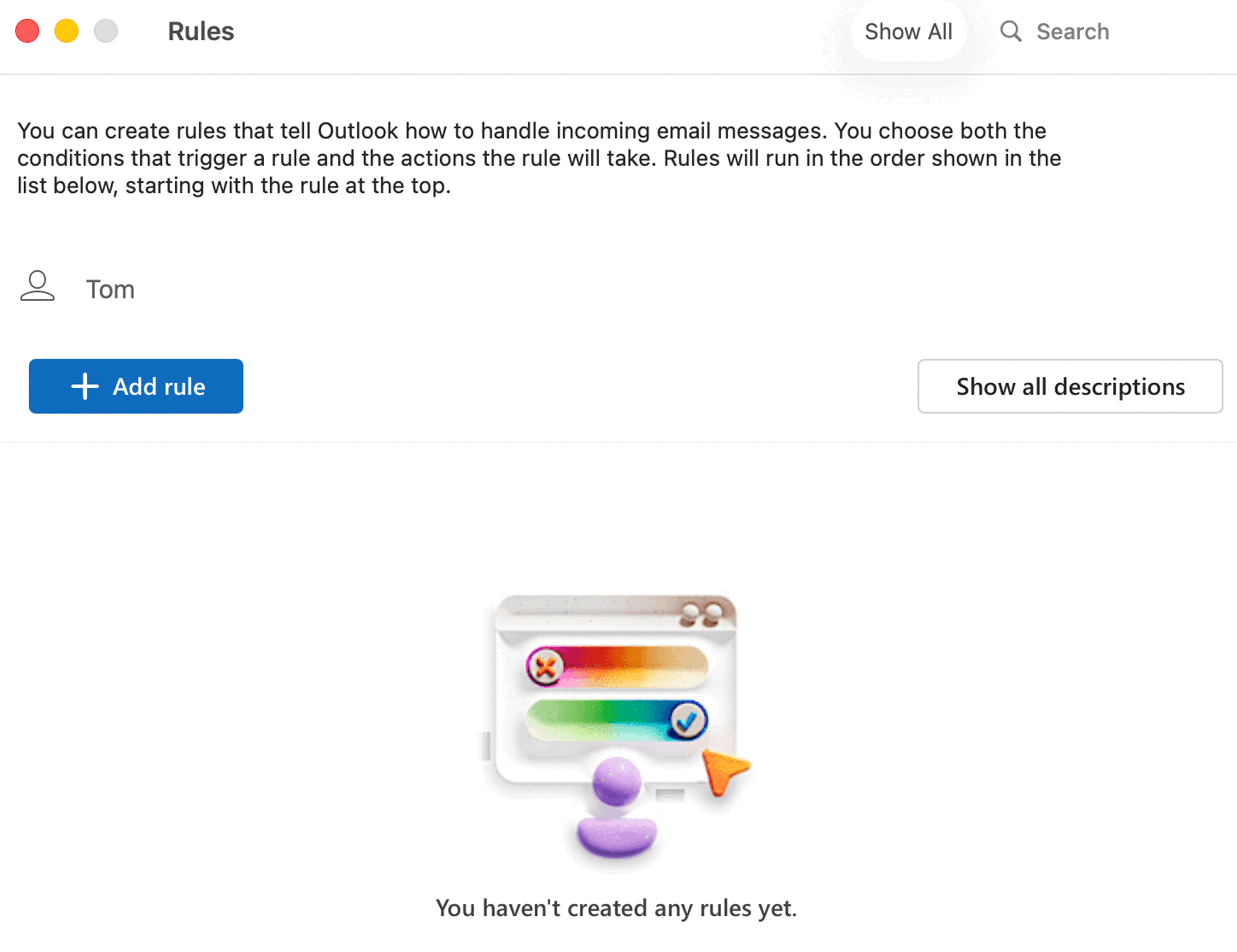
Outlook rules can move, delete, or categorize emails automatically. A rule you created for one situation may be interfering with something else.
- Go to Home → Rules → Manage Rules & Alerts.
- Review each rule and disable any that are doing something you didn’t intend.
Related: How to manage emails in Outlook
4. Free up mailbox storage
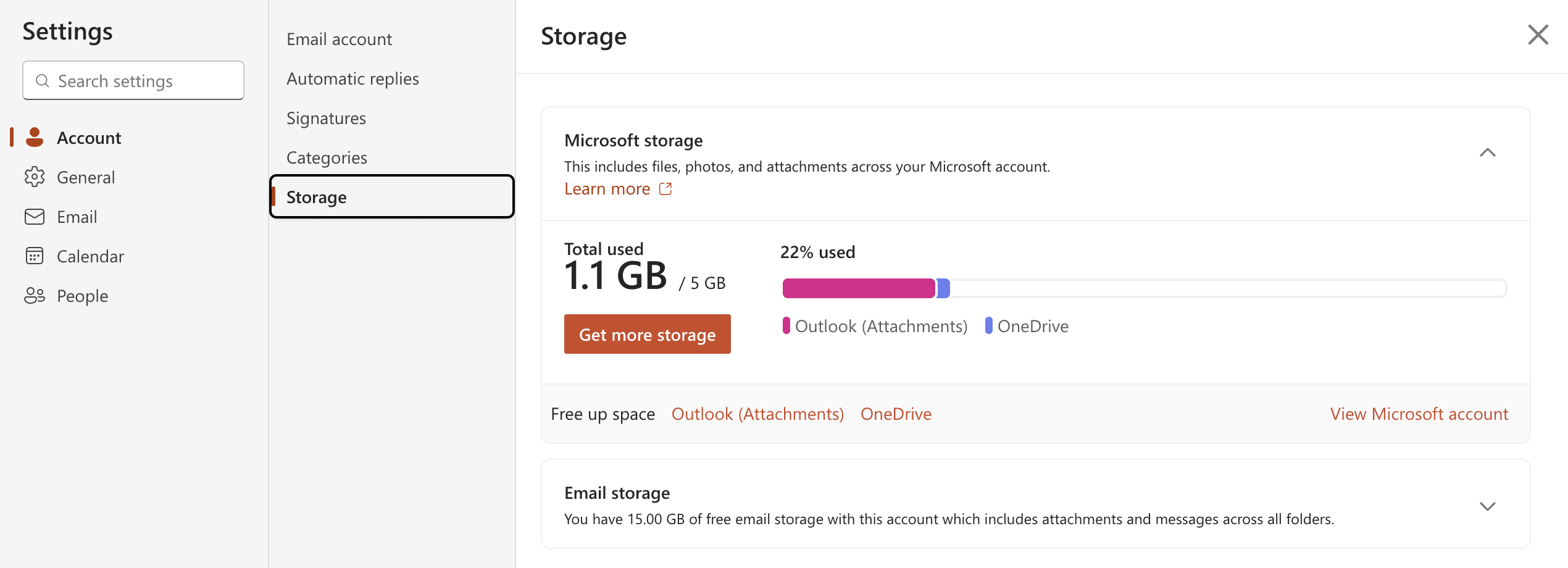
Outlook has storage limits too. On Outlook.com, the free tier gives you 15 GB. When you hit the limit, incoming messages bounce.
- Empty your Deleted Items and Junk Email folders.
- Go to File → Info → Mailbox Settings → Cleanup Tools to see your storage breakdown and archive old messages.
- On Outlook.com, a storage warning appears at the bottom of the page when you’re running low.
If you need to archive emails to free up space, Outlook lets you move older messages to a local archive without deleting them.
5. Check your server connection
Outlook has an offline mode that’s easy to switch on by accident. If it’s active, no new messages come through.
- Go to Send/Receive in the toolbar. If Work Offline is highlighted, click it to go back online.
- Restart Outlook to reconnect.
- If you’re on a corporate Exchange or IMAP account and this keeps happening, ask your IT team whether any server settings have changed recently.
6. Check IMAP/POP settings
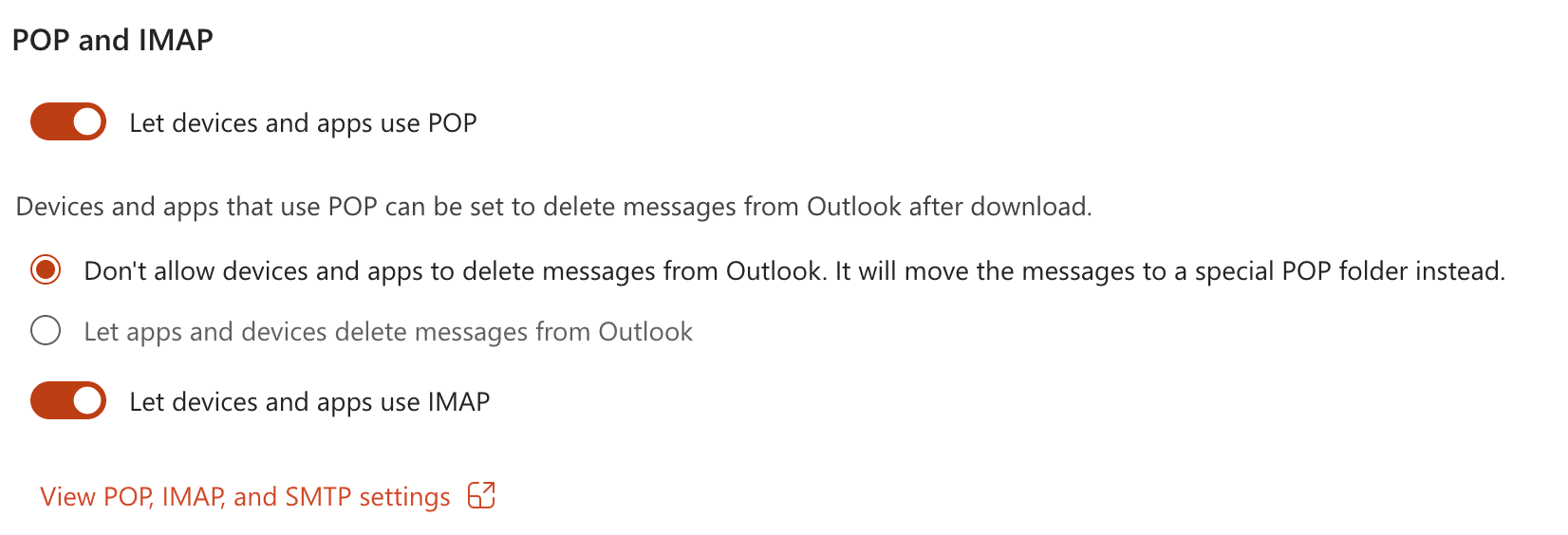
If you access Outlook through a third-party email client or app, incorrect IMAP or POP settings can silently stop messages from downloading. This is a common issue after changing passwords or enabling two-factor authentication.
- Confirm IMAP is enabled in Settings → Mail → Sync email (on Outlook.com) or through your IT settings.
- If you’ve recently enabled 2FA, your third-party email client may need an App Password instead of your regular password. Generate one in your Microsoft account security settings.
- Re-adding the account from scratch in your email client often fixes IMAP configuration issues automatically.
7. Update Outlook
Outdated software can interrupt syncing, especially after Microsoft pushes server-side changes.
- Go to File → Office Account → Update Options → Update Now.
- Restart Outlook after the update finishes.
Outlook on web and mobile: extra steps
For Outlook.com:
- Go to Settings → View all Outlook settings → Mail → Rules and delete any outdated filters.
- Check Junk Email → Blocked Senders and Domains and remove anyone who shouldn’t be there.
For Outlook on iOS or Android:
- Open Settings → Accounts and confirm sync is active and connected to the right account.
- Update or reinstall the app if messages still aren’t coming through.
What if the problem isn’t on your end?
Not every missing email is a settings issue. Sometimes the fault sits with the sender.
- If the sender typed your address incorrectly, the message never reaches you and you won’t get any notification that something went wrong. Ask them to double-check and resend.
- Your email provider may have flagged the sender’s domain. Check your blocked addresses list and remove it if needed.
- If the sender’s domain hasn’t set up SPF, DKIM, or DMARC records properly, their emails get rejected by spam filters before they reach you. Let them know, and in the meantime, whitelist their email address in your settings.
- If the sender’s email service is experiencing a disruption, messages may be delayed or failing to send at all. These usually resolve within a few hours.
How to prevent email delivery issues going forward
Most email problems are recurring. The same filter misfires again. The storage limit creeps back up. A few habits keep things working reliably:
- Gmail and Outlook auto-delete spam after 30 days, so check before that window closes.
- Deliveries start failing before you hit the absolute limit.
- Add important contacts to your address book so their messages always land in your inbox. Here’s how to whitelist email in Gmail.
- Rules you set up years ago may no longer make sense.
- Fewer incoming emails reduces the chance of something important getting buried.
- Sync issues often stem from outdated email clients that haven’t kept up with server changes.
Once you've got incoming mail working again, the next problem is the volume that arrives. Getting your inbox functional is one thing. Keeping up with it is another. If the underlying issue is an inbox that refills faster than you can clear it, Fyxer sorts incoming mail by priority, drafts replies in your voice, and cuts the time you spend on routine messages, so you're not back to square one by lunchtime.

