


If you've archived an email in Gmail and can't find it, go to All Mail in the left sidebar. Every archived message lives there, searchable and intact. For sales reps and client-facing professionals managing a high volume of conversations, knowing how to find archived emails in Gmail quickly is the difference between staying on top of a thread and losing it entirely.
In Gmail, archiving doesn’t delete your email. It simply removes it from your inbox view and stores it safely in the All Mail section. You can still search for it, reply, label it, or move it back to your inbox at any time.
Archiving is helpful when:
- You’ve read and replied to an email but don’t want it cluttering your inbox.
- You want to keep a record of communication without permanently deleting it.
- You’re managing hundreds of messages daily and need to stay focused on what’s actionable.
Unlike deleted emails, archived messages never expire and won’t automatically be removed from your account. They remain part of your mailbox and count toward your Google storage quota.
According to Google’s own Support documentation, “messages you archive aren’t deleted... they’re stored in All Mail and can be found through search or labels.”
How to find archived emails in Gmail (desktop)
If you use Gmail in a browser like Chrome, Safari, or Edge, you can locate archived emails in a few different ways. Here’s how:
Step 1: Open Gmail and sign in
Go to mail.google.com and sign in to your Gmail account.
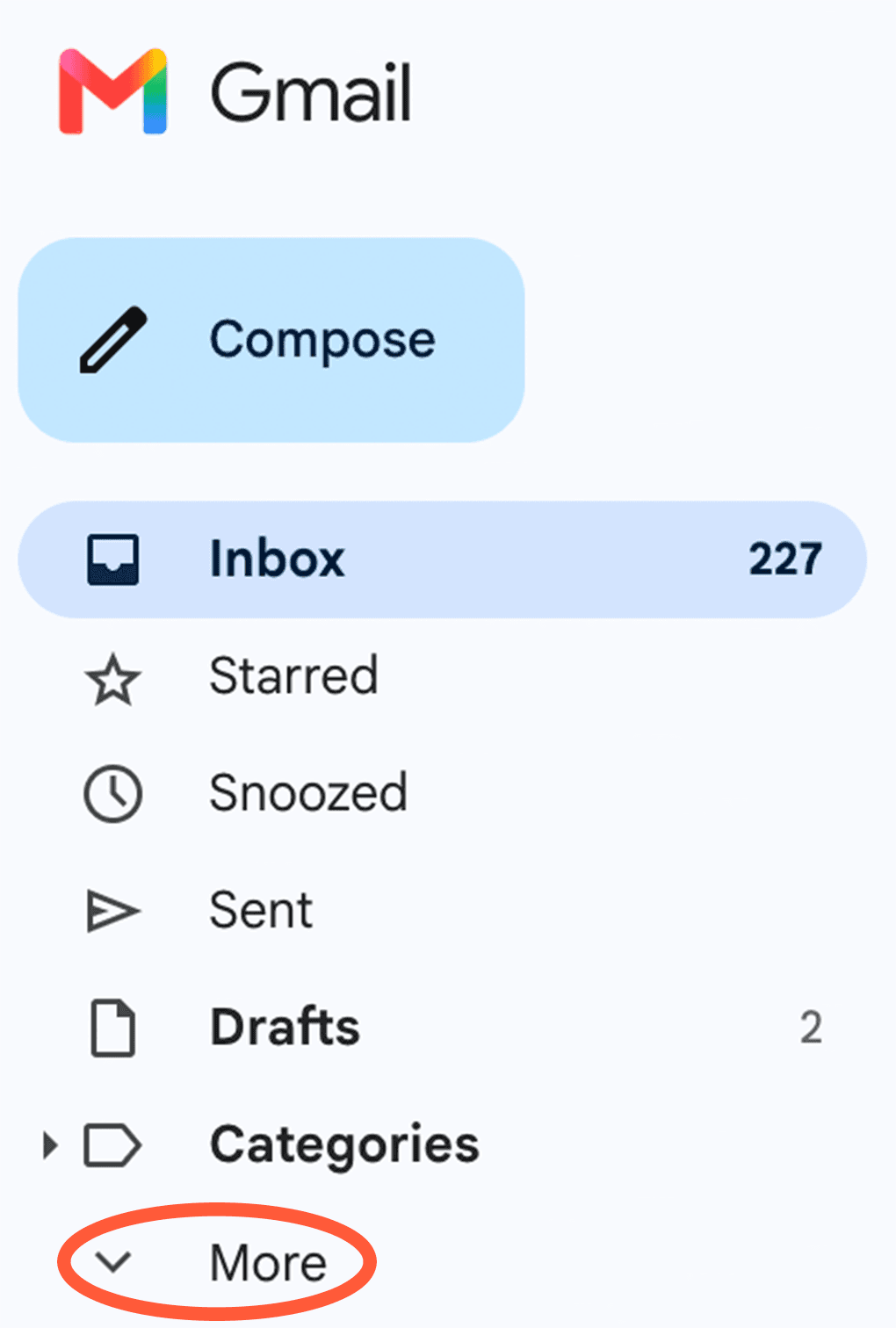
Step 2: Click on “More” in the sidebar
On the left-hand side of your inbox, scroll down and click More to expand the list of folders.
Step 3: Select “All Mail”
Click All Mail to see every message in your account, including archived emails.
Archived messages won’t have the Inbox label next to them.

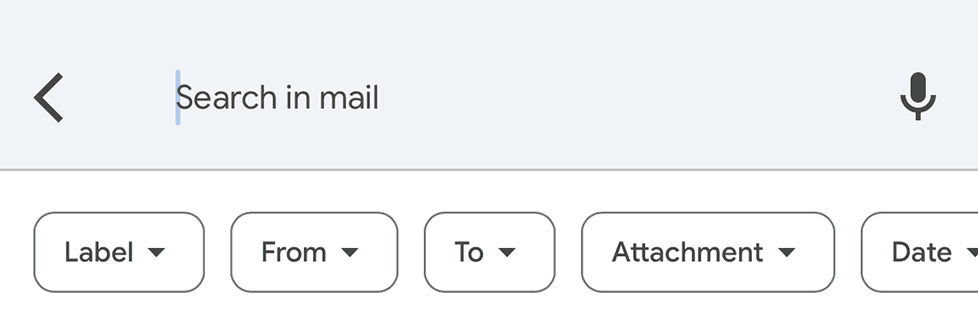
Step 4: Use the search bar
If you’re looking for a specific conversation, type keywords, names, or subjects into the search bar at the top. Gmail’s powerful search filters include archived mail automatically, so you don’t need to use special settings.
For example:
from:name@company.comshows all emails from a specific person.subject:invoicefinds any archived email with “invoice” in the subject.in:alldisp- lays every message, including archived ones.
Step 5: Restore the email (if needed)
If you want to move the email back into your inbox:
- Open the archived message.
- Click the Move to Inbox button at the top (the icon looks like a box with an arrow).
- The message will now appear in your inbox again.
- How to find archived emails in Gmail (mobile app)
The Gmail mobile app (on iOS or Android) makes it just as easy to locate archived messages.
Step 1: Open the Gmail app
Tap the Gmail icon on your device and make sure you’re signed in.
Step 2: Open the menu
Tap the menu icon (☰) in the top-left corner of the screen to open the sidebar.

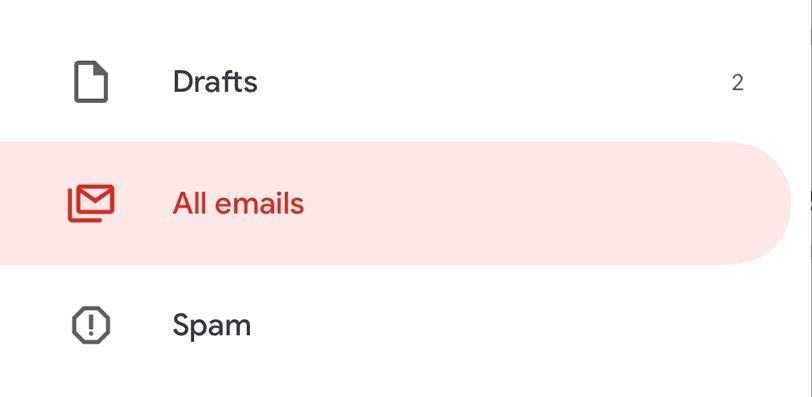
Step 3: Select “All Mail”
Scroll through the menu and tap All Mail.
Here, you’ll see all emails, including archived ones. They’ll look just like normal messages, but won’t have the Inbox label.
Step 4: Use the search bar
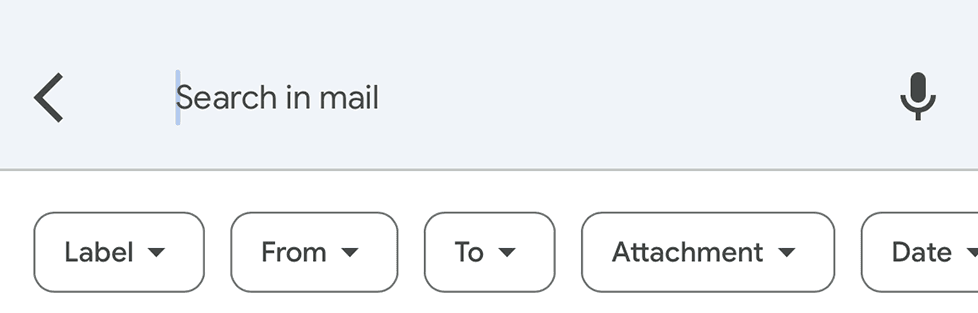
Tap the magnifying glass icon and enter a keyword, contact name, or subject line.
Gmail automatically searches through all mail, including archived emails, so you’ll find what you’re looking for without extra steps.
Step 5: Restore the message (optional)
To move an archived message back to your inbox:
- Open the email.
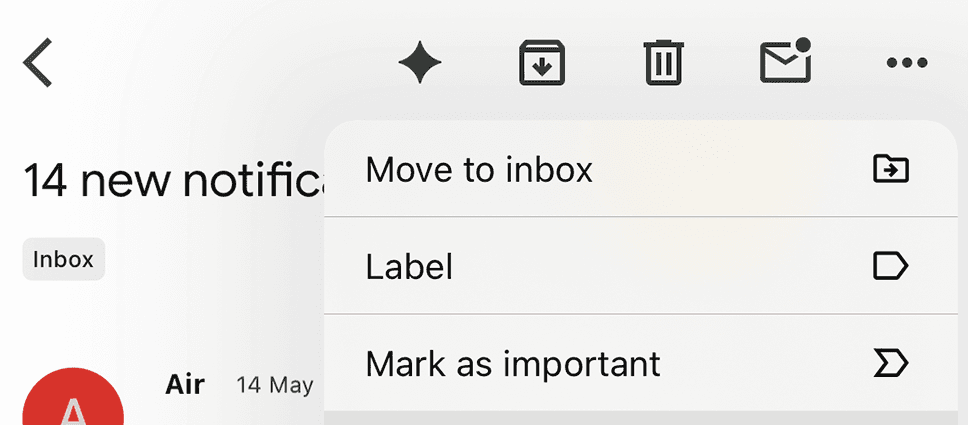
- Tap the three dots (⋮) in the upper-right corner.
- Choose Move to Inbox.
Once restored, the message will reappear in your inbox on all devices.
Searching for an archived email in Gmail
Gmail’s search is one of the most effective ways to locate archived emails, even years after you’ve filed them away. You don’t need to remember exactly where a message is stored; just recall something about it, such as who it’s from, a word in the subject line, or when it was sent.
Use search operators to refine your results
Gmail includes archived messages in every search by default, but using search operators helps you narrow things down and find what you need faster. Here are some useful examples:
in:all: Searches your entire mailbox, including archived emails.
Example:in:all project updatefrom:: Finds all messages from a specific person.
Example:from:alex@company.comto:: Shows all emails you’ve sent to a particular contact.
Example:to:client@domain.comhas:attachment: Filters emails that include attachments.
Example:has:attachment proposalbefore:andafter:: Limits results to a specific date range.
Example:after:2024/01/01 before:2024/12/31label:: Finds emails under a specific label, even if they’re archived.
Example:label:work
You can also combine these filters to get precise results. For example: in:all <from:alex@company.com> has:attachment
This search would display every email from Alex with an attachment, whether archived or in your inbox.
While Gmail already includes archived messages in searches, adding in:all ensures that nothing slips through the cracks, especially if you rely on filters or custom labels.
Restoring an archived email in Gmail
Sometimes, you’ll want to bring an archived message back into your main inbox. For example, if you need to follow up on a conversation or reply to a client thread.
On desktop:
- Open the archived email from All Mail or search results.
- Click Move to Inbox at the top.
- The message will now appear at the top of your inbox, marked as unread if you haven’t opened it.
On mobile:
- Open the email in the Gmail app.
- Tap the three dots (⋮) menu.
- Tap Move to Inbox.
You can also add or remove labels instead of restoring the email to your inbox. Labels are Gmail’s way of organizing messages without duplicating them, similar to folders, but more flexible.
If you want a cleaner workflow, consider creating custom labels like “To Follow Up” or “Client Updates.” You can archive the message but still keep it grouped under that label for easy access.
Keep your Gmail organized without losing track
Archiving helps you stay on top of communication without cluttering your workspace. Once you understand how to find archived emails in Gmail, you’ll spend less time scrolling and more time focusing on the work that matters.
But if you’re managing hundreds of messages every week, it can still feel overwhelming.
Office workers spend 4.3 hours every day managing email, according to the Fyxer Admin Burden Index, 2026, a survey of 5,000 UK and US office workers. For anyone handling a high-volume inbox, a clear system for what to archive, what to act on, and how to find past conversations fast isn't a nice-to-have.
Archiving keeps your inbox workable without deleting anything you might need later. Once you know where to look and how to search, finding any past conversation in Gmail takes seconds. If the volume of incoming messages is the bigger challenge, that's a separate problem worth solving.

