


Scheduling an email lets you send messages at the perfect time, even when you’re not at your desk. Whether you’re managing global clients, avoiding out-of-hours messages, or simply staying organized, Outlook makes it easy to schedule or delay sending emails.
You can schedule emails in Outlook on desktop, web, or mobile. Once you start using it, sending messages at the right time becomes second nature. It helps you stay organized, communicate clearly, and keep your day running smoothly.
How to schedule an email in Outlook (desktop and web)
The Outlook desktop app and website include one of the most flexible scheduling tools available, giving you complete control over when your email is delivered. It’s quick to set up and easy to adjust if plans change.
1. Select Schedule send
While composing a message, click the dropdown arrow next to Send, then choose Schedule send. This opens the scheduling menu where you can pick a time that suits you or your recipient best.
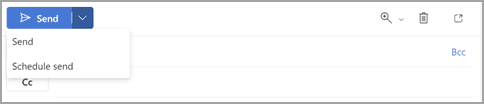
2. Choose a send time
Select one of Outlook’s default options or set a custom date and time. Once confirmed, click Send and Outlook queues the message for later delivery. You can still review or edit it before it goes out.
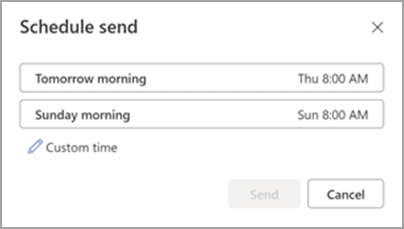
Step 3: Wait for your scheduled delivery
After selecting Send, your message stays in the Drafts or Outbox folder until the chosen time. Outlook will automatically send it when the delivery time arrives, as long as your computer is on and connected to the internet.
This scheduling tool works for both personal and business accounts, though a few settings may differ between free Outlook.com users and Microsoft 365 subscribers. If the Schedule send option isn’t visible, check your account type or browser version.
Tip: If you prefer to shut down your computer, use Outlook on the web instead. Messages scheduled there are sent directly from Microsoft’s servers, so they’ll go out even if your device is offline.
How to schedule an email in Outlook (mobile app)
The Outlook mobile app for iOS and Android lets you schedule emails with the same precision as the desktop version. It’s built for those who manage communication on the move and want their messages to reach inboxes at the perfect moment.
To schedule an email in the Outlook mobile app:
1. Tap New Message
Open the Outlook app and start a new email. Add your recipients, subject line, and message as you normally would.
2:. Open more options
Before sending, tap the three dots (…) or the arrow next to the Send button. This opens additional settings, including the scheduling feature.
3. Select Send Later
Choose Send Later from the menu. This allows you to pick when Outlook should deliver your message, rather than sending it right away.
4. Pick your date and time
Select the exact date and time you want your email to go out. Outlook shows both default time options and the ability to set your own.
5. Confirm your choice
Tap Send Later again to save and schedule the message. You’ll see it move to the Scheduled folder, ready to send automatically at your chosen time.
Your email will now appear in your Scheduled folder and send automatically at the time you’ve chosen. The feature syncs across devices, meaning you can edit or cancel the email later from your desktop or web app if needed.
Note: This feature is available for Microsoft 365, Exchange, and Outlook.com accounts, but it may not appear if you’re using Gmail or other IMAP connections within the Outlook app.
How to edit or cancel a scheduled email in Outlook
Plans change, and so can your emails. Outlook makes it easy to review, edit, or cancel a message you’ve already scheduled.
On desktop
- Go to your Outbox.
- Double-click the scheduled email to open it.
- Edit the message, change the date, or delete it entirely.
- To reschedule, repeat the steps under Delay Delivery with a new time.
If you delete the email before the scheduled time, Outlook won’t send it.
On web
- Go to your Drafts or Scheduled folder.
- Find the message you scheduled.
- Select Cancel send to stop the delivery.
- Edit or reschedule by reopening the message and choosing Send later again.
On mobile
- Tap the menu icon and open the Scheduled folder.
- Tap the message to open it.
- You can then choose to edit, reschedule, or delete it.
Pro tip: If your message includes time-sensitive content, double-check your time zone settings before sending. Outlook automatically adjusts scheduled send times to match your account’s time zone, but when traveling or using multiple devices, it’s worth verifying.
Troubleshooting when scheduling emails in Outlook doesn’t work
Sometimes, scheduling doesn’t go as planned. Here’s how to fix the most common problems.
- “Send later” option missing: If you don’t see the Send later button in Outlook, check your account type. This feature is available for Microsoft 365 and Outlook.com users but not for all IMAP or POP accounts.
- Scheduled email didn’t send: On desktop, Outlook must be open and connected for the email to leave your Outbox. If your device was off, reopen Outlook, ensure you’re online, and it will send automatically.
- Delivery time is off: Your scheduled time depends on your system clock and time zone settings. If you recently changed location or daylight saving took effect, confirm your account settings in File > Options > Calendar > Time zones.
- Attachments won’t send: Large files can delay or block scheduled emails. Use OneDrive links instead of attachments to avoid file size limits.
Benefits of scheduling emails in Outlook
Scheduling emails is more than convenient. It’s a productivity tool that helps you manage your workload, control communication flow, and maintain consistency without staying tied to your inbox.
Here’s how it helps:
- Send messages at optimal times: Research from Moosend found that emails sent between 8 and 9am often achieve the highest response rates. But if you don’t sit at your desk until 9am, you might miss your window to get your response. Scheduling helps your message land when it’s most likely to be seen.
- Maintain professional boundaries: If you’re writing emails late at night, scheduling them for business hours shows respect for your recipients’ time and keeps your communication professional.
- Coordinate across time zones: For global teams, this feature is essential. You can schedule updates for colleagues in different regions to arrive in their morning inbox, without setting a 3am alarm.
- Manage your workload: Batch-writing and scheduling emails in advance helps you focus on deeper work during the day. It’s an easy way to reduce context switching and stay productive.
- Keep follow-ups consistent: If you often forget to follow up on proposals or meeting notes, you can schedule them as soon as the first message is sent, so you know it’s taken care of.
Knowing how to schedule an email in Outlook is one of the easiest ways to manage your inbox with intention. Whether you’re using desktop, web, or mobile, Outlook’s scheduling tools help you send messages on your own terms without missing deadlines or disrupting your workflow.
If you want to take inbox organization to the next level, Fyxer can help.
Fyxer drafts your replies, organizes your messages, and keeps communication on schedule so you can focus on the work that actually matters.
Start your free trial today at fyxer.com
Scheduling emails in Outlook FAQs
Can I schedule recurring emails in Outlook?
Not directly. Outlook doesn’t include a built-in recurring send feature. However, you can create a template and use reminders or rules to send it manually. Some users also integrate third-party tools like Power Automate to trigger recurring sends.
Does my computer need to be on for scheduled emails to send?
Only for the desktop app. If your computer is turned off, the email stays in your Outbox until you reopen Outlook. The web and mobile versions send directly through Microsoft’s servers, so they don’t rely on your device being online.
How do I view or edit scheduled emails in Outlook?
Check the Outbox (desktop) or Scheduled folder (web and mobile). From there, you can open, modify, or delete your message anytime before it’s sent.
Can I schedule emails with attachments?
Yes. Scheduling supports attachments of any type, but keep size limits in mind, typically 20MB for most accounts. For larger files, upload to OneDrive and insert the link instead.
Is “Send Later” available on all Outlook accounts?
The feature works for most Microsoft 365, Exchange, and Outlook.com accounts. If you’re using a third-party account such as Gmail or Yahoo in Outlook, scheduling might not appear.

